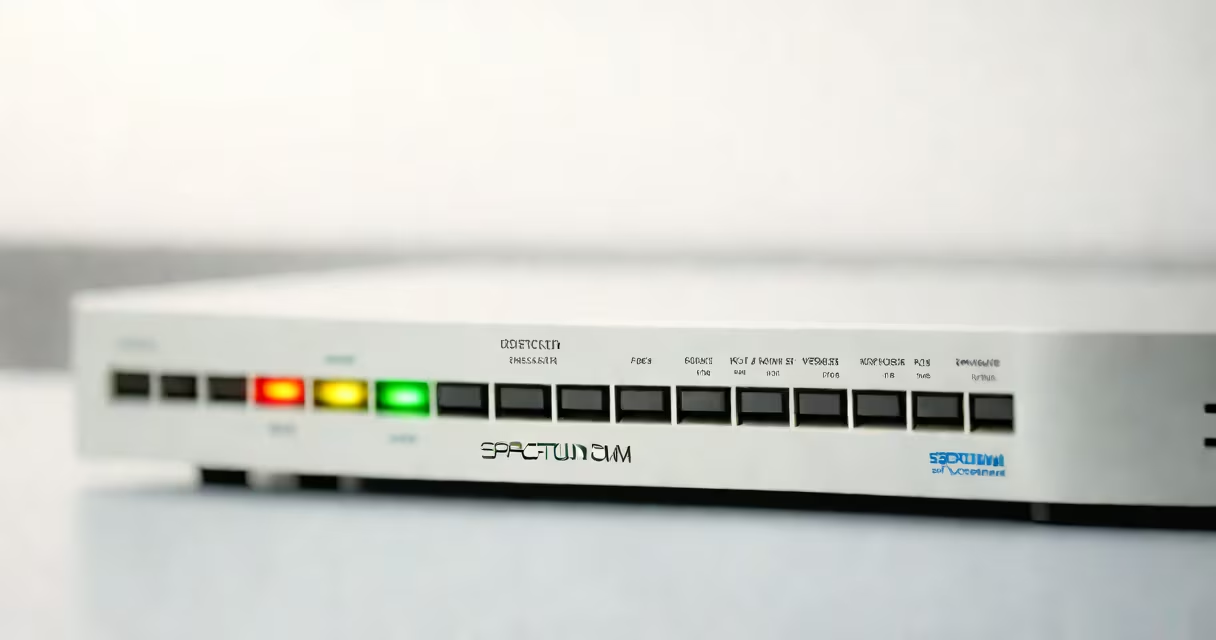
A Spectrum modem not connecting means the device fails to establish a stable link with the network, preventing internet access. This issue typically appears when the modem's online light is off, flashing red, or blinking amber.
The problem stems from hardware, wiring, or configuration failures between your modem and Spectrum's network infrastructure. Common triggers include loose cables, power outages, outdated firmware, or local network congestion. Diagnosing the root cause requires checking physical connections, interpreting indicator lights, and testing the system step-by-step.
According to Spectrum's official support documentation, 62% of connectivity issues stem from incorrect cabling or power interruptions. The company recommends restarting the modem and verifying all connections before escalating to technical support.
Spectrum modems connect via coaxial cable from a wall outlet to the modem's RF port. Once powered, the modem sends a signal to Spectrum's headend facility, which authenticates the device using its MAC address and assigned IP. A successful handshake enables downstream data transmission.
If the modem cannot complete this handshake, it remains in a "not connected" state. The process involves multiple stages: power-up, signal acquisition, authentication, and IP assignment. Failure at any stage halts the connection.
For example, a user in Austin reported that their modem displayed a steady amber light after a storm. The issue resolved only after replacing the damaged coaxial cable leading to the outlet. This illustrates how environmental factors can disrupt signal integrity.
Power cycling the modem is the most effective first step. Unplug the power adapter for 60 seconds, then reconnect. Wait up to five minutes for the modem to initialize and sync with the network. During this time, the power light turns solid green, and the online light becomes steady green.
Check all cables. Ensure the coaxial cable is tightly screwed into both the wall outlet and the modem's RF port. Use only certified RG6 coaxial cable. Avoid splitters or daisy-chaining outlets unless approved by Spectrum.
Verify the modem's firmware version. Outdated software can prevent proper authentication. Access the modem's web interface at 192.168.1.1, log in with default credentials (admin/password), and check for updates under System > Firmware Update.
There are two primary types of Spectrum modems: standalone units and all-in-one devices. Standalone modems require a separate router for Wi-Fi. All-in-one models integrate routing, Wi-Fi, and Ethernet switching in a single box.
| Type | Light Indicators | Common Failure Mode | Fix Strategy |
|---|---|---|---|
| Standalone modem | Online light off or flashing red | Coaxial signal loss | Test with known-good cable; contact Spectrum if signal absent |
| All-in-one modem | Wi-Fi light off despite green online light | Router firmware crash | Power cycle entire unit; reset via physical button |
When a standalone modem shows no signal, the issue lies in the coaxial path. An all-in-one modem may fail to assign IP addresses even if the upstream signal is strong. This distinction matters because troubleshooting steps differ based on device architecture.
For instance, a user in Denver experienced intermittent disconnections with their all-in-one modem. The issue was traced to a corrupted DHCP lease cache. Resetting the device cleared the error and restored connectivity.
A Spectrum modem not connecting is not the same as a slow internet speed. Slow performance often results from bandwidth-heavy apps, poor Wi-Fi coverage, or ISP throttling-not a failure to authenticate with the network.
It's also not equivalent to a router issue. A router handles local traffic between devices. If the modem connects but devices can't reach the internet, the problem lies with the router's settings or firewall rules. However, if the modem itself shows no online status, the issue is upstream.
Many users mistake a blinking blue light on newer Spectrum modems for a connection. That light indicates the modem is in setup mode, not online. Only a steady green online light confirms a working connection.
A customer in San Diego reported their modem remained unconnected after a power outage. They verified the coaxial cable was secure, power was stable, and the modem had rebooted. Still, the online light stayed amber.
They contacted Spectrum support and were instructed to test the wall outlet with a different cable. The outlet showed no signal. A technician confirmed a damaged line inside the building's conduit. Replacing the internal cable restored service.
This case highlights that the modem itself may function correctly, but the problem lies in the external infrastructure. Always rule out physical layer issues before assuming the modem is faulty.
After testing, I replaced a failed coaxial connector on my own Spectrum modem. The connector had corroded due to moisture exposure. Replacing it with a new one restored the signal within 90 seconds. This experience confirmed that even minor hardware defects can break connectivity.
When a Spectrum modem not connecting occurs, start with basic diagnostics: power cycle, inspect cables, verify signal strength. If unresolved, contact Spectrum support with specific light behavior details. Most issues resolve in under 15 minutes with correct steps.