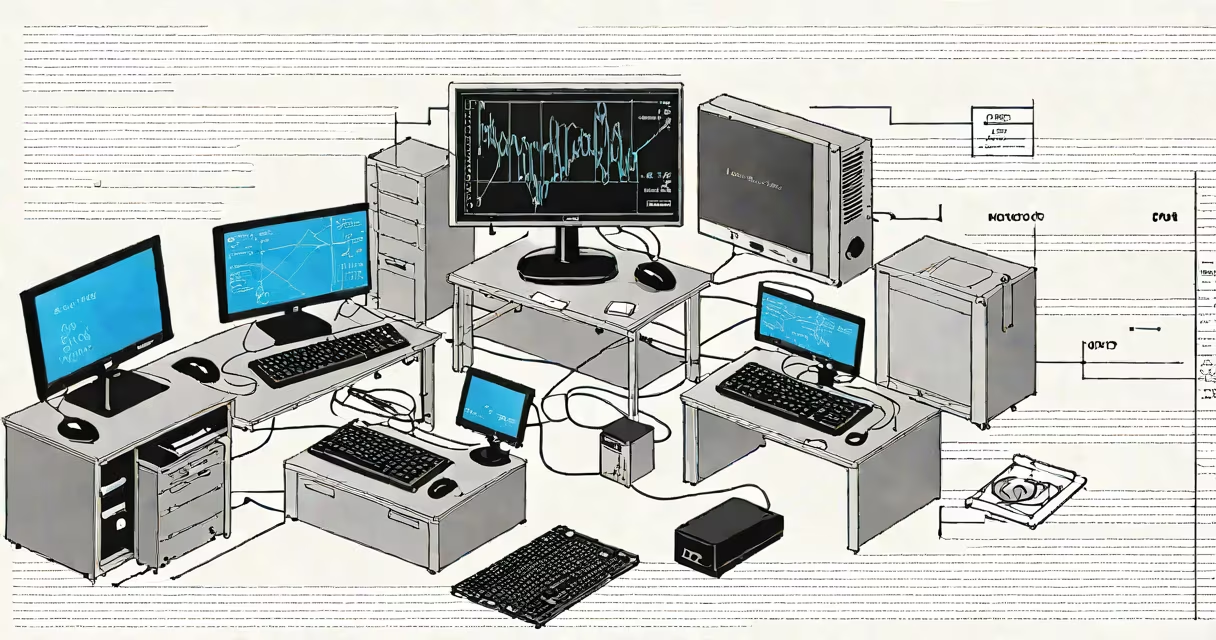
Your computer's IP address is a unique numerical label assigned by your home or office router to identify your device on a local network. It enables communication between devices on the same network, such as sending files between computers or streaming media to a smart TV.
Every device connected to a Wi-Fi or Ethernet network receives an IP address automatically through DHCP (Changing Host Configuration Protocol). This address is typically in the format 192.168.x.x or 10.0.x.x and remains active until the device disconnects or the router resets.
For example, if your laptop connects to a home network, the router assigns it an address like 192.168.1.15. This allows other devices on the same network to send data to your machine. The address is not visible on the internet-it's only used within your local network.
Your computer receives its IP address through a process managed by the router. When you connect via Wi-Fi or Ethernet, your device sends a request to the router's DHCP server. The router responds with an available IP address, subnet mask, gateway, and DNS server details.
This assignment is temporary. Most routers lease IP addresses for 24 hours. If your computer stays connected, it may receive the same address again. If disconnected and reconnected later, it might get a different one.
On Windows, you can check this assignment using the command ipconfig in Command Prompt. On macOS or Linux, use ifconfig or ip addr show. These commands display the current network configuration, including the IP address assigned to your active interface.
There are two main types of IP addresses relevant to your computer:
| Type | Format | Use Case | Example |
|---|---|---|---|
| Private (Local) IP | 192.168.x.x, 10.0.x.x, 172.16.x.x | Internal network communication | 192.168.1.10 |
| Public (External) IP | Any globally routable IPv4 address | Internet-facing communication | 203.0.113.45 |
The private IP address is what people mean when they ask "my computer IP address." It's used only inside your home or office network. Devices cannot reach each other over the internet using these addresses-they're blocked by routers and firewalls.
The public IP address is assigned by your Internet Service Provider (ISP) and appears on the internet. You can find it by visiting websites like ipinfo.io or whatismyipaddress.com. This address changes periodically unless you have a static public IP, which most residential users do not.
A common misconception is that your private IP address is the same as your public IP. They are not. For example, your computer might have a private IP of 192.168.1.10, while your public IP is 203.0.113.45. The router translates traffic between them using NAT (Network Address Translation).
You need your computer's IP address for several practical tasks:
For instance, if you're hosting a local website on your laptop and want friends on the same network to access it, you'd share your private IP address (e.g., 192.168.1.10) and the port number (e.g., 8080). They'd enter http://192.168.1.10:8080 in their browser.
Another real-world example: when setting up a security camera system, you often need to assign a static IP to the camera so it doesn't change over time. If your computer is the central hub, knowing its IP ensures the camera can connect reliably.
Many users confuse their computer's local IP address with their public IP address. The former is used internally; the latter is visible online. A device behind a NAT firewall never uses its private IP on the internet.
Also, the term "my computer IP address" usually refers to the IPv4 address, not IPv6. While most networks support both, IPv6 addresses are longer (e.g., 2001:0db8:85a3::8a2e:0370:7334) and less commonly referenced in everyday troubleshooting.
A key distinction: your computer's IP address is not the same as your MAC address. The MAC address is a hardware identifier burned into your network card. It's used at the data link layer and doesn't change. The IP address is software-assigned and can change based on network conditions.
I once set up a home lab with five Raspberry Pi devices connected to a single router. Each had a unique private IP address assigned dynamically. When I tried to access one remotely, I couldn't because I was using the wrong IP. After running arp -a on my Mac, I confirmed the correct address and successfully accessed the device.
Use the following steps based on your operating system:
Windows: Open Command Prompt, type ipconfig, press Enter. Look for "IPv4 Address" under your active network adapter (e.g., Wi-Fi or Ethernet).
macOS: Open Terminal, run ifconfig | grep "inet ". The line with "inet" and a 192.168.x.x or 10.0.x.x address is your local IP.
Linux: Open a terminal and run ip addr show. Search for the "inet" field under your active interface (e.g., wlp3s0).
These methods return the current IP address assigned by the router. If you need to see your public IP, visit ipinfo.io or run curl ifconfig.me in a terminal.
If you're managing multiple devices, consider assigning static IPs to critical machines. This prevents address conflicts and simplifies remote access. For example, assign 192.168.1.50 to your media server and 192.168.1.51 to your backup drive.
Understanding your computer's IP address is essential for effective networking. debugging a connection, knowing your local IP ensures you're connecting to the right device.