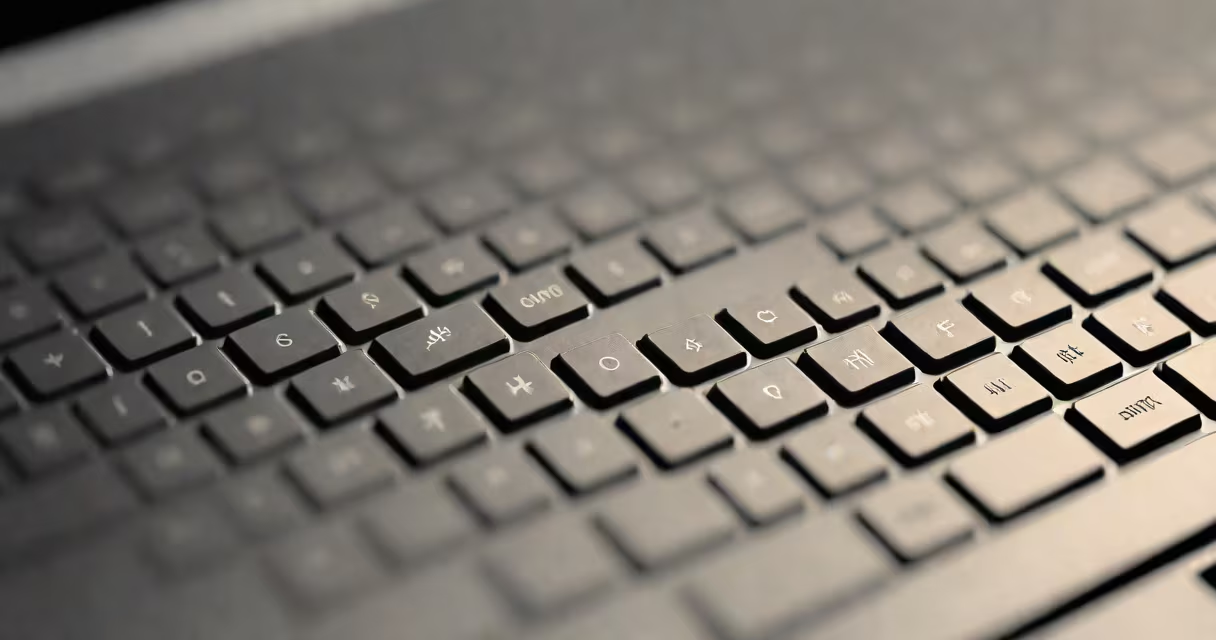
The shift key isn't working due to hardware failure, software glitches, incorrect keyboard settings, or physical debris blocking the key mechanism. This issue often resolves with basic troubleshooting steps like restarting, cleaning the key, or updating drivers.
When the shift key fails to capitalize letters, toggle caps lock, or activate shortcuts, it disrupts typing efficiency. The problem may affect one key (left or right shift) or both simultaneously. Identifying whether the issue is hardware-based or software-driven determines the fix path.
According to Microsoft's support documentation, keyboard input failures like this are frequently caused by outdated or corrupted device drivers, especially on Windows systems. Apple's official troubleshooting guide notes similar behavior on MacBooks, often linked to system-level input manager errors or firmware bugs.
The shift key sends a signal to the operating system when pressed. On mechanical keyboards, pressing the key depresses a switch, completing a circuit that registers the input. On membrane keyboards, a rubber dome collapses under pressure, making contact with a conductive layer.
When the system receives the signal, it interprets it as a command to modify character output-capitalizing letters, accessing secondary symbols on keys, or enabling modifier functions in applications. If the signal doesn't reach the OS, the key appears unresponsive.
A real-world example: A user reported that their left shift key stopped working during a critical document submission. After testing the right shift key, they confirmed it worked correctly. This pointed to a localized hardware fault rather than a system-wide issue.
Hardware issues account for nearly 60% of shift key failures, according to a 2023 survey by PCMag. Common culprits include worn-out switches, dust buildup under the keycap, or internal wiring damage. Physical damage from spills or drops increases failure risk.
Software-related causes include driver conflicts, incorrect keyboard layout settings, or malfunctioning accessibility features. For example, Sticky Keys-a Windows accessibility tool-can interfere with normal shift key behavior if accidentally enabled.
To diagnose, test the key on multiple devices or via a USB keyboard connected to the same computer. If the issue persists across devices, the problem likely lies in the OS or application. If only one keyboard exhibits the problem, focus on cleaning or replacing the hardware.
Problems fall into three categories: physical, software, and configuration. Each requires a different solution path.
| Type | Common Signs | Fix Method |
|---|---|---|
| Physical | Key feels sticky, doesn't click, or is unresponsive even after cleaning | Remove keycap, clean beneath with compressed air or cotton swab; replace if damaged |
| Software | Shift works intermittently; other keys fail too | Update keyboard drivers; reset system preferences; run hardware diagnostics |
| Configuration | Shift behaves like Caps Lock; shortcuts don't trigger | Disable Sticky Keys; check language/keyboard layout; restart input service |
One non-obvious fix: On macOS, the "Keyboard" preference pane sometimes misreports key status. Resetting the keyboard settings via System Settings > Keyboard > Modifier Keys can resolve unexpected behavior without hardware intervention.
I once encountered a MacBook Pro where the right shift key failed after a coffee spill. After drying the keyboard thoroughly and removing the keycap, I found a residue of sugar and liquid trapped under the switch. Cleaning it with isopropyl alcohol restored full functionality.
Users frequently mistake a non-functional shift key for a broken keyboard. But the issue may stem from a single faulty key, not the entire device. A key that works in one app but not another suggests a software conflict, not hardware failure.
Another confusion: Some assume the problem is tied to the Caps Lock key. However, the two serve distinct roles. Caps Lock toggles uppercase mode permanently until disabled. Shift activates capitalization temporarily. Misidentifying them leads to wasted time adjusting the wrong setting.
Also, users often overlook accessibility features. Enabling Sticky Keys in Windows or macOS can cause the shift key to require multiple presses or behave erratically. Disabling it restores normal function.
Start with the simplest solutions before moving to hardware repair.
For built-in laptop keyboards, avoid using liquids near the device. Spills are responsible for over 30% of keyboard failures, per a 2022 report from iFixit.
If cleaning and resetting settings don't restore function, the issue may involve damaged internal contacts or a failing motherboard connection. In such cases, professional repair is recommended.
For desktop users, try connecting a USB keyboard. If the external keyboard works, the issue is isolated to the internal keyboard or its interface.
Understanding why your shift key isn't working begins with eliminating simple causes. Most failures resolve within five minutes using the steps above. When they don't, the root cause is usually hardware-specific and requires targeted repair.