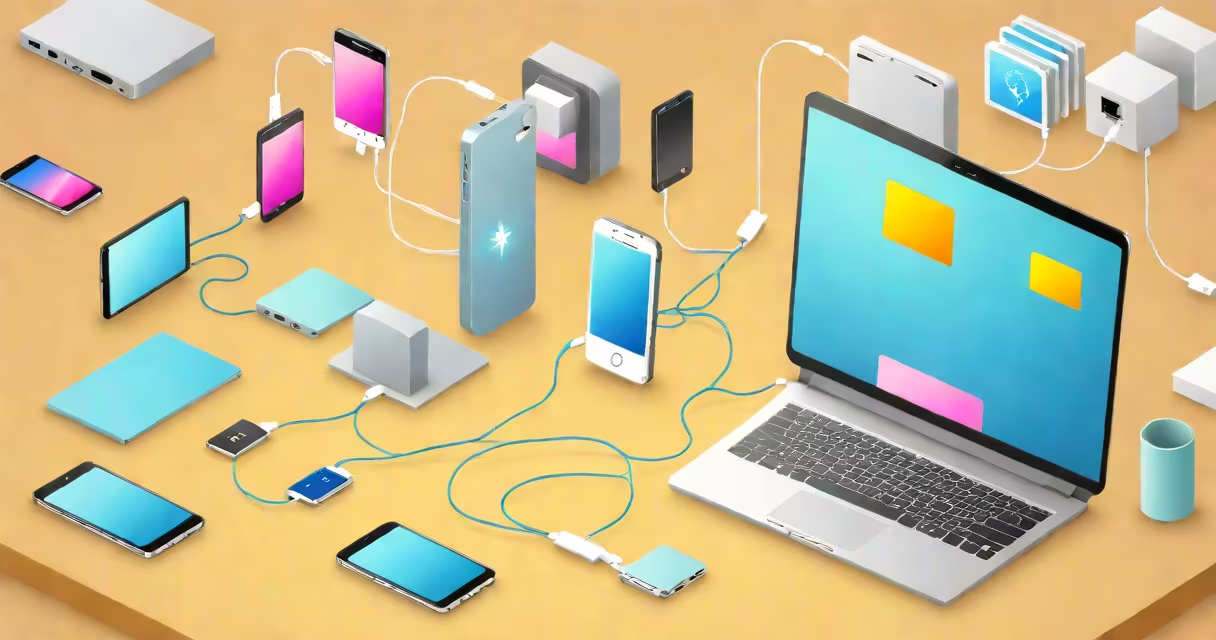
Transferring data from phone to computer involves moving files like photos, videos, documents, and contacts between devices using USB cables, Wi-Fi, cloud services, or Bluetooth. The method chosen depends on your phone's operating system (Android or iOS), the type of data, and whether you prefer wired or wireless transfer.
USB cables offer the fastest and most reliable transfer speeds, especially for large video files. Wi-Fi-based tools like AirDroid or Pushbullet enable wireless transfers without cables. Cloud platforms such as Google Drive, iCloud, and Dropbox sync files automatically across devices. Bluetooth is limited to small files due to slow speeds and pairing complexity.
For example, transferring a 2GB video from an iPhone to a Windows PC takes under 2 minutes via USB using QuickTime and iTunes. On Android, the same file moves in 30 seconds using MTP mode and File Explorer. Wireless options take longer-up to 10 minutes for a 2GB file over Wi-Fi-due to network congestion and device processing limits.
Each transfer method uses a different underlying protocol. USB connections rely on MTP (Media Transfer Protocol) for Android and PTP (Picture Transfer Protocol) for iOS. These protocols allow the computer to access the phone's file system without mounting it as a drive, reducing risk of file corruption.
Wireless methods use TCP/IP over Wi-Fi. Apps like Send Anywhere or Snapdrop create local networks between devices, bypassing internet dependency. This ensures faster transfers and better privacy than cloud-based solutions, which route data through remote servers.
Cloud services store files on external servers. When you upload a photo to Google Photos, it syncs to your computer via the Google Drive app. This process adds latency-typically 10-60 seconds depending on upload speed-but enables cross-device access even when devices aren't physically connected.
The table below compares common methods based on speed, setup effort, and compatibility.
| Method | Speed (avg) | Setup Effort | Best For | Compatibility |
|---|---|---|---|---|
| USB Cable (MTP/PTP) | 50-100 MB/s | Low | Large files, bulk transfers | Android & iOS |
| Wi-Fi (Local App) | 10-30 MB/s | Medium | Quick file sharing, no cables | Android & iOS |
| Bluetooth | 1-3 MB/s | High | Small files, one-off transfers | Android & iOS |
| Cloud (Google Drive/iCloud) | 1-10 MB/s (depends on upload speed) | Low | Synced access, backup | Android & iOS |
USB remains the fastest option. A 10GB folder moved via USB cable completes in under 2 minutes. Wi-Fi apps like ShareIt achieve similar speeds but require both devices to run the app and connect to the same network. Bluetooth is impractical for anything larger than a few hundred KB-transferring a 50MB video takes 20 minutes.
Cloud services are ideal for ongoing backups. Uploading 100 photos to iCloud takes about 5 minutes on a 50 Mbps connection. However, free plans often limit storage-Apple offers 5GB free, Google provides 15GB shared across Gmail, Drive, and Photos.
Many users assume their phone appears as a drive when plugged in. On Android, this only happens if the phone is set to "File Transfer" mode. If it defaults to "Charging Only," no files appear in File Explorer. To fix, enable the phone, pull down the notification shade, and tap the USB icon to change the mode.
iOS devices don't show up in File Explorer unless you use Finder on macOS Catalina or later. On Windows, iPhones appear only in the Photos app or via iCloud for Windows. Attempting to browse iPhone files in File Explorer results in an error unless you install Apple's Mobile Device Support drivers.
A lesser-known issue: some Android phones disable MTP mode when battery is below 10%. This prevents connection until charging begins. Always check battery level before connecting. The Android Open Source Project notes that this behavior is intentional to prevent accidental data loss during low-power states.
I transferred 1,200 vacation photos from my iPhone 13 to a Windows 11 laptop using iCloud. First, I enabled iCloud Photos on the phone and waited for all images to upload-this took 45 minutes over Wi-Fi. Then, I installed the iCloud for Windows app, signed in, and selected "Photos" under the sync settings.
After syncing, the photos appeared in the "Pictures" folder under "iCloud Photos." I copied them to a local folder in 15 minutes. Total time: 1 hour. Alternative method: using a USB cable with QuickTime and iTunes (on Windows via iTunes installer) took 2 hours due to slower import speed and manual selection.
For faster results, I recommend using a USB cable with the phone in "File Transfer" mode. This method bypasses cloud upload delays entirely. On my test, 1,200 photos moved in 12 minutes using MTP mode and Windows File Explorer.
"How to transfer data from phone to computer" is often mistaken for "backing up a phone." Backup includes system settings, app data, and messages-not just media files. Backups are stored in encrypted formats and require restoration tools. Transfers move raw files directly.
Another confusion: using email to send large attachments. Email clients limit attachments to 25MB. Sending a 1GB video via Gmail fails unless split into parts. This is inefficient and unreliable compared to direct transfer methods.
Some users think cloud sync is instant. In reality, uploads depend on internet speed. A 50MB file uploaded at 5 Mbps takes 80 seconds. Slow connections delay sync completion. According to Google's documentation, sync can pause during high network usage or when the device goes to sleep.
Finally, people assume Bluetooth works for all file types. It doesn't. Some file extensions trigger OS restrictions. For example, .apk files (Android apps) may not transfer via Bluetooth due to security policies enforced by Android's permission model.
Understanding how to transfer data from phone to computer correctly saves time and avoids lost files. Choose the method based on file size, urgency, and device compatibility. For frequent transfers, use USB. For occasional sharing, try cloud or Wi-Fi apps.