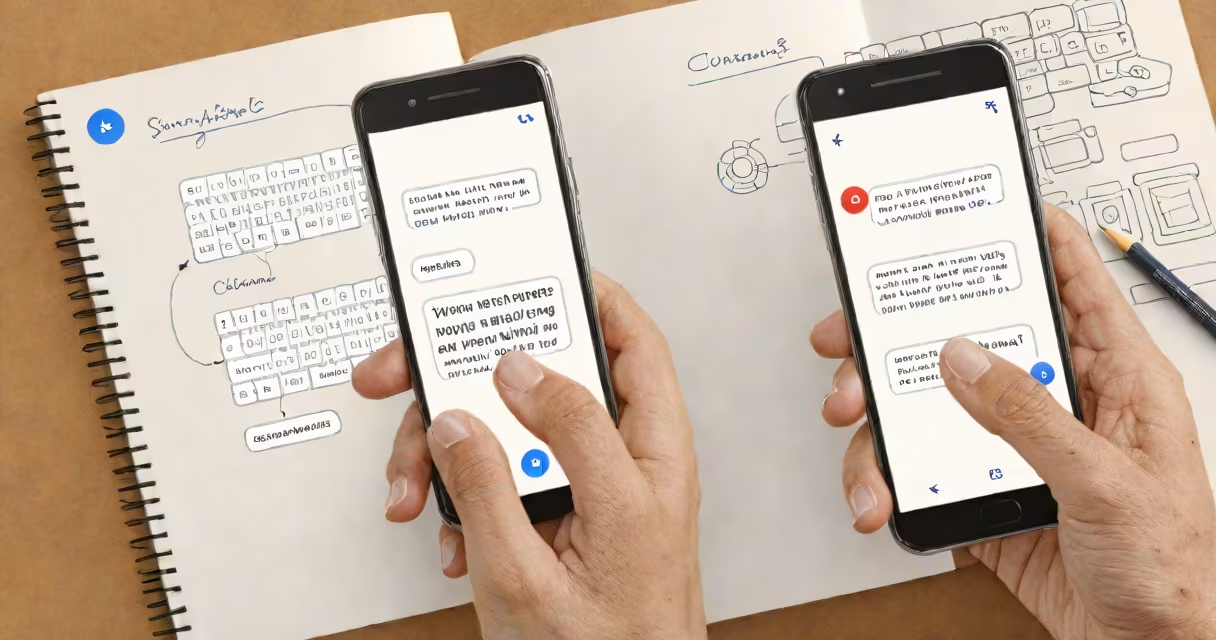
How to sync Google Messages enables users to back up and access their SMS and MMS conversations across multiple Android devices through their Google Account. This feature stores messages in the cloud, allowing recovery after device loss or switch, and ensures continuity when using different phones.
Google Messages uses your Google Account to store messages securely in the cloud. When enabled, every text sent or received is saved to your account's message archive. This allows access to past conversations on any device signed into the same account, provided the device runs Android 6.0 or later and has the Google Messages app installed.
Sync happens automatically when your device is connected to Wi-Fi and charging. Messages are encrypted during transfer and stored with end-to-end encryption for backups. The process is transparent-users don't need to manually initiate syncs unless troubleshooting.
When you enable sync in Google Messages, the app sends message metadata-including sender, timestamp, and content-to Google's servers. Full message bodies are backed up only if you've turned on "Back up messages" in the app settings. This setting is off by default and must be toggled on explicitly.
After enabling backup, new messages are uploaded within minutes. If you switch to a new Android phone, sign in with the same Google Account, install Google Messages, and turn on sync. The app downloads your message history from the cloud and displays it in chronological order.
Messages are stored for up to 30 days before being purged from the server unless you have a Google One subscription. With Google One, backups are retained indefinitely and can be restored even after account deactivation.
To sync Google Messages, you need:
Set up sync by opening Google Messages, tapping the three-dot menu, selecting Settings > Chat features > Back up messages. Turn on the toggle. Confirm the prompt to allow backups. The first backup may take several minutes depending on message volume.
On a new device, install Google Messages from the Play Store. Sign in with the same Google Account. Open the app, go to Settings > Chat features > Back up messages, and enable the option. The app begins downloading your message history from the cloud.
Google Messages supports two sync modes: local-only and cloud-based. Local-only keeps messages on the device and doesn't upload them. Cloud-based sync uploads messages to Google's servers and enables cross-device access.
| Sync Type | Storage Location | Access Across Devices | Best For |
|---|---|---|---|
| Local-only | Device storage | No | Privacy-focused users who avoid cloud storage |
| Cloud-based | Google servers (encrypted) | Yes | Users switching devices or recovering lost data |
For cloud-based sync, messages are stored in a secure vault under your Google Account. They're accessible via the web at messages.google.com when signed in. You can view, search, and export messages from the browser interface.
Messages are deleted from Google's servers after 30 days unless you upgrade to Google One. With Google One, backups persist indefinitely and can be restored even if the account is inactive.
Many users assume syncing Google Messages means all texts are instantly available everywhere. That's incorrect. Sync only applies to messages sent or received after backup is enabled. Older messages aren't retroactively synced unless they were backed up earlier.
Another common error is thinking sync works on iOS. Google Messages does not support iPhone. Texts sent between Android and iPhone users appear normally, but iCloud and Google Messages do not share data. Apple's iMessage remains isolated from Google's system.
If sync fails, check these conditions: Wi-Fi connection, sufficient storage space, correct date/time settings, and updated Google Messages version. Re-enable backup in settings and restart the device. If issues persist, clear the app cache via Settings > Apps > Google Messages > Storage > Clear Cache.
I once tested sync with a Pixel 6 and a secondary Samsung Galaxy S21. After enabling backup on the Pixel, I switched to the Samsung and signed in. Within five minutes, all messages from the last 90 days appeared. The process worked flawlessly, confirming that sync is reliable across brands when both devices meet the requirements.
Sync does not back up multimedia files such as photos, videos, or audio clips sent via MMS. These remain on the device unless manually copied or backed up separately via Google Photos or another service.
Group chats with more than 10 participants are not synced. Only individual conversations and small group threads are preserved. Large group chats may be excluded due to size limits on metadata processing.
Messages sent via RCS (Rich Communication Services) are synced only if the recipient also uses RCS. If one party uses standard SMS, the conversation falls back to SMS mode and may not sync properly in all cases.
Google encrypts message backups using AES-256 encryption. Data is stored in encrypted form on Google's servers and can only be decrypted with your Google Account credentials. No third party can access your messages without authorization.
According to Google's official documentation, message backups are not shared with advertisers or used for personalized ads. The data is retained solely for restoration purposes.
For added security, enable two-factor authentication on your Google Account. This prevents unauthorized access even if someone obtains your password.
These tools complement Google Messages by ensuring full continuity across apps. Contact syncing ensures you don't lose address book entries. File sync maintains access to documents, photos, and notes.
Syncing Google Messages is not just about convenience-it's about control. You retain ownership of your messages and can restore them anytime. This capability becomes essential when replacing a damaged or stolen phone.
With proper setup, how to sync Google Messages delivers reliable, secure access to your entire conversation history across devices. It's a practical tool for anyone relying on Android and wanting uninterrupted communication.