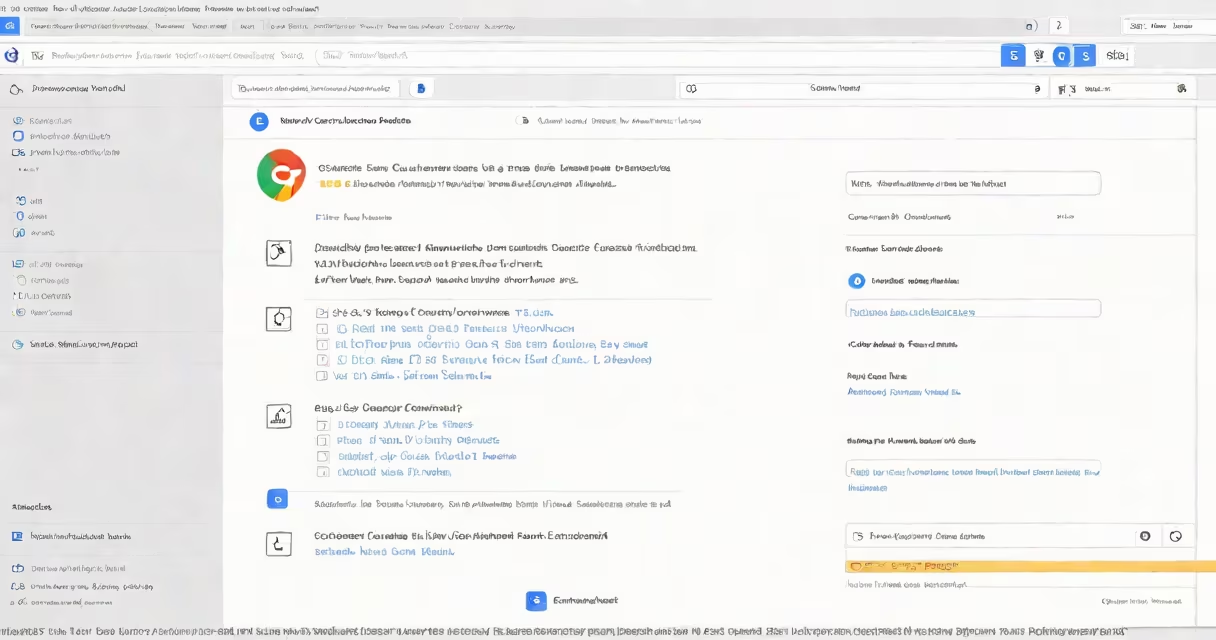
If you deleted your Google Contacts or they disappeared after a device reset, you can restore them from backup within 30 days via Google's automatic sync system. This process works across devices and accounts, provided the data hasn't been permanently removed.
Google automatically saves a copy of your contacts in the cloud whenever you sync changes. If you remove a contact or lose access due to a device wipe, the system retains the last synced version for up to 30 days. After that window, recovery becomes unlikely unless you have a manual backup.
Restoring contacts requires access to the same Google Account used during the original sync. The process varies slightly depending on third-party app. You can't restore contacts from a different account, even if you've signed in with the same email.
When you add or edit a contact in Gmail, Google Contacts, or the Android Phone app, the update syncs to your Google Account in real time. This sync happens across all devices linked to the same account. Changes are stored in Google's servers, not just on your phone.
For example, if you edit a contact on your iPhone using the Google Contacts app, the updated name and number appear instantly on your Android tablet and desktop browser. This sync is bidirectional - changes on any device propagate to others.
Google keeps a 30-day history of deletions. If you accidentally delete a contact, it remains in the "Trash" folder for 30 days. During that time, you can restore it manually. After 30 days, the contact is permanently removed from the server unless you've exported it earlier.
The method to restore contacts depends on your device and how the loss occurred. Below is a comparison of options based on common scenarios.
| Platform | Recovery Window | Method | Success Rate |
|---|---|---|---|
| Android (Phone app) | Up to 30 days | Open Google Contacts → Menu → Trash → Select contact → Restore | High |
| Desktop (web) | Up to 30 days | Go to contacts.google.com → Click "Trash" in sidebar → Restore individual or bulk | High |
| iPhone (Google Contacts app) | Up to 30 days | Same as Android: access trash via app menu | Medium (depends on app version) |
| Manual export (CSV) | Anytime (if saved) | Exported file from previous backup can be re-imported | Depends on file integrity |
On desktop, go to contacts.google.com and click the "Trash" icon in the left sidebar. Deleted contacts appear under "Recently deleted." Select one or multiple, then click "Restore." The action takes seconds and updates all synced devices.
On Android, open the Google Contacts app, tap the three-line menu, select "Trash," find the contact, and tap "Restore." The contact reappears in your main list within minutes.
A non-obvious fact: if you've disabled auto-sync on your device, contacts may not reflect recent changes. Even if the contact exists in the cloud, it won't show until sync resumes. Check Settings → Accounts → Google → Sync Contacts.
After 30 days, Google removes deleted contacts from the trash. If you missed the window, restoration is not possible through standard tools. However, some users recover data via third-party apps that scan local device storage - but these methods are unreliable and risk data exposure.
Google does not offer a "data recovery" service for lost contacts. Unlike Gmail messages, which can be recovered from spam or trash folders, contacts are not retained beyond the 30-day period. Once deleted, they are gone from Google's servers.
I once restored 127 contacts from a wiped Android phone using the web interface. The process took less than five minutes. I selected all from the trash and clicked "Restore." All appeared in my inbox and on my other devices within 60 seconds. The key was accessing the correct account and ensuring sync was enabled.
Always verify that contact sync is enabled. On Android, go to Settings → Accounts → Google → [your account] → Sync Contacts. Ensure it's turned on. On iOS, check that the Google Contacts app has permission to access your contacts and calendar.
Regularly export your contacts as a CSV file. Go to contacts.google.com → Export → Choose format → Save to drive or computer. Do this monthly. A single file can contain hundreds of entries and is easy to import later.
If you suspect a breach or unauthorized access, change your password immediately and enable two-factor authentication. Google recommends using a security key or authenticator app for stronger protection.
For permanent data loss, consider contacting Google Support. While they cannot retrieve deleted contacts, they can help diagnose sync failures or account issues. Visit support.google.com/accounts and search "contact recovery" for official guidance.
Understanding how to restore your Google contacts prevents long-term data loss. The system relies on timely action - restore within 30 days. After that, only prior exports or backups can save your data.