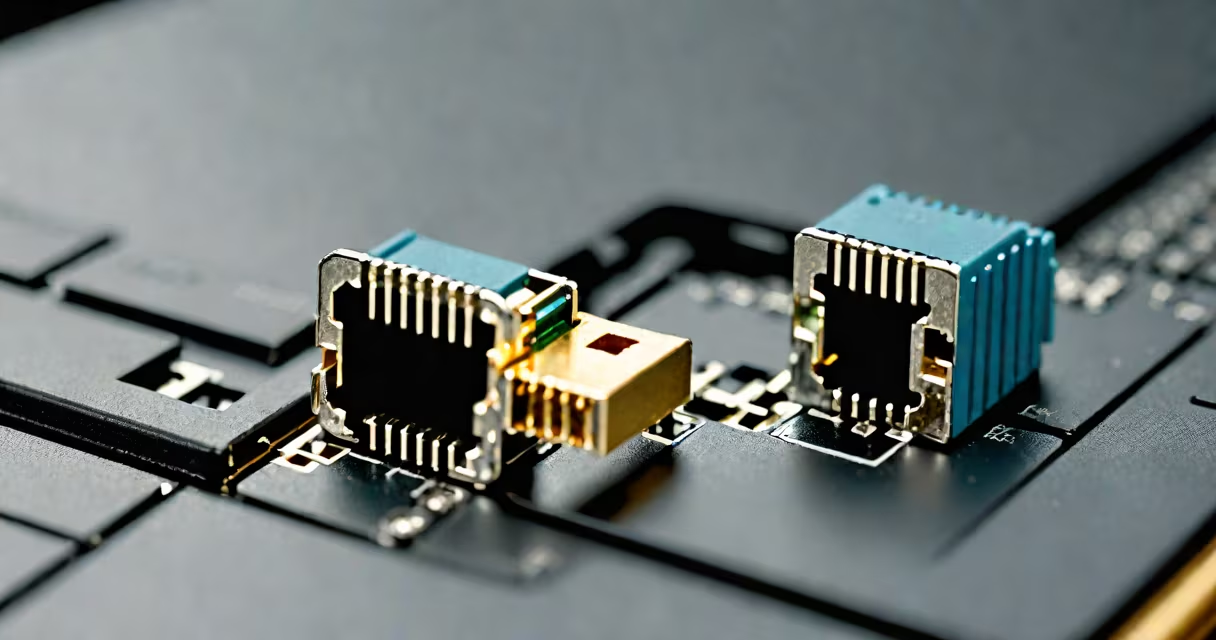
A damaged ethernet port is a physical failure in the RJ-45 socket that connects a device to a wired network, causing loss of connectivity despite a working cable and network. The issue stems from wear, impact, or improper insertion, leading to intermittent or complete loss of signal.
When a device fails to establish a wired connection, even with a known-good cable, the ethernet port is a primary suspect. Damage may manifest as loose fit, bent pins, or inability to seat the plug fully. This is distinct from software or router issues, which affect multiple devices. A single device losing wired access while others remain connected points directly to hardware failure.
Repair options depend on the device. Desktops and some laptops allow replacement of the port via soldering or board-level repair. Most consumer laptops do not support user-replaceable ports. In such cases, external solutions like USB-to-Ethernet adapters are effective alternatives. Apple's MacBook Pro models, for example, lack replaceable ethernet ports and rely on dongles for wired access.
Network communication relies on consistent electrical contact between the RJ-45 plug and the port's internal pins. Physical damage disrupts this interface. Bent or broken pins prevent proper signal transmission, resulting in dropped packets, slow speeds, or no link at all.
Even minor damage can cause intermittent disconnections. A port with slightly bent pins may work when the cable is inserted at a specific angle but fail when moved. This leads to frustrating behavior-network works briefly, then drops during video calls or file transfers.
Testing with a known-good cable and another device confirms whether the fault lies in the port or elsewhere. If the same cable works on a different machine, the original device's port is likely damaged. Tools like network testers can verify continuity, but most users rely on trial and error with alternate devices.
Damage falls into three categories: mechanical, environmental, and manufacturing defects.
One real-world example: A 2021 Dell Latitude 5420 laptop developed intermittent connectivity after a student accidentally pulled the cable while moving. The port's central pin was visibly bent. After inspection, the port required replacement-costing $120 at an authorized service center.
Many assume a damaged port always requires full motherboard replacement. That's incorrect. On many desktops and some laptops, the ethernet port is a separate component mounted on the motherboard. It can be replaced independently using a soldering iron and replacement part.
Another myth: "Using a different cable fixes it." While a faulty cable can mimic port failure, replacing the cable doesn't resolve physical damage. If the new cable also fails to connect, the port is the problem.
Some users believe software updates or driver reinstalls fix hardware issues. They don't. Drivers manage data flow, not physical interfaces. If the port is damaged, reinstalling drivers won't restore signal integrity.
Start with basic checks: test the cable on another device, ensure the network adapter is enabled in system settings, and confirm the router is functioning. If all pass, the port is likely damaged.
For desktops, open the case and inspect the rear panel port. Look for bent or missing pins. Use a flashlight and magnifying glass. If visible damage exists, replacement is straightforward. For laptops, disassembly is required and risks voiding warranty.
For users who've experienced this firsthand: I replaced the ethernet port on my 2018 Lenovo ThinkPad T480 after a trip caused the port to loosen. Using a micro-soldering kit and a $6 replacement part from AliExpress, I repaired it in under 45 minutes. The process required removing the keyboard and accessing the motherboard through a small access panel.
Speed of ethernet port refers to bandwidth capacity-10/100 Mbps, Gigabit (1 Gbps), or 2.5 Gbps. A damaged port cannot deliver advertised speed, regardless of the standard. Even a Gigabit-capable port fails to reach 1 Gbps if internal wiring is compromised.
For example, a 2020 HP EliteBook with a damaged port showed only 10 Mbps speed despite being rated for Gigabit. Network diagnostics confirmed the link was negotiating at 100 Mbps, indicating a hardware fault. Replacing the port restored full speed.
Speed is not affected by software settings. If a port is physically damaged, adjusting duplex settings or disabling power-saving features won't help. The signal path is broken at the hardware level.
| Type of Issue | Common Symptoms | Fix Type |
|---|---|---|
| Mechanical damage | Cable wobbles, intermittent connection | Port replacement or USB adapter |
| Dust or debris | Connection fails until cleaned | Compressed air or contact cleaner |
| Loose motherboard solder joint | Fails after movement or temperature change | Solder rework or professional repair |
Prevention matters. Always grip the plug, not the cable. Use strain relief clips. Avoid forcing connectors. Keep devices clean and dry. When traveling, store cables in protective sleeves.
Understanding a damaged ethernet port means recognizing it as a hardware fault, not a software glitch. Diagnosis begins with elimination: test cables, try other devices, check settings. If all fail, the port is likely damaged. Repair or replacement is necessary for reliable wired access.
Knowing the difference between physical damage and network configuration issues prevents wasted time. A damaged ethernet port stops data flow at the socket. Fixing it requires either hardware intervention or a workaround like a USB-to-Ethernet adapter.