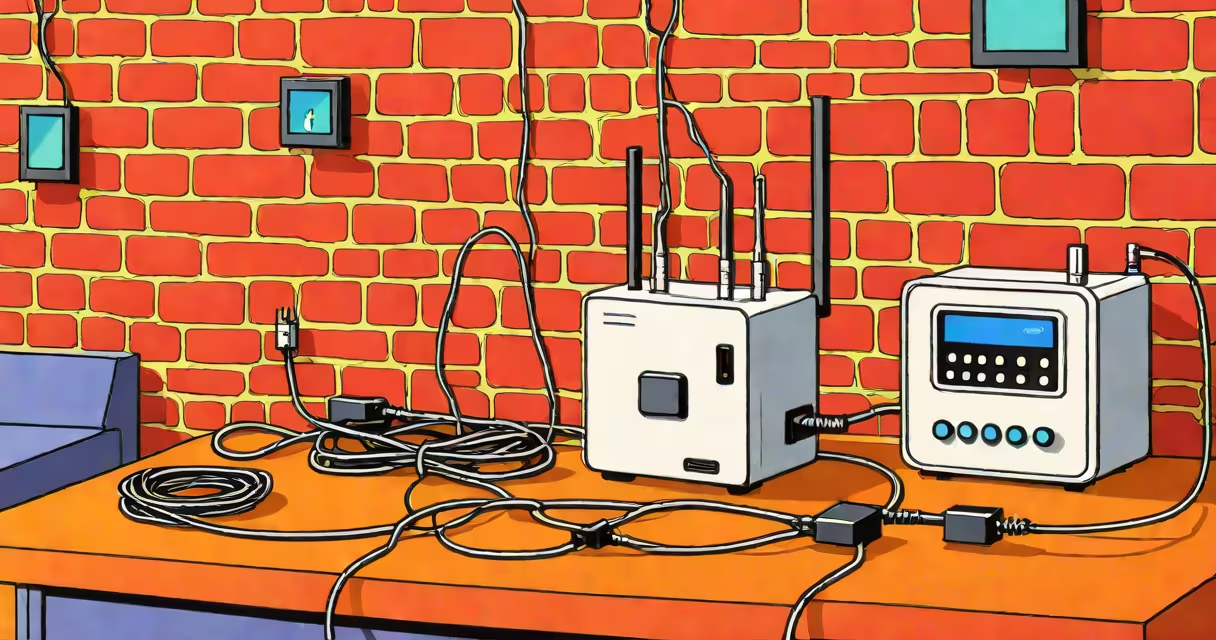
Connecting to a router establishes a wired or wireless link between your device and your home network, enabling internet access, file sharing, and smart home control. This requires entering the network name (SSID) and password, either manually or automatically via Wi-Fi settings.
When you connect to a router, your device receives a unique IP address from the router's internal DHCP server. This allows devices on the same network to communicate and access the internet through the router's WAN port. The process works a combination of both.
Most routers broadcast a default SSID like "Linksys_XXXX" or "NETGEAR_XXXX," along with a default password printed on a label on the device. You must enter this information during setup, or use the router's mobile app to automate the process. Without proper configuration, devices cannot join the network.
Your device sends a request to the router's radio frequency (Wi-Fi) or Ethernet port. The router checks if the device is authorized based on the security protocol-WPA2 or WPA3-and validates the password. Once approved, the router assigns an IP address and grants access to the internet.
For wired connections, plug an Ethernet cable into the router's LAN port and your device's Ethernet port. The router detects the new device and assigns it an IP address via DHCP. No password is needed unless the router enforces MAC address filtering or other access controls.
Wireless connections require scanning for available networks. Select your router's SSID from the list, enter the password, and click Connect. The device then authenticates with the router's encryption key and joins the network. This process takes less than 10 seconds on modern hardware.
There are two primary ways to connect to a router: wirelessly (Wi-Fi) and via Ethernet cable. Each has different performance characteristics and setup steps.
| Connection Type | Required Equipment | Typical Speed Range | Use Case |
|---|---|---|---|
| Wi-Fi 6 (802.11ax) | Router supporting Wi-Fi 6, compatible device | Up to 9.6 Gbps (theoretical) | High-bandwidth tasks: 4K streaming, gaming, video calls |
| Wi-Fi 5 (802.11ac) | Router supporting Wi-Fi 5, compatible device | Up to 3.5 Gbps (theoretical) | Standard home use: web browsing, HD video |
| Ethernet (Gigabit) | Network cable, Ethernet port on device and router | 1 Gbps (full duplex) | Stable, low-latency applications: servers, gaming consoles |
Some older routers still use WEP encryption, which is insecure and easily cracked. Modern routers use WPA2 or WPA3. Devices that don't support WPA3 may fall back to WPA2, but WPA3 offers stronger protection against brute-force attacks.
For users with multiple devices, setting up a guest network is recommended. This isolates visitors' devices from your main network and prevents unauthorized access to shared files or printers.
Many people assume that simply turning on Wi-Fi will connect them to the internet. But if the router is not properly configured or the password is incorrect, the device shows "Connected, no internet." This often happens when the ISP hasn't activated the service or the modem is disconnected.
A frequent error is mistyping the Wi-Fi password. Even one character off-like confusing "0" and "O"-can prevent connection. Always double-check the password using the router's admin interface or the sticker on the device.
Another issue arises when the router is placed in a central location but obstructed by thick walls or metal objects. Signal strength drops beyond 10 meters in such environments. Placing the router on a high shelf, away from microwaves and cordless phones, improves reliability.
During my last home network upgrade, I replaced a decade-old router with a TP-Link Archer AX50. After resetting the old device and configuring the new one, I noticed that my tablet failed to connect. The problem was that the device had saved the old network name. I deleted the old profile and reconnected-it worked instantly. This highlights the importance of clearing cached networks when switching routers.
"Connect to router" is not synonymous with "get internet." A router can function without an internet connection. It can create a local network for file sharing, printing, or gaming between devices-even if the internet is down.
Also, connecting to a router doesn't mean you're protected from online threats. The router provides basic firewall functions, but it doesn't replace antivirus software or a secure browser. Devices on the network remain vulnerable to phishing, malware, and man-in-the-middle attacks if they lack endpoint security.
Finally, "connect to router" does not imply automatic device management. Some users expect the router to handle updates, backups, or parental controls without manual setup. These features require configuration in the router's web interface or mobile app.
Follow these steps to connect a laptop to a router using Wi-Fi:
http://www.google.com.If the connection fails, try restarting the router and your device. Check that the password is correct and that the router is broadcasting the SSID. Use the command ipconfig /all (Windows) or ifconfig (macOS/Linux) to confirm your device received an IP address.
According to the Federal Communications Commission (FCC), nearly 70% of U.S. households have at least one router. The Wi-Fi Alliance reports that over 1.5 billion Wi-Fi-enabled devices were shipped in 2023, underscoring the importance of understanding how to connect to a router correctly.
Understanding how to connect to a router ensures consistent access to your home network. troubleshooting a dropped connection, knowing the steps and avoiding common errors keeps your network running smoothly.