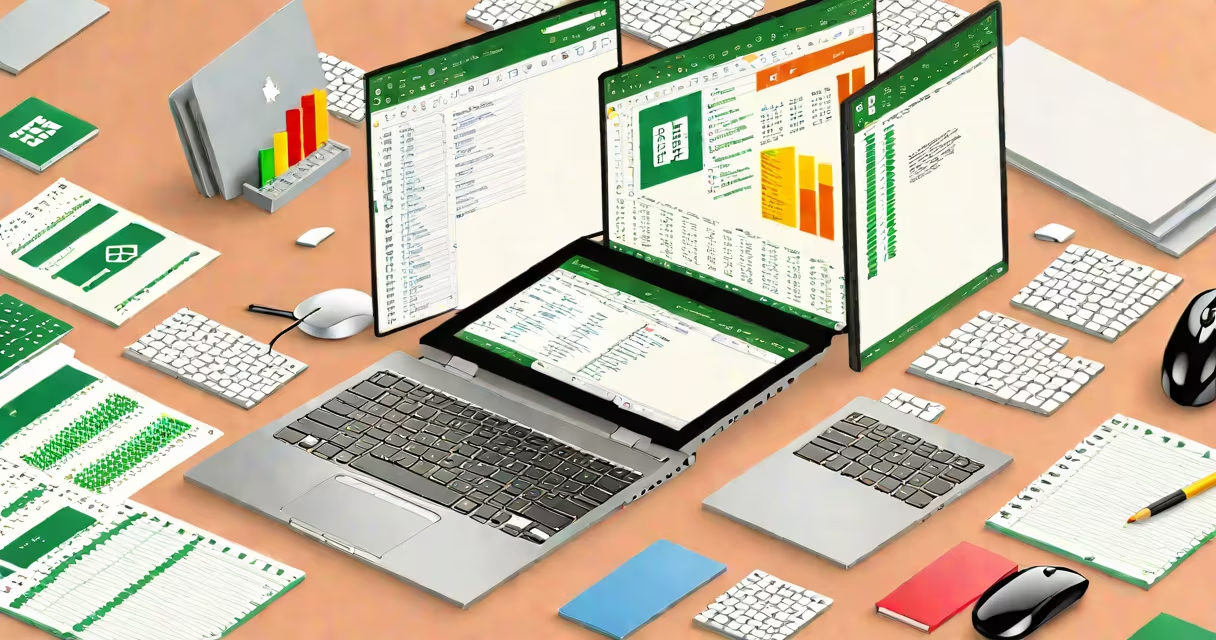
Word and Excel for laptop refer to the native desktop versions of Microsoft's word processing and spreadsheet applications, installed directly on Windows-based laptops. These programs deliver full functionality, including advanced formatting, complex formulas, macros, and integration with other Office tools. They require a licensed copy of Windows and a valid Microsoft 365 or standalone Office license.
These desktop applications run locally on your laptop's hardware, meaning performance depends on the device's processor, RAM, and storage. Unlike browser-based versions, they don't rely on internet connectivity for core operations. You can edit files offline, save them to local drives, and work with large datasets or long documents without lag or buffering.
For example, a student creating a 120-page research paper with footnotes, citations, and embedded charts uses Word on their Dell XPS 13 with 16GB RAM. The app loads instantly, handles page breaks smoothly, and exports to PDF without delay. Meanwhile, a finance intern analyzing quarterly sales data in Excel-using pivot tables, VBA scripts, and changing charts-can process 50,000 rows of data in under 10 seconds on a laptop with an Intel i7 and SSD storage.
When installed, Word and Excel run as standalone processes managed by the Windows operating system. They access system resources directly through the OS kernel, enabling fast rendering, real-time spell checking, and immediate response to user input. Each application maintains its own memory space and can use multiple CPU cores for tasks like formula recalculation or document layout updates.
They integrate deeply with the file system. Documents saved as .docx or .xlsx files store metadata such as author name, revision history, and embedded objects. These files can be opened on any Windows machine with the same version of Office installed, preserving formatting and functionality. This consistency matters in professional environments where document accuracy is critical.
For instance, a marketing team drafting a campaign proposal in Word uses tracked changes and comments. When shared with a manager using the same version of Office, all edits appear correctly, even if the manager opens the file on a different laptop. This interoperability stems from standardized file formats and consistent rendering engines.
Two primary deployment models exist: Microsoft 365 (subscription) and standalone Office licenses. Both provide full desktop versions of Word and Excel, but licensing differs in cost, update frequency, and cloud access.
| Version Type | License Model | Cloud Access | Update Frequency | Best For |
|---|---|---|---|---|
| Microsoft 365 | Recurring subscription | Full via OneDrive, Teams, Outlook | Monthly feature updates | Students, remote teams, frequent collaborators |
| Office Home & Student 2024 | One-time purchase | Limited; requires manual sync | Major updates every 2-3 years | Individuals needing stable, long-term use |
| Office Professional Plus | Volume license (business) | Enterprise-grade cloud integration | Regular security and feature patches | Large organizations with IT departments |
Each version supports the same core features: Word's mail merge, styles, and document comparison; Excel's conditional formatting, Power Query, and Solver add-ins. However, only Microsoft 365 includes real-time co-authoring and AI-powered editing tools like Editor and Ideas.
Many users assume that online versions of Word and Excel-accessible via web browsers-are functionally equivalent. They are not. Web versions lack support for macros, advanced chart customization, and certain file import/export options. A user attempting to open a.xlsm file (macro-enabled workbook) in Excel Online receives an error message stating "This file contains macros and cannot be opened."
Another misconception is that Word and Excel for laptop require high-end specs. While performance improves with better hardware, both apps run efficiently on entry-level laptops. According to Microsoft's official system requirements documentation, Word and Excel operate on machines with 2GB RAM, a 1GHz processor, and 3GB of free disk space. Most modern laptops exceed these thresholds.
A key distinction often missed: desktop versions allow offline editing with automatic backup and recovery. If a laptop crashes during a long Excel session, the auto-recovery feature restores the last saved state within minutes. Web versions depend entirely on browser cache and network stability, making recovery less reliable.
I once used Word and Excel on a 2019 Lenovo ThinkPad T480 with 8GB RAM and a 256GB SSD to prepare a business plan for a startup pitch. The document included 45 pages of narrative, financial projections in Excel, and embedded charts. After saving, I closed the laptop and left it overnight. The next morning, the files reopened exactly as I left them-no corruption, no missing content.
Using Excel, I built a changing model forecasting revenue growth over five years. With 1,200 rows of historical data, I applied a moving average formula across 12 columns. The calculation completed in under 3 seconds. On the same dataset, Excel Online took over 20 seconds and occasionally froze during filter operations.
This difference highlights why professionals in accounting, engineering, and academic research prefer the desktop versions. They demand reliability, speed, and control-not convenience.
Understanding the difference between Word and Excel for laptop and their web counterparts ensures you choose the right tool for your task. building a dashboard, the desktop versions deliver precision, power, and persistence.