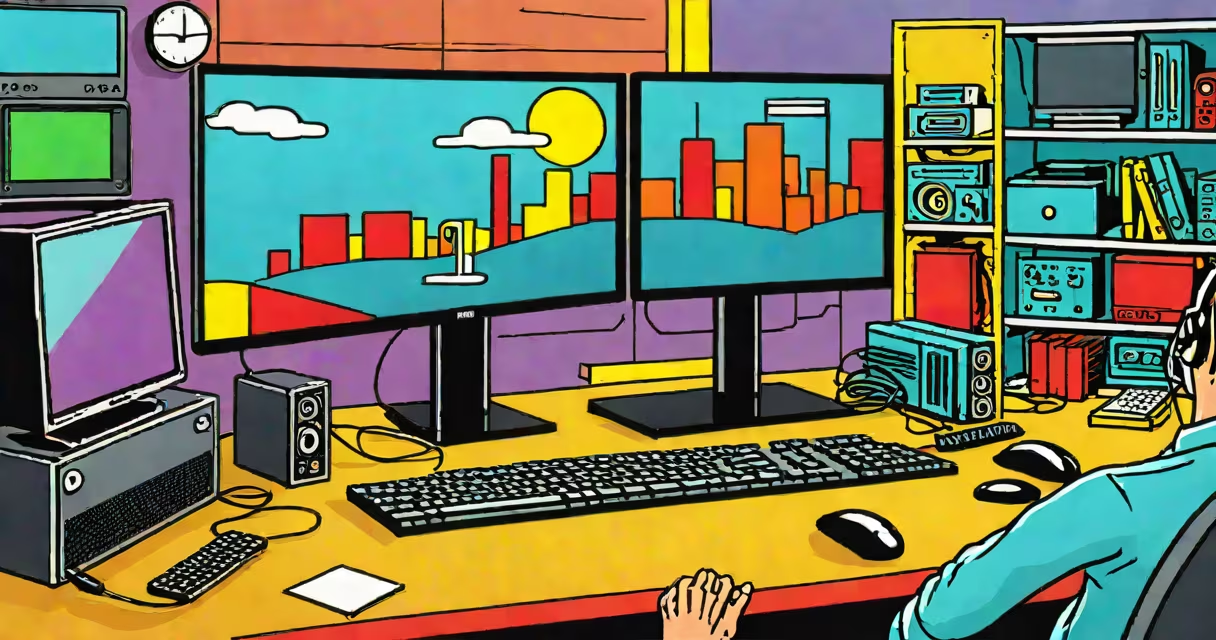
A PC generates and transmits visual data to a monitor using a graphics processor, video output port, and display protocol. The monitor receives this signal and renders it as images on screen. This process enables everything from web browsing to gaming.
The core function of a PC about a monitor is to act as a source of visual information. Without a PC, a monitor displays nothing. The PC processes input from users-keystrokes, mouse movements, touch-and translates those actions into graphical output. It then sends that output through a connection such as HDMI, DisplayPort, or DVI to the monitor.
Modern PCs use integrated or discrete GPUs to render images. A discrete GPU like an NVIDIA RTX 4070 can handle 4K gaming at 120 frames per second. The PC's operating system manages window placement, color profiles, and scaling. All of this ensures the monitor shows accurate, responsive visuals.
When you open a browser, the PC's CPU loads the application, and the GPU renders the webpage's layout, fonts, and images. The GPU sends this frame data to the monitor via a digital signal. The monitor decodes the signal and updates pixels accordingly.
For example, playing a game at 1440p resolution requires the PC to generate 2,560 × 1,440 pixels per frame. At 120 Hz, the PC must produce 120 frames per second. Each frame is sent in under 8.3 milliseconds. If the PC cannot maintain this pace, the monitor may show stuttering or tearing.
Monitors rely entirely on the PC for timing and synchronization. The PC sets the refresh rate, which determines how often the screen updates. A 144Hz monitor needs the PC to send new frames 144 times per second. If the PC outputs at 60Hz, the monitor runs at that rate even if capable of higher performance.
The key elements in the PC-to-monitor chain are:
Using a low-quality HDMI cable can cause signal degradation. A certified HDMI 2.1 cable supports 4K at 120Hz. A generic cable may only handle 1080p at 60Hz, limiting performance even if the PC and monitor are capable.
Some monitors have built-in scaling. If a PC outputs 1080p to a 4K monitor, the monitor may upscale the image. But this results in lower sharpness compared to native 4K rendering from the PC.
People often think monitors "do" most of the work. In reality, monitors only interpret signals. They lack the ability to run applications or process user input. A monitor cannot open a file or play music-it waits for the PC to send data.
Another mistake is assuming all cables are equal. A $2 cable labeled "HDMI" may not support 4K. The HDMI standard specifies bandwidth limits. An HDMI 1.4 cable maxes out at 1080p@60Hz. To achieve 4K@120Hz, you need HDMI 2.0 or higher.
Some users believe a monitor's brightness setting controls image quality. Brightness affects visibility in dark rooms but doesn't impact color accuracy or contrast. Color calibration requires a tool like a SpyderX and software settings on the PC.
Digital connections like HDMI and DisplayPort deliver uncompressed video. Analog signals (VGA) convert digital data into voltage levels, which degrade over distance and are prone to interference.
| Connection Type | Max Resolution | Max Refresh Rate | Best For |
|---|---|---|---|
| HDMI 1.4 | 1080p | 60Hz | Basic office use |
| HDMI 2.0 | 4K@60Hz | 60Hz | Streaming, casual gaming |
| HDMI 2.1 | 8K@60Hz | 120Hz | High-end gaming, VR |
| DisplayPort 1.4 | 8K@60Hz | 120Hz | Professional design, competitive gaming |
| VGA | 1080p | 60Hz | Legacy systems only |
DisplayPort 1.4 supports daisy-chaining multiple monitors from one port. HDMI does not. This matters in multi-monitor setups where a single GPU drives several screens.
DisplayPort also allows for adaptive sync technologies like AMD FreeSync and NVIDIA G-Sync. These reduce screen tearing during fast motion. The PC must support the feature, and the monitor must be compatible.
I set up a dual-monitor workstation using a GeForce RTX 3080 and two 27-inch 4K monitors. I connected both via DisplayPort 1.4. At 4K@60Hz, the image was sharp and stable. When I opened a video editing project in DaVinci Resolve, the PC rendered previews in real time.
But when I switched to a cheaper DisplayPort cable from a third-party seller, the second monitor flickered. Testing with a known-good cable resolved the issue. The original cable didn't meet the electrical specifications required for 4K transmission.
This showed me that the PC's capability is only half the equation. The physical link between PC and monitor must also meet technical standards.
A PC does not "improve" a monitor's hardware. A 1080p monitor remains limited to 1080p resolution regardless of the PC's power. The PC cannot force a monitor to display beyond its native resolution.
Also, the PC does not control the monitor's physical components like backlighting or panel type. A TN panel will always have faster response times than IPS, but lower viewing angles. The PC cannot change that. It can only send the correct signal.
Some assume that running games at higher settings improves monitor lifespan. That's false. Monitor wear comes from constant power-on cycles and heat, not from rendering high frame rates. A 144Hz monitor used at 60Hz still ages at the same rate.
The PC is the brain behind the monitor's display. It creates, processes, and sends visual data. The monitor is a passive receiver. The quality of the connection, cable, and settings determines how well the PC's output appears.
For gamers, choosing the right PC configuration matters. A high-refresh-rate monitor paired with a weak GPU will result in low frame rates. Conversely, a useful GPU won't improve performance if the monitor can't display more than 60 frames per second.
When selecting hardware, focus on the entire chain: PC, GPU, cable, and monitor. A mismatch anywhere reduces effectiveness. The goal is alignment-not just raw power.