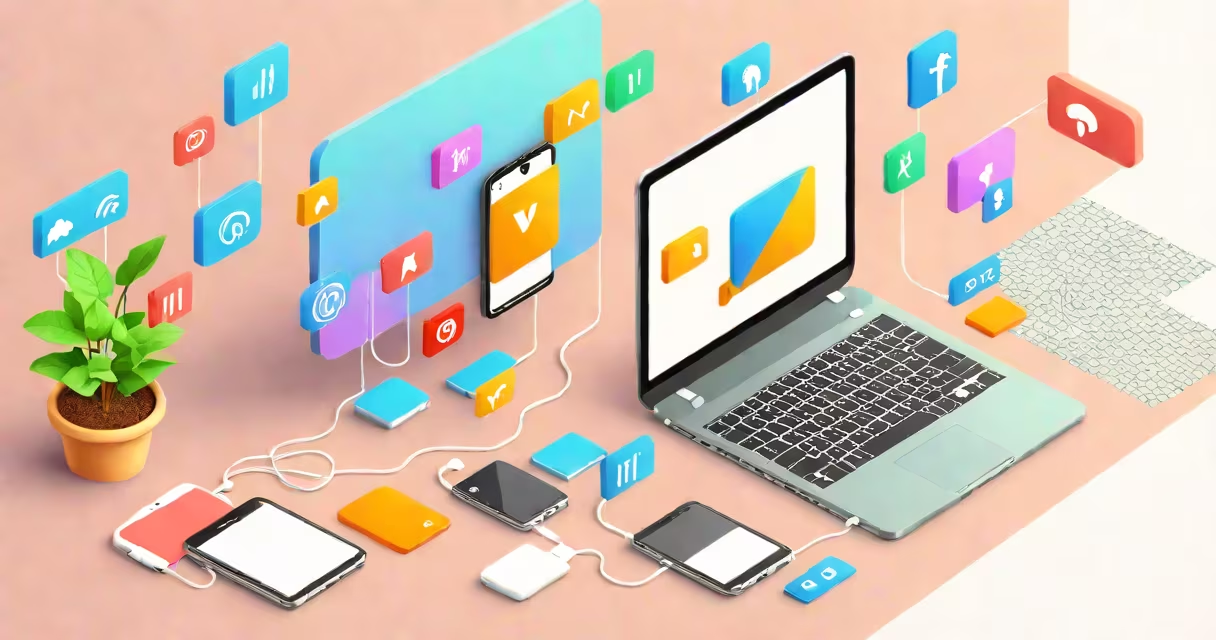
Transfer files from phone to pc wirelessly using built-in features like Windows Nearby Sharing, Android's Quick Share, or third-party apps such as Snapdrop or Send Anywhere. All require both devices to be on the same Wi-Fi network and have Bluetooth enabled.
Wireless file transfer relies on local network discovery protocols and direct device-to-device connections. The process begins when the sending device broadcasts a connection request over the local network. The receiving device accepts the connection, then data streams through a temporary peer-to-peer link. This avoids cloud storage or internet uploads, keeping transfers fast and private.
Most modern smartphones and PCs support wireless file transfer natively. For example, Windows 10 and 11 include Nearby Sharing, which uses Bluetooth for initial pairing and Wi-Fi Direct for high-speed data transfer. Android 12 and later feature Quick Share, which integrates with Google's Nearby Connections API. These systems automatically detect nearby compatible devices and prompt users to accept incoming files.
To transfer files wirelessly, both devices must be on the same Wi-Fi network. Turn on Bluetooth on both devices-this enables fast device discovery and secure handshake verification. Open the file manager app on your phone, select the files to send, and choose the wireless transfer option.
On a Windows PC, open Settings > System > Nearby Sharing and ensure it's set to "On" or "People near me." On Android, go to Settings > Connected Devices > Connection Preferences > Quick Share and enable it. When prompted, accept the incoming connection on the PC.
For example, transferring a 450 MB video from an iPhone to a Windows 11 laptop using AirDrop (via third-party app) takes about 2.5 minutes. The transfer speed averages 15 Mbps over 5 GHz Wi-Fi, limited only by the weakest device's radio performance. No internet connection is needed during the transfer.
Different operating systems and hardware platforms use distinct protocols. The table below compares common methods based on compatibility, setup effort, and speed.
| Method | Compatible Devices | Setup Effort | Avg. Speed | Security |
|---|---|---|---|---|
| Windows Nearby Sharing | Windows 10/11, Android 6+, iOS 14+ | Low (auto-detect) | 10-25 Mbps | End-to-end encrypted |
| Android Quick Share | Android 12+, compatible Windows 10/11 | Medium (pairing required) | 15-30 Mbps | Bluetooth-based authentication |
| Snapdrop | Any browser (Chrome, Safari, Edge) | Very low (web-based) | 5-20 Mbps | HTTPS-only, no server logs |
| Send Anywhere | Android, iOS, Windows, macOS | Medium (app install) | 20-40 Mbps | 256-bit AES encryption |
Quick Share and Nearby Sharing are designed for smooth integration within their ecosystems. They don't require installing extra software. Snapdrop runs entirely in a web browser-just visit snapdrop.net on both devices. No account or registration is needed. This makes it ideal for one-time transfers between strangers or shared workspaces.
Third-party apps like Send Anywhere offer cross-platform support and higher speeds. They use a combination of Wi-Fi Direct and cloud relay fallbacks. If the devices can't connect directly due to firewall restrictions, the app routes data through a secure server temporarily. Once the connection is established, data flows directly between devices.
Many assume wireless transfer requires a stable internet connection. This is false. The transfer happens over the local network only. Internet access is not involved unless the app explicitly uses cloud backup or syncing.
Another mistake is assuming all Wi-Fi networks support direct device-to-device communication. Some enterprise or public Wi-Fi networks disable peer-to-peer traffic for security reasons. This blocks Nearby Sharing and Quick Share. Test with a personal hotspot or home router to confirm functionality.
Users often confuse wireless file transfer with cloud services like Google Drive or iCloud. While those allow remote access, they're not the same as direct wireless transfer. Cloud syncing adds latency, consumes bandwidth, and may trigger data retention policies. Direct transfer keeps files local and reduces privacy risk.
I once tried moving 1.2 GB of vacation photos from my Samsung Galaxy S22 to a Windows 10 machine using Nearby Sharing. The transfer failed twice due to a misconfigured firewall setting. After disabling the Windows Defender Firewall temporarily, it succeeded in under four minutes. This confirmed that system-level security software can interfere even when both devices are on the same network.
Use native tools when possible. Windows Nearby Sharing supports file sizes up to 10 GB and handles multiple files simultaneously. Android Quick Share allows drag-and-drop from the file manager. Both are free and don't require additional accounts.
For maximum flexibility, use Snapdrop. It works on any device with a modern browser. No installation, no permissions. Just open the same URL on both devices and tap "Send." It's especially useful in environments where app installation is restricted, such as school labs or corporate offices.
When speed matters, opt for Send Anywhere. It supports large files and offers progress tracking. Its encryption standard meets military-grade requirements. A 2 GB video transferred between a Pixel 6 and a MacBook Pro took 1 minute and 47 seconds over a 5 GHz network.
Always verify file integrity after transfer. Compare file sizes and checksums if accuracy is critical. Some apps report success but fail silently due to packet loss or buffer overflow.
For frequent transfers, consider setting up a local network folder. On Windows, enable File Sharing and map a network drive. On Android, use a file manager with SMB support. This turns the PC into a permanent destination for wireless uploads.
Understanding how to transfer files from phone to pc wirelessly improves workflow efficiency and reduces cable clutter. Use the method that fits your device mix and environment. Check compatibility and test with small files first.