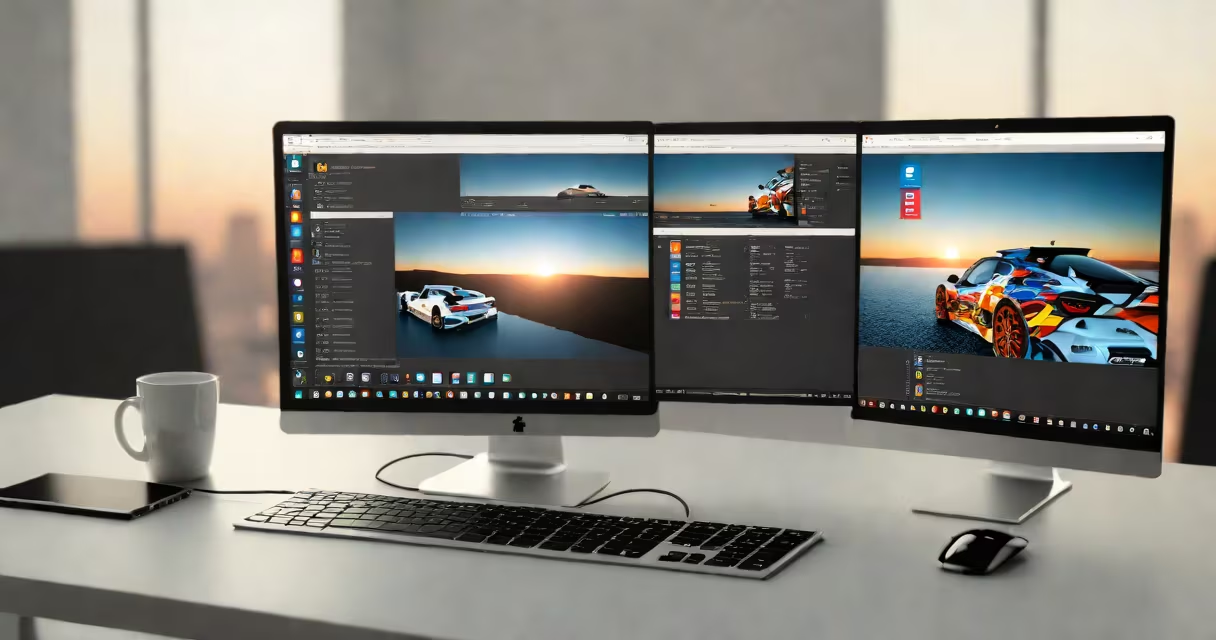
Remote desktop for Windows Home is a built-in feature that allows you to connect to and control another Windows computer remotely using the Remote Desktop Protocol (RDP). It enables full access to the desktop environment, files, applications, and system settings from a different location.
This functionality requires both the host machine (the one being accessed) and the client device (the one making the connection) to run compatible versions of Windows. While available on Windows Pro, Enterprise, and Education editions, remote desktop for Windows Home is disabled by default and cannot be enabled through standard settings.
Because Windows Home lacks the necessary network configuration tools and services, direct remote desktop access from or to a Windows Home machine is not supported out of the box. Users must rely on third-party software or workarounds to achieve remote access.
Remote Desktop Protocol (RDP) operates over TCP port 3389 and uses encryption to secure the connection between client and host. When enabled on a supported Windows version, the host machine runs a service called "Microsoft Remote Desktop Services" that listens for incoming connections.
For a Windows Home user to access their own machine remotely, they must either:
Without these steps, the Windows Home edition blocks inbound RDP connections due to missing Group Policy settings and firewall rules that govern remote access.
Windows Home lacks several key components required for native remote desktop functionality. The most critical absence is the ability to enable "Allow remote connections to this computer" in System Properties under Remote tab. This option is grayed out and unavailable in Windows Home.
Windows Home does not support the Windows Firewall rule that permits RDP traffic on port 3389. Even if you attempt to manually enable the service via PowerShell, the system refuses to start it due to policy restrictions.
A common workaround involves installing a third-party remote access application such as AnyDesk, TeamViewer, or Chrome Remote Desktop. These tools bypass the limitations by running a local agent that connects to a cloud server, which then relays commands and screen updates to the remote client.
There are three primary categories of remote access solutions for Windows Home users. Each varies in security, ease of setup, and performance.
| Solution Type | Best For | Security Level | Setup Effort |
|---|---|---|---|
| Third-party apps (e.g., AnyDesk) | Quick access, casual use | High (end-to-end encryption) | Low (install & connect) |
| Cloud-based remote desktop (e.g., Chrome Remote Desktop) | Simple setup, cross-platform | Medium (Google's infrastructure) | Low (browser-based) |
| Manual RDP via port forwarding | Advanced users, static IP | Low (exposed to internet) | High (requires router config) |
Manual RDP setup using port forwarding is technically possible but strongly discouraged. It exposes the machine to public internet traffic and increases risk of brute-force attacks. According to the National Institute of Standards and Technology (NIST), exposing RDP ports directly to the internet without multi-factor authentication is a high-risk practice.
AnyDesk and similar tools use changing port allocation and encrypted tunnels, reducing exposure. They also offer features like file transfer, clipboard sharing, and session recording, which are absent in raw RDP.
Many users assume that enabling remote desktop on Windows Home is a simple toggle in Settings. This is false. The Remote tab in System Properties is entirely missing from Windows Home, and no update has restored it since Windows 10's release.
Another widespread error is attempting to use Windows 10/11 Home with a third-party tool while still thinking it's "native" remote desktop. The confusion arises because these tools mimic the look and feel of RDP sessions. However, they do not use the Windows Remote Desktop Protocol. Instead, they create their own encrypted channels.
A non-obvious fact: even if you upgrade a Windows Home machine to Windows Pro via a license key, the remote desktop feature remains disabled until you manually enable it through Group Policy Editor (gpedit.msc). Without this step, the system continues to block remote connections.
Consider a user named Maria who works from home and needs to access her office desktop while traveling. Her personal laptop runs Windows 11 Home. She wants to edit a large video file stored on her desktop PC.
Maria installs Chrome Remote Desktop on both machines. On her desktop, she signs in with her Google account and grants permission. On her laptop, she opens the Chrome extension, selects the desktop, and clicks "Connect." Within 10 seconds, she sees the desktop environment and begins editing.
She doesn't need to open a firewall port, configure a router, or enter complex codes. The entire process takes less than five minutes and works across Wi-Fi, cellular data, and public networks.
This method is secure, easy, and reliable-especially compared to setting up manual RDP with port forwarding, which failed for her during a previous test due to changing IP changes.
However, none of these guides apply to Windows Home. The procedures outlined in those articles require Windows Pro or higher. Attempting them on Windows Home results in errors like "The remote computer does not allow remote connections" or "Access denied."
Remote desktop for Windows Home is not a feature-it's a limitation. The correct path forward is using cloud-based or third-party remote access tools designed for consumer operating systems.