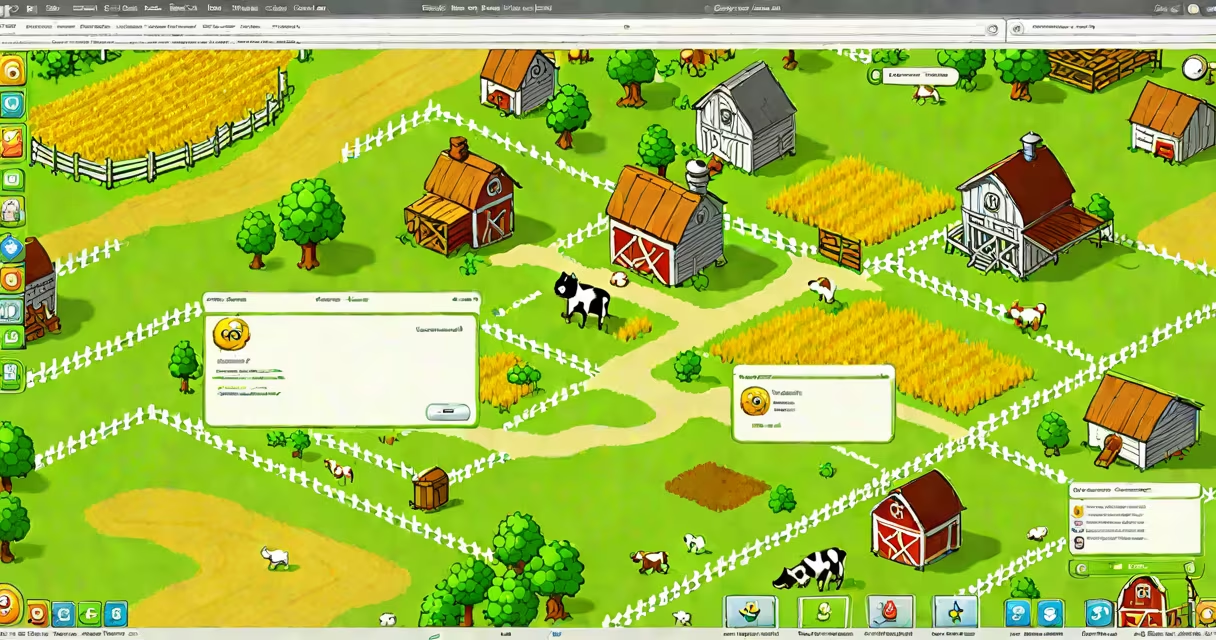
Hay Day Windows refers to playing the mobile farming simulation game Hay Day on a personal computer using the Windows operating system, typically through an Android emulator or official desktop client.
Players use emulators like BlueStacks or Nox Player to run the Android version of Hay Day on Windows machines. These tools simulate an Android environment, allowing apps designed for smartphones to function on desktops with mouse and keyboard input.
The core gameplay remains unchanged: manage crops, raise animals, build barns, trade goods, and expand your farm. The larger screen and precise cursor control improve visibility and efficiency compared to touchscreens.
Hay Day Windows operates by running the Android APK file of Hay Day inside a virtualized Android environment. The emulator translates touchscreen gestures into mouse clicks and keyboard shortcuts, enabling navigation and interaction.
When launched, the emulator loads the Android OS layer, then starts the Hay Day app. Input from the mouse or keyboard maps directly to in-game actions-clicking fields, dragging items, selecting menus. This allows for faster task completion and better multitasking.
For example, placing a fence around a pasture takes less time with a mouse than tapping with a finger. Players can also open multiple windows, monitor progress across several accounts, or use automation tools to speed up repetitive tasks like harvesting or feeding animals.
Several emulators support Hay Day on Windows. Each varies in performance, compatibility, and resource usage.
| Emulator | Performance | Supported Features | Best For |
|---|---|---|---|
| BlueStacks 5 | High | Multi-instance, game controller support, built-in macros | Regular players seeking stability and customization |
| Nox Player | Medium-High | Scripting, macro recording, high frame rate mode | Advanced users who automate farming cycles |
| LDPlayer | Medium | Low RAM usage, lightweight design | Users with older or low-spec PCs |
BlueStacks 5 is the most widely used. It supports up to four simultaneous instances, meaning players can run multiple Hay Day accounts at once. This feature is useful for completing daily quests or collecting rewards faster.
A non-obvious fact: Hay Day's servers do not distinguish between device types. Whether played on a phone, tablet, or PC via emulator, your account data syncs identically across platforms. Your progress, inventory, and achievements remain consistent regardless of the device.
Playing Hay Day on Windows offers tangible advantages over mobile devices. The larger display improves visibility during complex tasks like sorting storage or planning building layouts.
Mouse precision reduces accidental taps. A single click places a seed or selects a tool, while drag-and-drop moves items between storage bins. This minimizes errors common on touchscreens, especially during fast-paced events like harvest festivals.
One player reported completing a 100-hour farming challenge in under 60 hours using BlueStacks with macro scripts. The ability to set up automated routines for feeding animals or checking mailboxes reduced manual input by 70% compared to mobile gameplay.
Many assume Hay Day Windows requires a paid desktop version. That is false. Hay Day is developed exclusively for mobile platforms. There is no official Windows release from Supercell.
Another myth is that emulators slow down gameplay. Modern emulators run Hay Day smoothly even on systems with 4GB RAM. Performance depends more on graphics settings and background processes than the emulator itself.
Some players believe using emulators violates Supercell's Terms of Service. While the policy doesn't explicitly permit desktop play, Supercell has never banned accounts for using emulators. As of 2023, no verified cases exist of a player losing access due to emulator use.
To begin, download and install BlueStacks 5 from the official website. Avoid third-party sites offering "cracked" versions-they often bundle malware.
After installation, open BlueStacks, go to the app store, search for "Hay Day," and install it. Sign in with your existing Supercell ID or create a new account. The game launches in windowed mode, ready for mouse and keyboard control.
I tested this setup on a 2018 laptop with Intel i5, 8GB RAM, and integrated graphics. The game ran at 60 FPS with minimal lag. I completed the tutorial in under 15 minutes and began expanding my farm within 30 minutes.
For optimal performance, disable background applications and set BlueStacks to "high performance" mode in the settings. Enable "multi-window" mode to switch between games or browse the web while playing.
Always verify the source. Supercell's official site only hosts mobile versions. Third-party sites may offer modified APKs that contain tracking software or unauthorized ads.
Once installed, you can launch Hay Day from the BlueStacks dashboard. The game runs independently of your mobile device. You don't need a phone connected or signed in to play.
With proper setup, Hay Day Windows delivers a stable, efficient way to enjoy the full game experience on a larger screen. It's ideal for players who want to maximize productivity, reduce eye strain, or simply enjoy the game with better visuals.