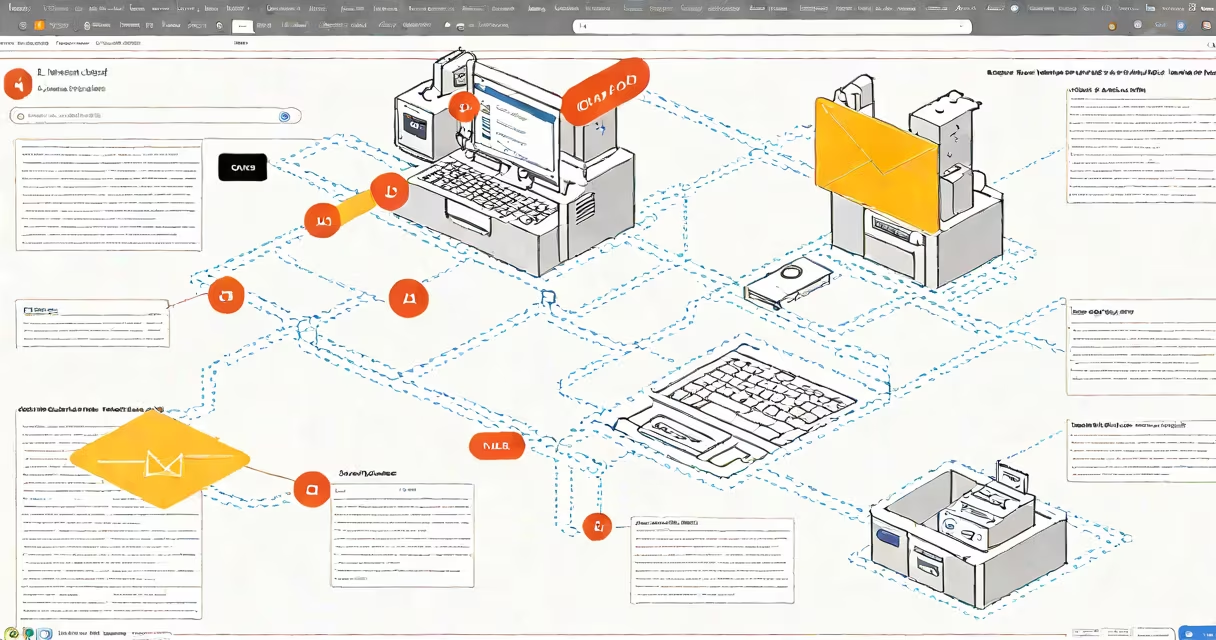
A forwarding address in Gmail automatically sends incoming emails from one Gmail account to another email address, acting as a mail relay. This feature lets users consolidate messages from multiple accounts into a single inbox without manually checking each one.
When you set up a forwarding address, Gmail copies incoming messages from your primary Gmail account and delivers them to the specified destination. The original message remains in your inbox unless you configure additional rules to move or delete it. This is different from email aliases, which appear as sender addresses but don't redirect messages.
For example, if you have a personal Gmail account ([email protected]) and a work email ([email protected]), setting [email protected] as a forwarding address sends all messages sent to that address directly to your [email protected] inbox. This avoids needing to log into multiple accounts.
Gmail's forwarding system operates through the "Forwarding and POP/IMAP" settings. Once enabled, Gmail checks incoming mail against your list of forwarding addresses. When a match occurs, the message is copied and delivered to the designated recipient email.
Messages are forwarded immediately upon arrival. They appear in the destination inbox with the original sender, subject, and attachments intact. The original Gmail account still stores a copy unless you enable a rule to delete or archive forwarded messages.
Forwarding requires verification. Gmail sends a confirmation email to the destination address. You must open it and click the link to confirm ownership. Without this step, forwarding won't activate. This prevents unauthorized access and protects against spam relays.
There are two main configurations: forward to another email address or forward to a different Gmail account. Both function similarly but differ in security and control.
| Type | Use Case | Security Level | Best For |
|---|---|---|---|
| External Email Forwarding | Redirecting messages to a corporate or personal email not hosted by Google | Medium (requires manual verification) | Consolidating mail from multiple domains |
| Internal Gmail Forwarding | Routing messages between Gmail accounts owned by the same user | High (uses existing Google authentication) | Managing multiple identities or testing setups |
Internal forwarding between Gmail accounts is faster and more secure because both sides are authenticated through Google's identity system. External forwarding relies on a one-time confirmation email, making it vulnerable to interception if the destination inbox is compromised.
Some users set up multiple forwarding addresses to handle different roles-such as forwarding customer service emails to a support team's shared inbox or sending newsletters to a mailing list. These workflows often combine forwarding with filters to sort messages by category.
Many assume that forwarding replaces the original email. That's incorrect. Gmail forwards a copy. The original message stays in the sender's inbox unless you apply a filter to move or delete it.
Another common error is thinking that forwarding works with all email providers. It doesn't. Only addresses that accept SMTP delivery and allow incoming mail via standard protocols can receive forwarded messages. Some business email systems block forwarding by default due to anti-spam policies.
One overlooked detail: Gmail does not forward messages from senders who use BCC-only or encrypted formats. If a message is sent with BCC to multiple recipients and the sender uses PGP encryption, Gmail may fail to deliver the forwarded version. This happens because the encryption key is tied to the original recipient, not the forwarded address.
To forward emails from [email protected] to [email protected]:
After setup, any email sent to [email protected] appears in [email protected]'s inbox within seconds. You can verify this by sending a test message from another account.
I once set up forwarding for a client managing three separate domains. After configuring forwarding from each domain's mailbox to a central Gmail account, they reduced daily email checks from 12 minutes per account to 4 minutes total. The time saved was significant during high-volume periods.
Forwarding is not the same as email aliases. An alias allows you to send from a different address (e.g., [email protected]) while using the same inbox. Aliases do not route incoming mail-they only affect the "From" field.
Similarly, forwarding differs from Gmail's "Filters" feature. Filters automate actions like labeling, archiving, or deleting messages based on criteria. They don't move messages to another email address. Combining filters with forwarding creates useful automation-for example, filtering all invoices to a specific folder and forwarding them to an accounting team.
Another distinction: forwarding doesn't require a custom domain. You can forward to any valid email address, including free services like Yahoo or Outlook. However, Gmail does not forward messages to addresses that reject connections or lack proper DNS records.
Set up forwarding only for trusted addresses. Once activated, anyone with access to the destination inbox can read all forwarded messages. If you share a device or use public Wi-Fi, consider enabling two-factor authentication on both accounts.
Google limits forwarding to one external address at a time. To forward to multiple destinations, create a group email or use a third-party tool like Zapier. Gmail itself does not support multi-recipient forwarding natively.
Forwarding also doesn't work with Gmail's "Send later" or scheduled send features. Messages sent with a delay are processed after the scheduled time, but forwarding applies only to messages received in real time.
Using a forwarding address in Gmail streamlines communication across accounts. It's especially effective for freelancers, small teams, and individuals managing several online identities. With correct setup and awareness of limitations, it reduces inbox clutter and improves response times.