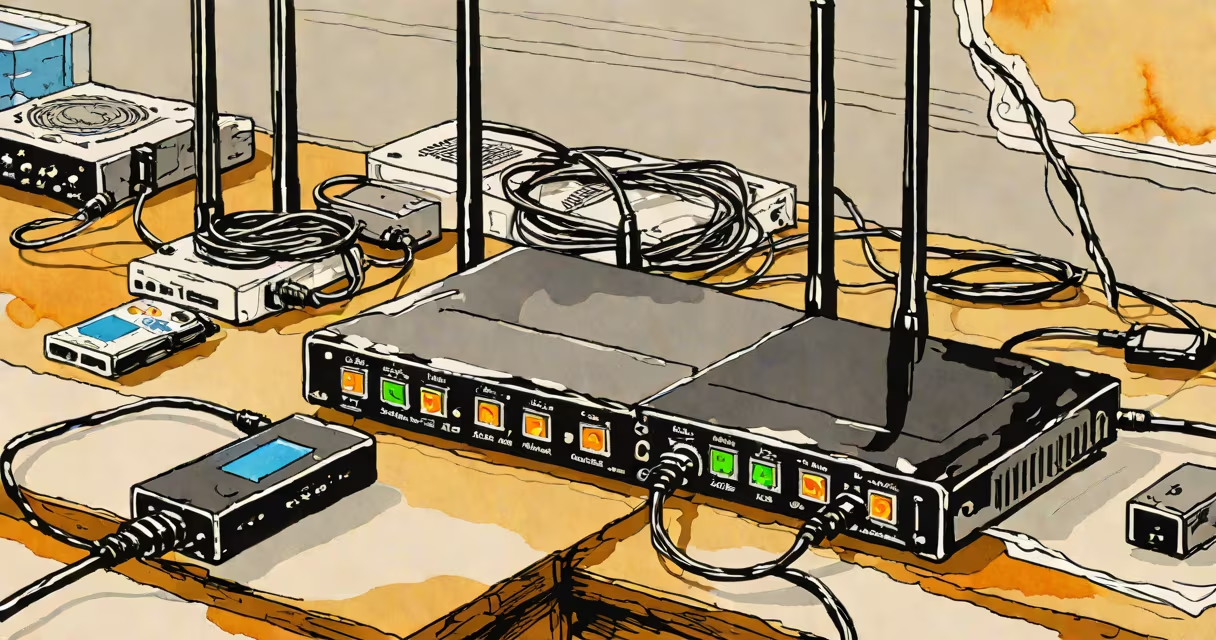
Bridge mode router meaning refers to a configuration where a router disables its routing and NAT functions, turning it into a transparent network bridge that forwards traffic between wired and wireless devices without altering IP addresses or managing network segments.
This setup is used when you want to extend a network without creating separate subnets, avoid double NAT, or integrate a secondary router into an existing network managed by a primary gateway. Bridge mode is common in homes with multiple access points, ISPs requiring specific configurations, or users running dedicated servers.
For example, if your internet service provider uses a modem/router combo and you add a second router for better Wi-Fi coverage, enabling bridge mode on the second unit prevents IP conflicts and ensures consistent network behavior across all devices.
In standard routing mode, a router assigns private IP addresses using DHCP, performs Network Address Translation (NAT), and manages firewall rules. These functions isolate the local network from the internet and control outbound traffic.
When switched to bridge mode, the router stops acting as a gateway. It no longer runs DHCP, doesn't perform NAT, and forwards all traffic at Layer 2 (data link layer) without modification. The upstream device-usually a modem or primary router-now handles IP assignment and internet access.
Devices connected to the bridge-mode router receive IPs from the main network's DHCP server. Traffic flows through the bridge as if it were a single physical segment, making the network appear unified to all connected devices.
Bridge mode applies to both wired and wireless configurations. A wired bridge connects two network segments via Ethernet cables. A wireless bridge extends a network using Wi-Fi signals, often seen in mesh systems or outdoor coverage setups.
Common scenarios include:
For instance, a user with a Comcast Xfinity gateway may enable bridge mode on a Netgear Nighthawk to eliminate double NAT when connecting a security camera system that requires port forwarding.
Understanding differences between modes avoids misconfiguration. Below is a comparison of key settings:
| Mode | Function | Use Case |
|---|---|---|
| Router Mode | Manages IP assignment, NAT, firewall, and DHCP | Standalone network with internet access |
| Bridge Mode | Passes traffic unchanged; no routing or IP management | Extending an existing network without subnets |
| Access Point Mode | Provides Wi-Fi access only; relies on upstream router | Adding Wi-Fi coverage without changing network structure |
Bridge mode differs from access point mode in that it operates at Layer 2 and supports both wired and wireless bridging. Access point mode typically only handles wireless clients and may still perform limited routing tasks depending on firmware.
A common mistake is assuming bridge mode disables all features. In reality, many routers retain basic functions like MAC filtering and VLAN support even in bridge mode, though advanced settings such as port forwarding are inactive.
To set up bridge mode on a typical consumer router:
After reboot, the secondary router no longer appears as a separate network. Devices connected to it receive IPs from the original router's DHCP pool and can communicate freely with other devices on the network.
I configured bridge mode on a TP-Link Archer C7 during a home network upgrade. The primary router was a Motorola MB8600 provided by Spectrum. After enabling bridge mode on the TP-Link, all devices-including a NAS and a smart TV-connected smoothly. Ping times remained stable, and no IP conflicts occurred.
Some ISPs require bridge mode for optimal performance. For example, Comcast mandates that customer-provided modems operate in bridge mode when using their Xfinity Gateway. This prevents interference between overlapping NAT layers and ensures consistent Quality of Service.
Comcast's official documentation states that "using a router in bridge mode allows the Xfinity gateway to maintain full control over the network," reducing troubleshooting complexity and improving compatibility with streaming services and VoIP applications.
Similarly, the BGW320 modem/router from Charter Communications supports bridge mode under Advanced Settings > Internet > Bridge Mode. Users must disable DHCP and set the WAN connection to "Static" or "DHCP" based on upstream requirements. Enabling this feature ensures the device acts purely as a bridge, avoiding conflicts with the main network.
Many assume bridge mode disables Wi-Fi. This is false. The Wi-Fi radio continues to broadcast and handle client connections. However, the SSID and password must be manually configured to match the main network or set to different values if isolation is needed.
Another error is leaving the secondary router in DHCP server mode. This causes IP address conflicts because two devices are assigning IPs. Always disable DHCP on the bridge-mode router.
Some users report slow speeds after enabling bridge mode. This usually results from incorrect cable types (e.g., using a USB-to-Ethernet adapter instead of Cat 6), poor placement, or outdated firmware. Replacing cables and updating the router's firmware resolves most issues.
One non-obvious point: bridge mode does not increase bandwidth. It only removes routing overhead. If your ISP provides 300 Mbps, the bridge-mode router cannot deliver more than that. Performance gains come from reduced latency and fewer configuration layers.
Bridge mode is not suitable when you need independent network segmentation. For example, setting up a guest network with restricted access requires a router that can manage separate VLANs and firewall rules. Bridge mode does not support this functionality.
Also, avoid bridge mode if you're using changing DNS, port forwarding, or remote administration features. These depend on the router's ability to route traffic and maintain public-facing IP addresses. In bridge mode, those features are disabled.
If you plan to run a web server, game server, or video surveillance system behind a secondary router, keep the device in router mode and configure port forwarding instead.
Bridge mode router meaning describes a state where a device passes network traffic without modifying it, eliminating routing overhead and preventing subnet duplication. It's essential for maintaining clean, predictable network behavior in multi-device environments.