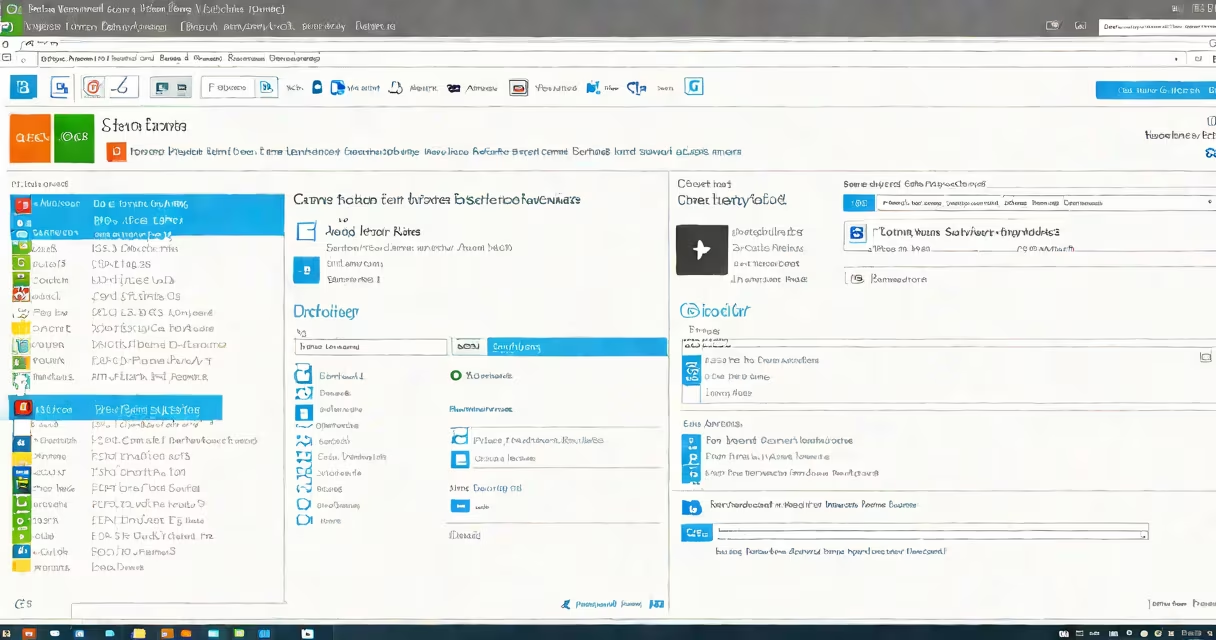
Windows playback device settings let you choose which audio output device-like speakers, headphones, or a TV-plays sound from your PC. You can set a default device, switch between connected devices, and adjust volume levels independently.
These settings appear under System > Sound in Windows 10 and 11. They're managed through the Windows Audio Session API, which handles routing audio streams from apps to physical or virtual output devices. The system tracks which device is active, remembers your preferences, and applies them automatically when devices reconnect.
For example, if you plug in USB headphones while watching a video, Windows may automatically switch audio output to those headphones if they're set as the default. This behavior is controlled by the "Set as Default" option in the playback device menu.
When you play audio in Windows, the operating system routes the signal through the audio driver stack. The kernel-mode audio driver (such as WDM Audio) communicates with the hardware or virtual device. User-mode components like the Audio Service and the Audio Endpoint Builder manage device discovery and session routing.
Each playback device appears in the list of available outputs. Right-clicking a device gives options to set it as the default, set it as the default communication device (for calls), or test it. The system uses device identifiers (PnP IDs) to track which device is which, even if multiple devices have similar names.
Applications send audio through the Windows Core Audio APIs. Apps don't directly access hardware-they send data to the audio session, which the system routes based on current settings. This allows multiple apps to play sound simultaneously, each using the same or different devices.
Windows supports several types of playback devices:
| Type | Use Case | Example |
|---|---|---|
| Internal Speakers | Default audio output on laptops and desktops | Onboard audio chipset (Intel HDA) |
| Headphones/Earbuds | Private listening, gaming, calls | USB-C wired headphones, Bluetooth earbuds |
| External Monitors or TVs | Video playback with synchronized audio | HDMI-connected monitor with built-in speakers |
| USB Audio Devices | High-fidelity audio, studio monitoring | Focusrite Scarlett 2i2 interface |
| Virtual Devices | Software-based audio routing | VB-Audio Virtual Cable, Voicemeeter |
Some devices support multiple channels. For example, a 5.1 surround sound setup requires six separate audio channels. Windows detects these and presents them as individual playback devices if supported by the driver.
Bluetooth audio devices often show up with a "(Bluetooth)" suffix. These devices use the A2DP profile for music and the HFP profile for calls. Windows treats them as distinct endpoints, allowing you to assign different default devices for media and communication.
One frequent problem is audio playing through the wrong device. This happens when a device was previously selected and Windows remembers it. To reset, go to Settings > System > Sound > Output, then select the correct device and click Set as Default.
If no device appears, check Device Manager. Expand Sound, video, and game controllers. Look for entries with a yellow exclamation mark. Right-click and select Update driver. If the issue persists, try rolling back the driver or reinstalling it from the manufacturer's website.
Another issue is missing audio after connecting a new device. Plug in the device, wait 10 seconds, then open the Sound settings. If the device doesn't appear, right-click in the playback devices list and select Show Disabled Devices. Enable the device if it's listed as disabled.
I once had a laptop where HDMI audio wouldn't activate after a Windows update. The device appeared in Device Manager but didn't show in Sound settings. After disabling and re-enabling the Intel Display Audio driver, it reappeared. This happened because the update broke the device's registration with the audio service.
Many users think "default device" means the only device that can play audio. That's incorrect. You can have multiple playback devices enabled at once. For example, you can play music through Bluetooth headphones while using internal speakers for system alerts.
Another misconception is that changing the default device affects all applications equally. In reality, apps can override the default. A game might force audio to a specific device regardless of system settings. Some apps, like Discord or Zoom, allow you to set audio output independently within their interface.
Also, people often confuse playback device settings with input device settings. Input devices (microphones, webcams) are configured under the "Input" tab in Sound settings. Mixing up the two leads to troubleshooting the wrong component.
Suppose you're using a desktop with dual monitors and external speakers. You want to switch to headphones for a private call.
After setting the device, all new audio sessions will route through the headphones unless overridden by an app. You can revert by selecting another device and repeating the process.
For advanced users, you can automate device switching using PowerShell. The command Get-PSDrive -PSProvider FileSystem | Get-ChildItem -Path "C:\Windows\System32\drivers\etc\hosts" isn't relevant here-instead, use Set-DefaultAudioDevice via a script, though this requires enabling PowerShell scripts and installing the AudioDeviceCmdlets module.
Playback devices handle output-what you hear. Recording devices handle input-what the microphone captures. Confusing these leads to misconfigurations. For example, setting a headset mic as the default playback device causes silence during calls.
When troubleshooting audio issues, always verify whether the problem lies in playback or recording. Check the correct tab in Sound settings. Misdiagnosis wastes time and effort.
Understanding windows playback device settings lets you control audio flow precisely. It's essential for remote work, gaming, and multimedia production. Knowing how to switch devices, fix missing outputs, and avoid common errors saves time and prevents frustration.