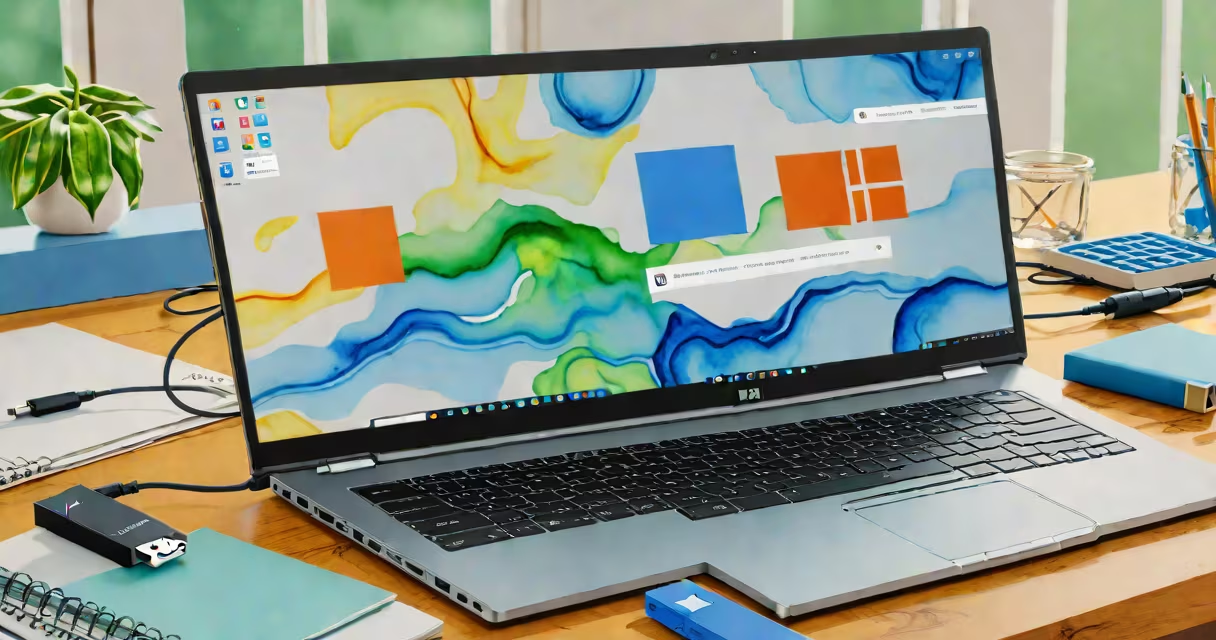
A windows 11 pro usb is a bootable flash drive containing the complete installation files for Windows 11 Pro, used to install or reinstall the operating system on a compatible PC. It serves as a portable, reliable method to set up or repair a system when the original OS is missing, corrupted, or needs updating.
Creating a windows 11 pro usb requires downloading the official Windows 11 Pro ISO file from Microsoft's website and using a tool like the Media Creation Tool or Rufus to write the image to a USB drive. The resulting device can boot a computer directly into the Windows installer, bypassing any existing operating system.
For users upgrading from older versions, such as Windows 10, a windows 11 pro usb enables clean installs, resets, or migrations. It's essential for IT administrators managing fleets of devices, enterprise rollouts, or individuals rebuilding systems after hardware failure. The process is standardized across machines, ensuring consistent deployment.
The USB functions as a portable boot device because it contains a boot sector and a file system structure recognized by UEFI firmware. When inserted into a PC and booted from, the system loads the Windows Setup environment from the USB's root directory.
During startup, the computer's UEFI firmware detects the USB as a valid boot source. It then loads the EFI bootloader located in the \efi\boot\bootx64.efi file within the ISO. This file launches the Windows Setup interface, which guides users through partitioning, disk formatting, and installation configuration.
Once the installer runs, it copies system files to the target drive, configures drivers, sets up user accounts, and activates the license. If the machine was previously activated under a volume licensing agreement, activation may occur automatically during setup.
You need three components: a USB flash drive (minimum 8 GB capacity), a computer running Windows 10 or 11, and access to the official Windows 11 Pro ISO file. The USB must be formatted as FAT32 or exFAT to ensure compatibility with UEFI systems.
Microsoft provides the Media Creation Tool, a free utility that downloads the latest Windows 11 Pro ISO and writes it to a USB drive. Alternatively, Rufus-a third-party tool-offers greater control over partition schemes and file system choices. Both tools validate the integrity of the downloaded image against checksums published by Microsoft.
Use a USB drive with at least 8 GB of storage. A 16 GB or larger drive is recommended for future updates or additional tools. Avoid drives labeled "for backup" or "for media," as they often lack proper write endurance and may fail during the image burn process.
| Tool | Best For | File System Output | UEFI Support |
|---|---|---|---|
| Media Creation Tool | First-time users, automatic downloads | FAT32 | Yes |
| Rufus | Advanced users, custom settings | FAT32 or exFAT | Yes |
| Windows USB/DVD Download Tool | Legacy systems (rare) | FAT32 | Yes |
Always verify the ISO file's SHA-256 hash before burning. Microsoft publishes these values on their official release notes page. Mismatched hashes indicate tampering or incomplete downloads, which can lead to failed installations.
One frequent error is using a USB drive smaller than 8 GB. The Windows 11 Pro ISO exceeds 5 GB, and the installation process requires temporary space for decompression. A 4 GB drive will fail silently during the copy phase.
Another issue arises when the USB is not properly marked as bootable. Tools like Rufus allow users to select the correct partition scheme (GPT for UEFI, MBR for legacy BIOS). Choosing MBR on a UEFI-only system prevents booting entirely.
Some users attempt to copy the ISO file directly to the USB using drag-and-drop. This creates a non-bootable drive because the necessary EFI bootloader files are missing. Always use a dedicated imaging tool.
I once created a windows 11 pro usb for a client's workstation with a 16 GB drive and Rufus. After selecting GPT and UEFI mode, the tool reported success. When testing on a Dell Latitude 7420, the system booted directly into the installer. The client had previously tried dragging the ISO file to the drive-this failed due to missing boot sectors.
A windows 11 pro usb is not the same as a recovery drive. A recovery drive is generated from within Windows and contains only system restore tools, not the full OS. It cannot perform a clean install or upgrade from scratch.
Also, a windows 11 pro usb is not interchangeable with a standard Windows 11 home USB. While both use the same ISO format, the Pro version includes enterprise features like BitLocker, Group Policy, Remote Desktop, and Hyper-V. These are disabled in the Home edition.
Users sometimes assume that any USB drive can run the installer. However, some older or low-quality drives do not support UEFI booting, even if they appear functional in file explorer. Always test the USB on a known working machine before deploying it widely.
Enterprises use windows 11 pro usb to deploy standardized images across hundreds of devices. IT teams create master USB drives with pre-configured settings, including domain joining, driver injection, and software packages. This reduces on-site setup time and ensures compliance with security policies.
Individuals use it to rebuild systems after malware infections, hardware upgrades, or failed updates. A clean install via USB eliminates accumulated clutter and restores performance. According to Microsoft's 2023 Deployment Guide, 68% of enterprise deployments used USB-based installation methods for consistency and auditability.
Home users also benefit. When upgrading from Windows 10, a windows 11 pro usb allows side-by-side evaluation. Users can test features like Snap Layouts, Widgets, and improved touch input without committing to a permanent change.
Ensure you're downloading the correct edition. Select "Windows 11 Pro" from the product list, not "Home" or "Enterprise." The ISO file name includes the version number (e.g., en-us_windows_11_pro_version_23h2_updated_jun_2023_x64_dvd_a6f5c7b3.iso).
After downloading, verify the SHA-256 hash using PowerShell:
Get-FileHash -Path "C:\Downloads\win11pro.iso" -Algorithm SHA256Compare the output to the value listed on Microsoft's official release page. A mismatch indicates corruption or tampering.
Once the windows 11 pro usb is ready, insert it into the target machine and restart. Enter the boot menu (usually by pressing F12 or Esc during startup) and select the USB device. The installer will launch in minutes.
During setup, choose "Custom: Install Windows only (advanced)" to wipe the existing OS and start fresh. Select the unallocated space or format the drive to NTFS. Proceed with the installation.
After setup completes, connect to the internet and sign in with a Microsoft account or local user. Enable Windows Update to receive the latest security patches. For business environments, join the device to Active Directory using the domain credentials provided by your IT team.
If you're setting up a personal computer and don't need enterprise features, consider windows 11 pro for personal use for a streamlined experience.