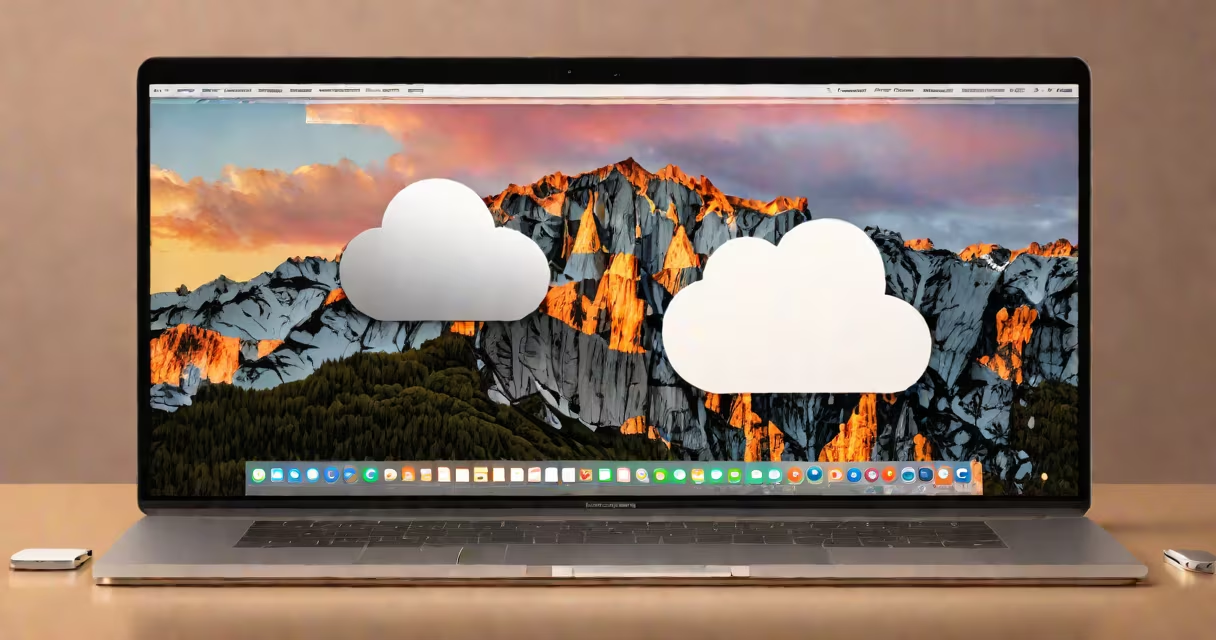
iCloud on Mac is a system service that syncs your files, photos, contacts, and settings across Apple devices. It runs in the background and appears in the menu bar and System Settings.
The iCloud app itself doesn't have a standalone icon on the desktop or in the Applications folder. Instead, it's integrated into macOS through the System Settings app and the menu bar. You access it via System Settings under your Apple ID profile, or by clicking the iCloud icon in the menu bar at the top of the screen.
When you sign in with your Apple ID, iCloud automatically begins syncing data like Photos, Mail, Contacts, and Desktop & Documents folders. The service uses end-to-end encryption for sensitive data, ensuring privacy across devices.
iCloud operates through continuous synchronization between your Mac and Apple's cloud servers. When you save a document to iCloud Drive, it appears instantly on other devices signed in with the same Apple ID. This happens in real time, not on a schedule.
For example, if you edit a Pages file on your iPhone and then open it on your Mac, the latest version loads within seconds. iCloud maintains version history for documents, allowing you to restore previous edits from the "Versions" tab in the File menu.
System Services like Find My, iMessage, and FaceTime rely on iCloud to function. If you enable "Find My" on your Mac, it broadcasts your device's location to Apple's network, helping you locate it remotely if lost.
To manage iCloud, open System Settings (formerly System Preferences) and select your Apple ID at the top. Under the "iCloud" tab, you'll see a list of services you can turn on or off:
You can also control which apps access iCloud data. For example, enabling iCloud Drive allows apps like Microsoft Word and Adobe Creative Cloud to store files in iCloud.
If you don't see the iCloud section, ensure you're signed in with your Apple ID. Go to System Settings → Apple ID → Sign In. Without authentication, iCloud features remain inactive.
Many users assume iCloud has a standalone app like Dropbox or Google Drive. It does not. There is no "iCloud.app" in the Applications folder. The confusion often arises because iCloud Drive appears in Finder as a sidebar option.
Another misconception: iCloud requires Wi-Fi to work. While internet connection is needed for syncing, iCloud continues to operate offline. Changes made while disconnected are queued and applied once connectivity resumes.
When iCloud fails to sync, check the following:
According to Apple's support documentation, iCloud sync issues most often stem from outdated macOS versions. Ensure your system is updated to macOS Sonoma or later for full functionality.
I once accidentally deleted a key presentation file from my Mac's desktop. The file was stored in iCloud Drive, and I had previously enabled "Improve Storage" to free up local space. After deleting the file, I went to iCloud.com and accessed the "Recently Deleted" folder. The file remained there for 30 days before permanent removal.
I restored it from the web interface, and it appeared in my Mac's iCloud Drive folder. This feature relies on iCloud's versioning and backup system, which retains deleted files temporarily. Without iCloud, recovery would require a separate backup solution.
Unlike third-party services such as Dropbox or OneDrive, iCloud integrates deeply with macOS and iOS. It doesn't require a separate download or installation. The service activates automatically when you sign in.
| Feature | iCloud | Dropbox | OneDrive |
|---|---|---|---|
| Native macOS integration | Yes (built-in) | No (requires app) | No (requires app) |
| End-to-end encryption | Yes (for Messages, Photos, Keychain) | Partial (file-level only) | Partial (file-level only) |
| Free storage | 5 GB | 2 GB | 5 GB |
| Sync speed (average) | Fast (optimized for Apple devices) | Medium | Medium |
Apple emphasizes privacy in its design. According to Apple's Privacy Features page, iCloud uses end-to-end encryption for messages, photos, and passwords. Third-party services do not offer the same level of default protection.
When I set up a new MacBook Pro, I signed in with my Apple ID during initial setup. Within minutes, my photos, calendars, and documents began syncing from my iPhone. I didn't need to install anything or configure settings manually. The process was smooth because iCloud is part of the operating system.
Later, I discovered that iCloud backups of my iPhone were being created automatically every night when connected to power and Wi-Fi. This saved me from losing data during a hardware failure. The reliability of iCloud in this context surprised me-it worked without prompts or reminders.
There is no standalone "iCloud" app on Mac. The service lives in System Settings and the menu bar. To find it, click the iCloud icon in the menu bar (if visible) or go to System Settings → Apple ID → iCloud. You can also access iCloud.com from any browser to manage files, photos, and settings remotely.
For advanced users, iCloud can be managed via Terminal commands using defaults read ~/Library/Preferences/com.apple.systempreferences.plist to check status, though this is not recommended for casual users.
Understanding where iCloud is on Mac prevents frustration and ensures you're using Apple's system efficiently. sharing documents across devices, knowing the correct location and access path is essential.