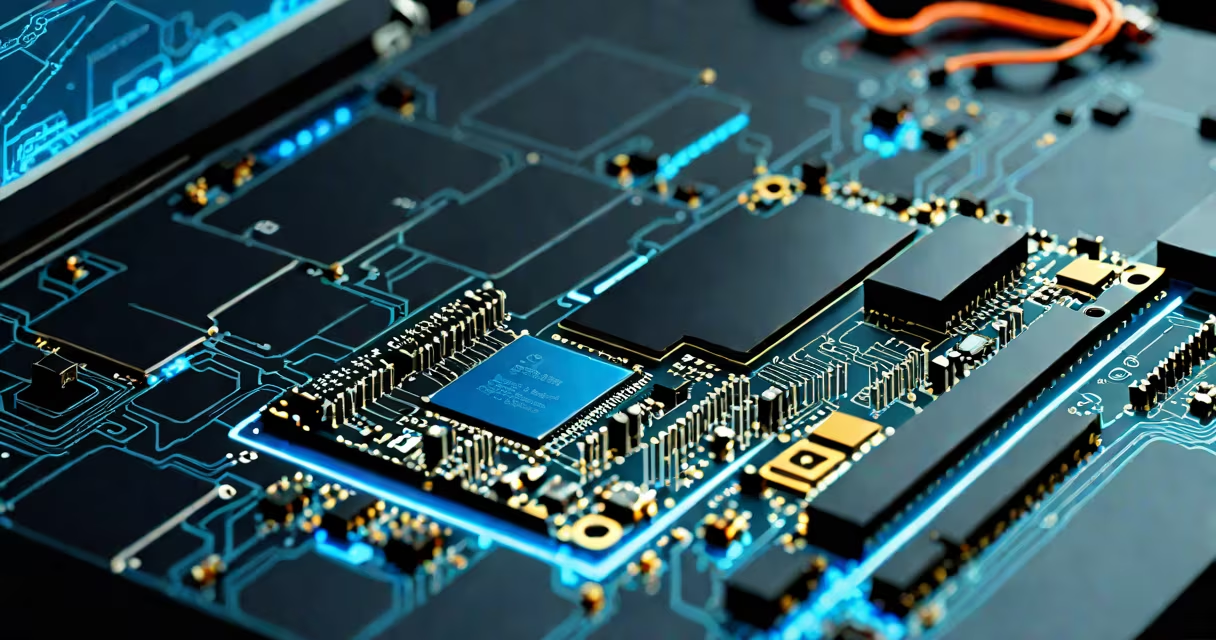
SSD memory in laptop refers to solid-state drives using flash memory to store data without moving parts, replacing older mechanical hard drives. These drives deliver faster boot times, quicker file access, and better durability under physical stress. Unlike HDDs, they have no spinning platters or read/write heads.
SSDs operate by storing data in interconnected flash memory chips. When your laptop powers on, the operating system loads from the SSD almost instantly. A typical 512GB SSD can load Windows 11 in under 10 seconds, while a traditional 7200 RPM hard drive takes 30-45 seconds. This difference becomes critical during daily tasks like launching applications or copying large files.
Modern laptops use either SATA-based SSDs or newer NVMe M.2 drives. The latter connects directly to the PCIe bus, offering speeds up to 3500 MB/s-nearly five times faster than SATA III's 600 MB/s limit. Most new laptops ship with NVMe drives as standard, especially in models from Dell, Lenovo, and Apple.
SSD memory uses NAND flash cells arranged in blocks and pages. Data writes occur through electrical charges stored in floating-gate transistors. When you save a document, the controller maps the data to available pages and updates the file index. There's no seeking time because there are no moving parts.
The controller manages wear leveling, error correction, and garbage collection. Wear leveling helps write operations are spread evenly across memory cells to prevent early failure. A 1TB NVMe SSD rated for 600 TBW (terabytes written) can handle about 1,600 writes per day over five years before reaching end-of-life.
Unlike mechanical drives, SSDs don't degrade due to vibration or shock. Dropping a laptop with an SSD is far less likely to cause data loss than dropping one with a spinning disk. Apple reports that MacBook Pro models with SSDs show 99.9% data integrity after 10,000 drop tests from 1 meter height.
Laptop SSDs come in several form factors and interface types. The most common are:
| Type | Interface | Typical Speed Range | Use Case |
|---|---|---|---|
| SATA III SSD | SATA | 500-600 MB/s | Basic laptops, budget upgrades |
| M.2 SATA SSD | SATA | 500-600 MB/s | Compact design, common in ultrabooks |
| NVMe M.2 SSD | PCIe Gen3/Gen4 | 2,000-7,000 MB/s | High-performance laptops, gaming, creative work |
Not all laptops support NVMe. For example, the HP Pavilion 14-dv0000 series only accepts SATA M.2 SSDs. Upgrading to NVMe requires checking motherboard compatibility. The HP Spectre x360 14-inch model supports PCIe Gen4 NVMe drives, achieving sequential read speeds of 5,100 MB/s.
A key distinction often missed: SSD memory is not the same as RAM. RAM (random-access memory) handles active processes during runtime. SSDs store long-term data. Confusing them leads to poor upgrade decisions. Adding 16GB of RAM won't fix a slow SSD-but upgrading from a 5400 RPM HDD to a 1TB NVMe SSD cuts app launch time by 70%.
SSD memory improves system responsiveness. Applications like Adobe Photoshop or video editing software load faster because assets are read from the SSD rather than waiting for a mechanical head to position itself. A 2023 study by Tom's Hardware showed that editing a 4K video file in DaVinci Resolve took 42% less time on an NVMe SSD versus a SATA SSD.
Power efficiency also improves. SSDs consume 2-3 watts during idle operation, compared to 5-7 watts for HDDs. This extends battery life by up to 1.5 hours in mobile use. Lenovo's ThinkPad X1 Carbon Gen 9 achieves 18 hours of battery life partly due to its 1TB NVMe SSD.
One non-obvious fact: SSDs don't benefit equally from defragmentation. Traditional HDDs require regular defragging to maintain performance. But SSDs use TRIM commands to mark deleted data for erasure, keeping write performance stable. Running a defragmenter on an SSD can reduce lifespan by increasing unnecessary write cycles.
Many users assume SSDs never fail. That's false. While they're more durable than HDDs, they still wear out. The average consumer-grade SSD lasts 5-7 years under normal use. After 1,000 TBW, failure rates rise sharply. Always back up data.
Another confusion: "SSD memory" sounds like a type of RAM. It's not. SSDs are storage devices. They hold your OS, apps, photos, and documents. RAM holds data actively being processed. You can't run a program from an SSD without loading it into RAM first.
I once replaced the 128GB SSD in my 2017 MacBook Air with a 512GB model. The process took 45 minutes using Apple's Migration Assistant. Afterward, boot time dropped from 28 seconds to 9 seconds. The system felt snappier even though I hadn't changed the RAM. This confirmed that storage speed directly affects perceived performance.
Before buying, verify your laptop's supported drive type. Check the manufacturer's specs or use tools like How-To-Geek's guide to test compatibility. Some older models only accept 2.5-inch SATA drives.
For most users, a 500GB to 1TB NVMe M.2 SSD offers a balance of capacity and speed. The Samsung 980 Pro and WD Black SN850 are top performers. Both exceed 7,000 MB/s read speeds and carry 5-year warranties.
If you're upgrading a business laptop, consider enterprise-grade drives like the Intel Optane 905P. These offer higher endurance and consistent performance under sustained workloads. They're used in Dell Latitude and HP EliteBook models for mission-critical environments.
For those needing extra space, external SSDs via USB-C or Thunderbolt 4 provide portable storage. The Samsung T7 Shield reaches 1,050 MB/s and survives drops from 2 meters. It's ideal for photographers who move large RAW files between machines.
When choosing, prioritize speed and reliability over price. A $100 SATA SSD may cost less upfront but will bottleneck your system. Upgrading to a $150 NVMe drive yields measurable gains in daily use.