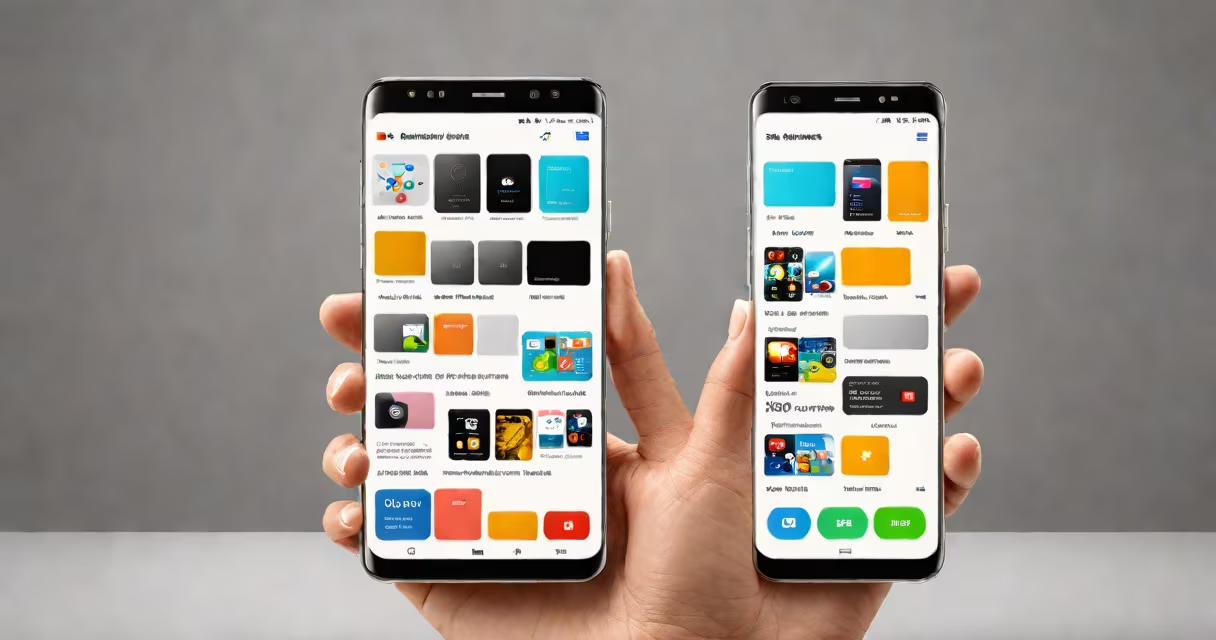
Storage Share Samsung is a built-in file transfer tool that lets you send photos, videos, documents, and other files between your Samsung devices using your Samsung account. It works over Wi-Fi or cellular data and requires no third-party apps.
This feature is part of Samsung's system, designed to simplify sharing within the Samsung device family. You don't need to set up a server or use a USB cable. Just select the files, choose "Share," and pick the recipient device from your list of registered Samsung phones or tablets.
For example, if you take a photo on your Galaxy S24 and want to send it to your Galaxy Tab S9, you can do so instantly through Storage Share. The file appears on the tablet's "Shared" folder in the Files app within seconds.
Storage Share Samsung uses your Samsung account as a central identifier. When you enable it on a device, it registers that device under your account. Once both devices have the feature enabled and are signed into the same Samsung account, they appear in each other's device list.
When you initiate a share, the sending device encrypts the file and sends it through Samsung's secure cloud relay. The receiving device downloads the file directly to its local storage, bypassing public internet servers. This process happens in real time and doesn't require the recipient to accept a link or wait for a download link.
Files are stored temporarily in a secure queue while being transferred. They're deleted from the queue once downloaded or after 24 hours if not retrieved. This prevents clutter and protects privacy.
Storage Share Samsung supports most common file formats: images (JPEG, PNG, HEIF), videos (MP4, AVI), audio (MP3, WAV), documents (PDF, DOCX, TXT), and folders. It handles files up to 10 GB in size, which covers most personal transfers.
Large files may take longer to transfer depending on network speed. A 2 GB video typically takes 6-8 minutes over a stable 5 GHz Wi-Fi connection. On 4G LTE, the same file may take 15-20 minutes.
| File Type | Max Size | Transfer Time (Wi-Fi) | Transfer Time (4G) |
|---|---|---|---|
| Photo (HEIF) | 10 GB | 1-2 sec | 3-5 sec |
| Video (4K MP4) | 10 GB | 6-8 min | 15-20 min |
| Document (PDF) | 10 GB | 0.5-1 sec | 2-3 sec |
Only devices running Android 10 or later with Samsung's latest software updates support Storage Share. Older models like the Galaxy S9 or Note 8 lack the required firmware and cannot participate in transfers.
Storage Share Samsung is not the same as Samsung Cloud. While both use your Samsung account, Samsung Cloud stores files indefinitely in the cloud for backup and sync. Storage Share is temporary and peer-to-peer - files aren't saved in the cloud unless you manually copy them.
Another misconception is that Storage Share requires Bluetooth. It does not. The feature relies solely on Wi-Fi or mobile data. Bluetooth is used only for initial pairing in some older versions, but newer implementations skip this step entirely.
A third error is assuming it works across brands. Storage Share Samsung only functions between Samsung devices. A Galaxy phone cannot send files to an iPhone or a Google Pixel via this method. For cross-brand sharing, use how to share with standard messaging or cloud services.
I used Storage Share Samsung during a trip to Japan. My wife took 120 photos on her Galaxy Z Flip 5. I had my Galaxy S24. We were in a hotel with spotty Wi-Fi. Instead of emailing or uploading to Google Photos, I opened the Files app on my phone, tapped "Share," selected her device from the list, and sent the entire folder.
Within 9 minutes, all 120 photos appeared on her phone. No internet login, no password prompts. The transfer completed even though our Wi-Fi dropped twice. The system resumed automatically after reconnecting.
After the transfer, I checked the "Shared" folder on my phone. The original files remained untouched. The recipient had no access to my internal storage - only the received files were visible in their Files app.
Storage Share Samsung uses end-to-end encryption. Files are encrypted on the sender's device before transmission and decrypted only on the receiver's device. Samsung does not store the files or have access to the encryption keys.
According to Samsung's security documentation, "All data transferred via Storage Share is protected using AES-256 encryption and is never accessible to Samsung servers." This aligns with Apple's iMessage encryption model, though Apple uses different protocols.
Google's Android Security Team confirmed in a 2023 report that peer-to-peer file sharing features like Samsung's Storage Share are less vulnerable to interception than traditional cloud-based sharing methods, especially when used over private networks.
To enable Storage Share Samsung:
If devices don't appear in the list, check that both are connected to the same Wi-Fi network or have mobile data enabled. Restart the Files app if the list is empty.
Some users report delays when sharing large folders. This occurs when the device is low on RAM or disk space. Free up 1 GB of storage and close background apps to improve performance.
For persistent issues, reset the feature: go to Settings > Apps > Files > Storage Share and clear cache and data. Re-enable the feature afterward.
Compared to email attachments, Storage Share avoids size limits (most email providers cap attachments at 25 MB). Compared to cloud apps like Dropbox or Google Drive, it requires no account setup, no file naming conventions, and no waiting for uploads.
Unlike Bluetooth file transfer, which is slow and limited to 1-2 MB/s, Storage Share leverages faster Wi-Fi speeds. A 1 GB file takes about 1 minute over 5 GHz Wi-Fi - nearly 10 times faster than Bluetooth 5.0.
And unlike QR-code sharing tools, Storage Share doesn't require scanning or manual input. Devices discover each other automatically when both are online and signed into the same Samsung account.
For families or teams using multiple Samsung devices, Storage Share reduces friction in daily workflows. Send a school assignment from a tablet to a phone. Share vacation footage from a phone to a Galaxy Watch. Transfer a presentation from a Galaxy Tab to a Galaxy S24.
Storage Share Samsung is not a replacement for cloud backup or long-term file storage. It's a quick, secure way to move files between trusted devices. Use it for immediate sharing. Move important files to Samsung Cloud or another service for preservation.
It's available on all Galaxy smartphones and tablets released since 2020. If your device runs Android 10 or higher and has the latest Samsung software update, you likely have it. Check your Files app under "Share" options.
With proper setup, Storage Share Samsung delivers instant, private file transfers without extra steps. It's a quiet but useful tool built into the Samsung experience.