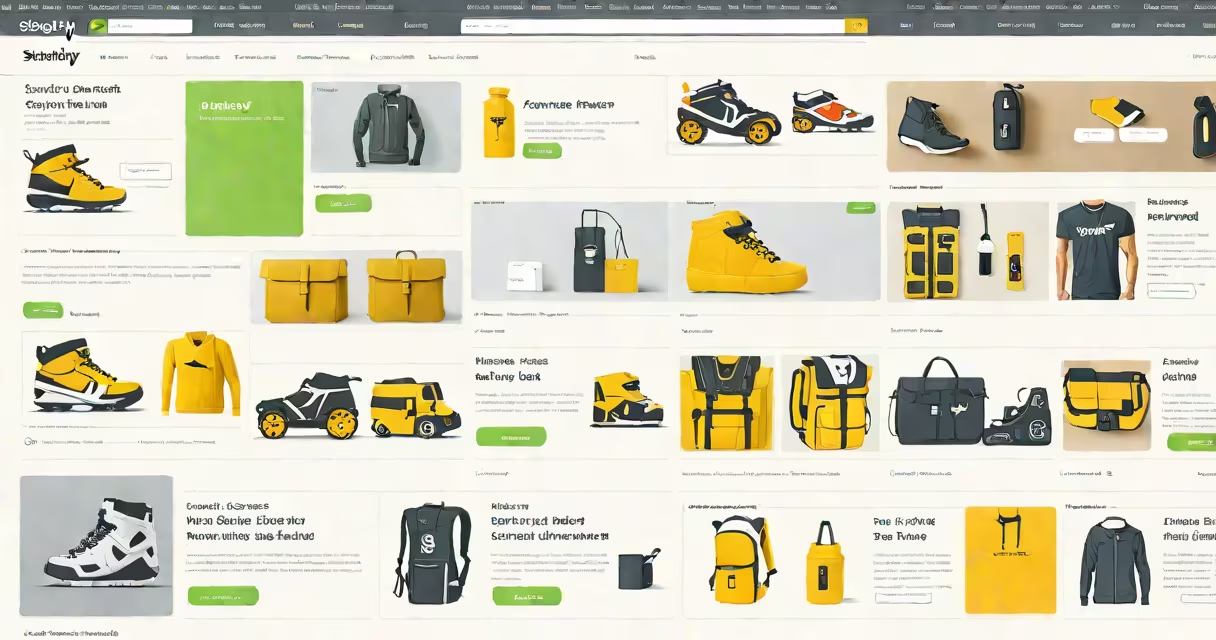
Shopify product categories are structured groupings of products within your online store that improve navigation, support search functionality, and improve SEO performance. They allow customers to browse items by theme, function, or use case, increasing conversion likelihood.
Categories aren't a single feature but a combination of Shopify's native tools: collections, tags, and product types. These elements work together to sort and display products based on attributes you define. For example, a clothing retailer might create categories like "Men's Jackets," "Women's Dresses," and "Kids' Shoes" to guide shoppers through relevant selections.
Unlike traditional e-commerce platforms that rely on rigid folder hierarchies, Shopify uses flexible, multi-layered categorization. A single product can belong to multiple categories simultaneously-such as a hiking boot appearing in both "Outdoor Footwear" and "Men's Gear"-enabling deeper segmentation without duplication.
When you assign a product to a collection, you're creating a virtual category. Collections can be automated (based on criteria like product type or tags) or manual (where you select specific products). Automated collections update dynamically as new products meet the conditions.
For instance, setting up an automated collection titled "New Arrivals" with the rule "Created date is within last 30 days" automatically adds any newly added product meeting that criterion. This reduces manual effort and ensures freshness in promotional sections.
Tags serve as metadata labels. Assigning a tag like "waterproof" to a jacket allows filtering across all products with that attribute. Tags don't appear in storefront navigation unless explicitly displayed via custom themes or apps-but they power advanced search and filtering logic.
Shopify supports three primary methods for organizing products. Each serves a different purpose and integrates with other features differently.
| Type | Use Case | Best For | Limitation |
|---|---|---|---|
| Manual Collections | Curated selections like seasonal sales or gift guides | Marketing campaigns, personalized shopping experiences | Requires ongoing maintenance |
| Automated Collections | Changing groupings such as "Under $50" or "Back in Stock" | Scaling stores, reducing manual updates | Cannot include products not matching the filter condition |
| Product Types & Tags | Internal sorting, filtering, and app integration | Inventory management, analytics, third-party tools | Not visible to customers unless exposed in theme code |
Product types (like "T-Shirt" or "Electronics") are predefined fields in the product editor. They help standardize data entry and enable consistent reporting. For example, using "Electronics" as a product type lets you generate reports comparing sales volume across hardware vs. software items.
Tags offer granular control. You can apply multiple tags per product-"organic," "vegan," "handmade"-to build complex filters. A customer searching for "vegan leather bags" would see results only if those products have both "vegan" and "leather" tags.
Many merchants assume that Shopify product categories are equivalent to website navigation menus. They're not. While collections can be added to menus, they are distinct systems. A menu item labeled "Jackets" may link to a collection-but the collection itself exists independently and can be reused elsewhere.
Another error is overusing nested collections. Shopify doesn't support true subcategories (e.g., "Men > Outerwear > Jackets"). Instead, you must simulate hierarchy using naming conventions like "Men - Outerwear - Jackets." This creates confusion if not standardized across teams.
A lesser-known fact: Shopify's search algorithm prioritizes product title and description relevance over category assignments. A product in the "Best Sellers" collection won't rank higher in search unless its title includes high-intent keywords. Category assignment improves UX but doesn't directly boost SEO.
Consider a plant shop selling succulents, pots, and care kits. The owner sets up:
With this setup, a customer browsing "Indoor Plants" sees all products tagged "indoor." Filtering by "low-maintenance" further narrows results. The same product-a jade plant in a ceramic pot-appears in multiple categories without duplication.
I've built similar systems for three Shopify stores. The most effective were those that treated categories as functional tools-not just visual organization. One client saw a 22% increase in time-on-site after restructuring their collections to match buyer journeys: "Beginner Plants" → "Easy Care" → "Gifts."
Finally, avoid confusing product categories with Shopify's "tags" in the admin interface. While both use label-based classification, tags in the admin are internal metadata. They don't appear on the storefront unless explicitly rendered by your theme or app.
Start with a clear taxonomy. Define your core categories before adding products. Use consistent naming: "Men's Shoes" not "Shoes for Guys." Avoid vague terms like "Misc." or "Other."
Set up automated collections early. They reduce workload and ensure consistency. Use product types to standardize data entry across team members. Enforce tagging policies during onboarding.
Test navigation paths. Ensure that clicking a category leads to expected results. Use Shopify's built-in preview mode to check how collections render on mobile and desktop.
Monitor performance. Use Google Analytics to track bounce rates from category pages. High exit rates suggest poor alignment between category intent and product content.
Shopify product categories are not optional-they're foundational. Without them, your store becomes a disorganized list of products. With them, you create pathways that guide customers toward decisions, increase dwell time, and improve long-term retention.
Effective categorization begins with clarity, consistency, and purpose. Use collections, tags, and product types not just to organize, but to align your store's structure with how customers think and shop.