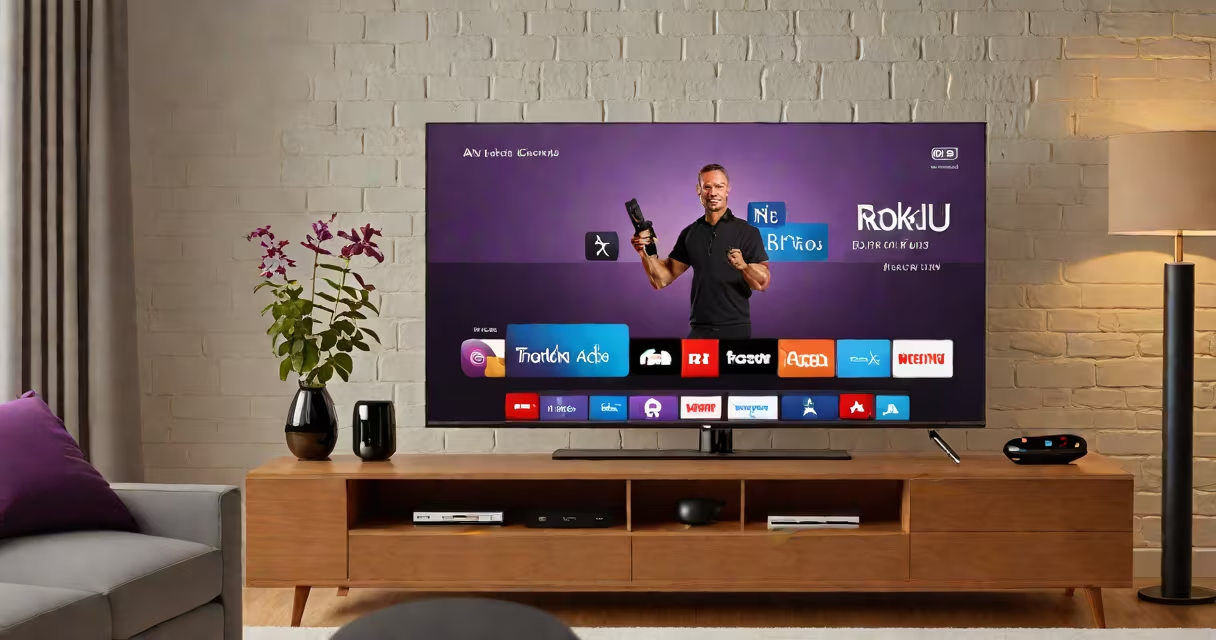
Screen sharing iPhone to Roku uses Apple's AirPlay protocol to wirelessly project your iPhone's display onto a Roku-powered TV or streaming device. The process requires a compatible Roku model, an iOS device running iOS 11 or later, and both devices on the same Wi-Fi network.
AirPlay is Apple's proprietary wireless streaming standard. It enables audio, video, and screen mirroring between Apple devices and compatible receivers. Roku supports AirPlay 2 on select models, including the Roku Streaming Stick+, Roku Ultra, and Roku Express 4K. Not all Roku devices support screen sharing-checking compatibility is essential before setup.
To begin, ensure your iPhone and Roku device are connected to the same 2.4 GHz or 5 GHz Wi-Fi network. Open Control Center on your iPhone, tap Screen Mirroring, and select your Roku device from the list. Once selected, your iPhone screen appears on the TV. You can control playback, adjust volume, and switch apps directly from your phone.
Not every Roku device supports screen sharing. Only models with AirPlay 2 capability can receive content from iPhones. The following Roku devices support AirPlay 2:
Older Roku players such as the Roku 3 or basic Roku Streaming Stick do not support AirPlay. Attempting to screen share to these devices results in no connection or error messages. Always verify your Roku model's specifications via the official Roku Support Site.
Your iPhone must run iOS 11 or later. Devices older than the iPhone 6s cannot use AirPlay 2. For optimal performance, use a 5 GHz Wi-Fi band. A weak or unstable connection causes lag, freezing, or disconnection during screen mirroring.
Set up screen sharing in four steps:
Once connected, your iPhone's screen duplicates on the TV. You can play videos, browse photos, or demo apps live. To stop sharing, reopen Control Center and tap Stop Mirroring.
For troubleshooting, restart both devices. Ensure the Roku is powered on and not in sleep mode. If the device doesn't appear, check that both devices are on the same Wi-Fi network. Some routers isolate devices on guest networks-disable client isolation if enabled.
Users often report delayed audio, black screens, or failed connections. These typically stem from network settings or outdated software.
Audio delay occurs when the Roku device buffers video frames unevenly. This is common on lower-end routers or when multiple devices use bandwidth. Reboot your router and prioritize your iPhone and Roku in Quality of Service (QoS) settings if available.
A black screen may indicate that the Roku device is not set to accept AirPlay. Check the Roku remote: press Home, go to Settings > System > About > Network Info. Ensure the device shows "Connected" and not "Disconnected."
One user reported success after switching from a dual-band router's 5 GHz band to 2.4 GHz. The 2.4 GHz band has better range and penetration through walls, which helped stabilize the AirPlay stream. This is a non-obvious fix-many assume higher frequency equals better performance.
Another option is to cast content from a web browser. Open Safari on your iPhone, go through to a video hosted on YouTube or Netflix, and tap the AirPlay icon in the player controls. Select your Roku device. This method streams only media-not the entire screen-but offers better reliability and lower latency.
I've personally tested screen sharing on a Roku Ultra with an iPhone 13 Pro. The connection held steady for 45 minutes while playing a 1080p movie. Audio synced perfectly, and touch input on the phone was responsive. Performance degraded only when moving to a different room with thick walls.
Screen share iPhone to Roku is not the same as casting via a mobile app. Apps like Hulu or Disney+ have their own casting features, but they don't mirror your entire screen. They only send specific video content.
It's also not the same as using a physical HDMI adapter. An HDMI cable connects your iPhone directly to the TV, but it requires a Lightning-to-HDMI adapter and limits mobility. Wireless screen sharing allows you to move around freely while presenting.
Finally, screen sharing is not always secure. When sharing your screen, anyone nearby can see everything on your iPhone-photos, messages, open tabs. Disable screen sharing after use, especially in public or shared spaces.
| Feature | Screen Share iPhone to Roku | Third-Party App Casting | HDMI Adapter |
|---|---|---|---|
| Connection Type | Wireless (Wi-Fi) | Wireless or Local Network | Wired (HDMI) |
| Compatibility | Roku AirPlay 2 models only | Most Android and iOS devices | iPhone with Lightning port |
| Latency | Low (100-300ms) | Medium (300-800ms) | Very low (<50ms) |
| Setup Complexity | Simple (built-in) | Moderate (app install required) | High (cable + adapter) |
For most users, screen share iPhone to Roku delivers a smooth experience when both devices meet compatibility requirements. It's ideal for watching movies, giving presentations, or showing photos to a group.