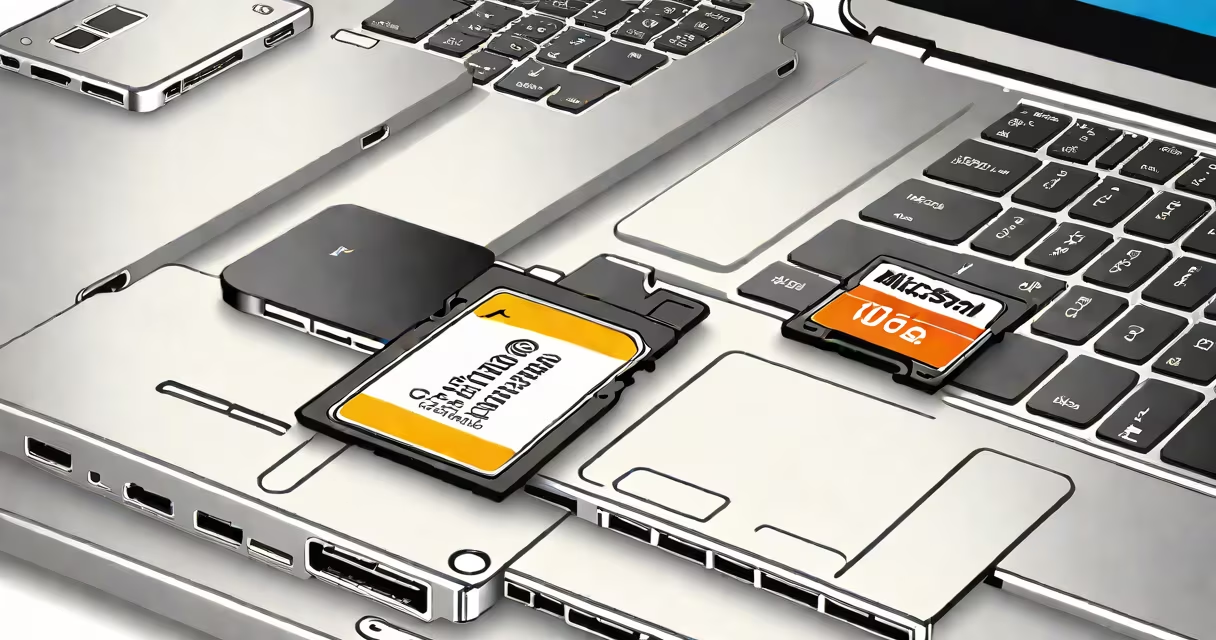
A microSD adapter for PC is a small USB device that connects a microSD card to a computer, enabling file transfer and access. It plugs into any USB port and supports standard microSD, microSDHC, and microSDXC cards.
These adapters convert the microSD card's interface to USB, allowing the PC to recognize the card as a removable drive. They work with Windows, macOS, and Linux systems without requiring drivers in most cases. The device functions as a bridge between the card's internal flash memory and the computer's operating system.
For example, a 128GB microSD card from a smartphone can be inserted into a microSD adapter and accessed on a desktop running Windows 11. Files such as photos, videos, and documents appear in File Explorer within seconds. No software installation is needed unless the card is formatted with a non-standard filesystem.
The adapter contains a controller chip that translates signals between the microSD card and the USB host. When you plug the adapter into a PC, the OS detects it as a USB mass storage device. The card's contents then show up under "This PC" or "Devices" in the file manager.
Most adapters support USB 2.0 speeds (up to 480 Mbps), which limits transfer rates to around 30-40 MB/s. High-speed models with USB 3.0 or higher can reach 100 MB/s or more, depending on the card's class rating. A UHS-I microSD card rated at 100MB/s paired with a USB 3.0 adapter can transfer a 1GB video in under 30 seconds.
Some adapters include a locking mechanism to prevent accidental removal. Others have a compact design that fits inside a USB port without protruding. These features improve usability during file transfers or when using the adapter on the go.
Adapters vary based on speed, build quality, and compatibility. Here's a breakdown of common types:
| Type | Speed Support | Best For | Price Range |
|---|---|---|---|
| Basic USB 2.0 | Up to 480 Mbps | File backup, photo transfer | $3-$6 |
| High-Speed USB 3.0+ | Up to 5 Gbps | Video editing, large file transfers | $8-$15 |
| Multi-Card Reader | Varies | Photographers, travelers | $12-$25 |
USB 3.0 adapters often have blue plastic housings or markings to distinguish them from older versions. Always check the port label on your PC-plugging a USB 3.0 adapter into a USB 2.0 port limits performance to 2.0 speeds.
Some adapters support dual functionality: they accept both microSD and standard SD cards. These are useful for users who switch between devices like cameras and phones. A single adapter replaces multiple readers.
Many people mistake a microSD adapter for a card reader with a built-in slot. A true adapter requires the card to be inserted manually. Some models come with a protective cap to cover the card slot when not in use.
Another error is assuming all adapters support high-capacity cards. While microSDXC cards (up to 2TB) are widely supported, older adapters may fail to read cards larger than 32GB due to firmware limitations. Always verify compatibility with your card's capacity and format.
When a PC doesn't recognize the adapter, try these steps: - Test the adapter on another computer. - Check Device Manager for unrecognized hardware. - Reboot the PC after plugging in the adapter. - Use Disk Management to assign a drive letter if the volume appears but isn't visible.
I once encountered a situation where a 64GB microSD card failed to mount on a Windows 10 machine. The issue was a corrupted partition table. Using the command-line tool diskpart, I ran list disk, selected the correct disk, and assigned a drive letter. The card appeared in File Explorer after that.
Computers don't always have built-in SD card slots. Laptops from brands like Dell, Lenovo, and HP often omit them to save space and weight. Even desktops may lack an SD reader, especially budget models.
Without an adapter, transferring media from a phone or drone requires a cable or cloud upload. A microSD adapter offers a faster, offline alternative. For example, transferring 500 photos (totaling 1.2GB) from a Samsung Galaxy S23 takes less than 90 seconds using a USB 3.0 adapter.
According to USB.org, USB 3.0 ports deliver up to 5 Gbps bandwidth. This enables efficient handling of high-resolution files. The SD Association confirms that microSDXC cards with UHS-I speeds are backward compatible with USB 2.0 ports, though at reduced throughput.
For users managing large datasets-such as video editors or field researchers-using a dedicated adapter avoids reliance on wireless syncing, which can fail or consume data plans.
Look for adapters labeled "USB 3.0" or "USB 3.1 Gen 1" for better performance. Avoid generic brands with no model number. Reputable brands like SanDisk, Kingston, and Samsung offer reliable models with warranty support.
Check the product listing for compatibility with your OS. Most adapters work on Windows 10/11, macOS Big Sur and later, and Linux distributions with udev support. If you're using a Chromebook, ensure the adapter is listed as compatible with ChromeOS.
For long-term use, choose a model with a durable metal casing. Plastic housings can crack under pressure or heat. A well-built adapter lasts longer and resists damage during travel.
When selecting an adapter, consider size. Some models fold into the card slot to reduce bulk. Others feature a retractable cable or snap-on cap. These details improve portability and reduce loss risk.
Always test the adapter with a known working card before relying on it for critical data. A faulty adapter can corrupt files during transfer.
Using a microSD adapter for PC gives you direct access to stored data without needing a phone or cloud service. It's a low-cost, high-reliability solution for anyone who moves files between devices regularly.