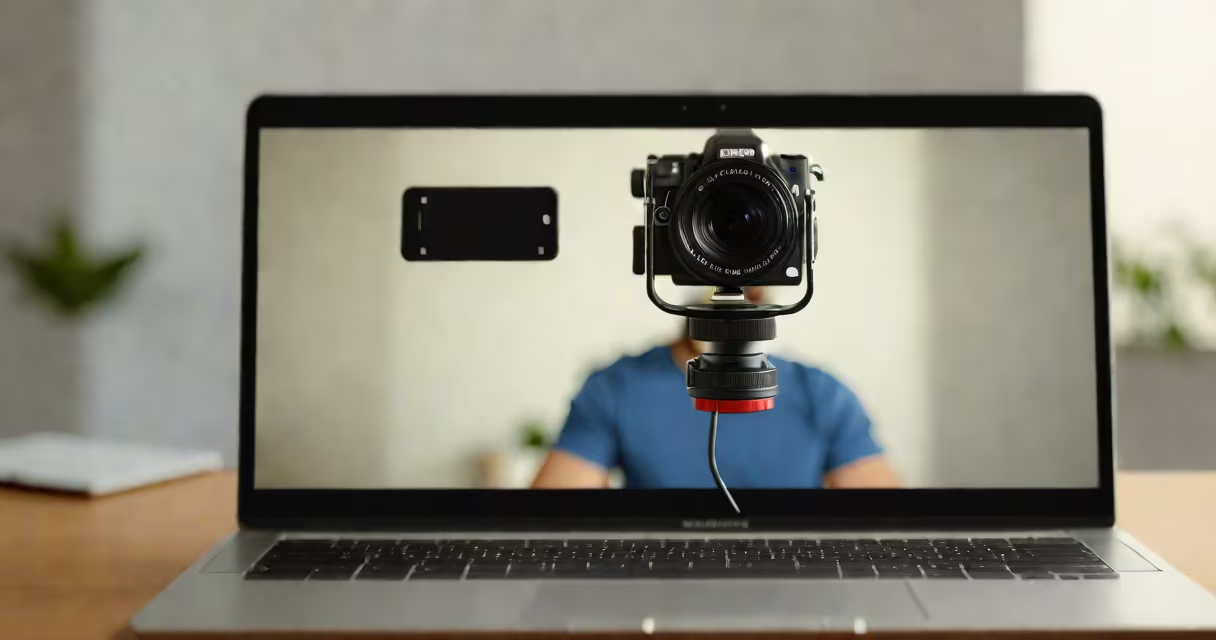
An inverted camera online flips your video feed horizontally, making your image appear reversed like a mirror. This occurs when software or device settings apply a horizontal flip to the live video stream.
The term "inverted camera online" describes a specific visual effect seen during video calls, webinars, or live streams. It's not a physical hardware change-it's a software-level transformation applied to the video feed before transmission. The result is that your left side appears on the right in the viewer's frame, and vice versa.
This effect often surprises users who expect their video to match how they look in a mirror. However, most video conferencing tools like Zoom, Google Meet, and Microsoft Teams display your image in real-time orientation unless explicitly flipped. When the inversion happens unintentionally, it's usually due to a misconfigured setting or a bug in the camera driver.
When your camera feeds video to an application, the raw image is processed through a pipeline. Software can apply transformations such as rotation, scaling, or mirroring. Horizontal flipping-also called mirroring-is a common operation used in applications that simulate a mirror-like view, such as video editing or virtual try-ons.
In video conferencing, the default behavior is to show your face as others see it. But some apps offer a "mirror mode" that flips the preview so you see yourself as you'd see in a mirror. This is useful for checking makeup or posture before speaking. If this mode is enabled accidentally, the final output sent to participants will be inverted.
For example, if you raise your right hand during a Zoom meeting, the person on the other end sees it move on their left side-because the feed was flipped. This can cause confusion, especially in training sessions or interviews where spatial cues matter.
Most cases of inverted camera online stem from one of three sources: software settings, browser permissions, or outdated drivers. The issue rarely lies in the camera itself but in how the system handles the video stream.
On Windows, check the camera settings in the Camera app or via Device Manager. Some webcams have a built-in flip option in their control panel. On macOS, go to System Settings > Privacy & Security > Camera and ensure the app has access. Revoke and re-grant permission if needed.
Browser-based platforms like Google Meet may apply mirroring automatically if the user enables "Mirror my video" in settings. This setting is usually off by default. To disable it, click the three-dot menu in the meeting window, select "Settings," then uncheck "Mirror my video."
For developers or advanced users, the inversion can be triggered by JavaScript libraries like getUserMedia() when the video constraints include { facingMode: "user", mirror: true }. A missing or incorrect flag causes unintended flipping.
Not all inversions are the same. There are two primary types: horizontal flip (left-right reversal) and vertical flip (up-down reversal). Horizontal flipping is far more common and what people refer to as "inverted camera online." Vertical flipping is rare and typically indicates a hardware or firmware fault.
| Type | Effect | Common Use Case | Source |
|---|---|---|---|
| Horizontal Flip | Left becomes right; mirror image | Preview mode, virtual try-ons, video editing | MDN Web Docs |
| Vertical Flip | Top becomes bottom; upside-down view | Specialized surveillance, drone feeds | W3C Media Capture Standard |
A non-obvious fact: some video platforms apply horizontal flipping only to the local preview, not the transmitted stream. This means you see a mirror image on your screen, but viewers see you correctly. This behavior is intentional and designed to reduce cognitive load during setup.
For example, in Zoom, enabling "Mirror my video" shows a flipped version only in your preview window. The actual video sent to others remains normal. This prevents confusion when you're adjusting your position or lighting.
Users often mistake inverted camera online for poor image quality, low resolution, or lag. These are separate issues. A flipped image is sharp and responsive-it just shows the opposite side of your face.
Another frequent mix-up is confusing inversion with rotation. Rotated video (e.g., 90-degree tilt) results in a sideways image. Inversion keeps the orientation upright but swaps left and right. They require different fixes: rotation is handled by software rotation flags; inversion uses mirror flags.
I once encountered a client using a Logitech C920 webcam in a remote training session. Participants reported seeing her face reversed. After testing, we discovered the Zoom client had the "Mirror my video" setting enabled. Disabling it restored correct orientation. The camera hardware was fine; the issue was purely software-based.
While unwanted in most meetings, inverted camera online serves practical purposes. Video editing software often applies mirroring to create symmetrical animations or to simulate reflections. In augmented reality apps, mirroring helps users align virtual objects with their real-world movements.
Some accessibility tools use mirrored video to assist users with motor impairments. By reversing the feed, gestures become easier to track in real time. For example, a user controlling a robot arm via webcam can see their hand movement reflected in the interface, reducing delay perception.
Live streaming platforms sometimes allow hosts to toggle mirroring for aesthetic reasons. A DJ might want to see themselves performing as if in a mirror to better time their movements with music.
To verify whether your camera is inverted online:
If the problem persists across multiple apps, update your camera driver. On Windows, open Device Manager, expand "Cameras," right-click your device, and select "Update driver." On macOS, restart the system or reinstall the camera app.
For web-based tools, clear your browser cache and cookies. Some sites store camera preferences locally. Try accessing the service in incognito mode to isolate the issue.
Finally, avoid third-party tools that claim to "fix" camera inversion without explanation. Many inject malicious code or alter system settings without consent. Stick to official app settings or trusted OS tools.
Understanding inverted camera online helps prevent miscommunication in virtual environments. It's not a flaw-it's a feature that can be controlled. Knowing how it works ensures you present, confidently, and accurately.