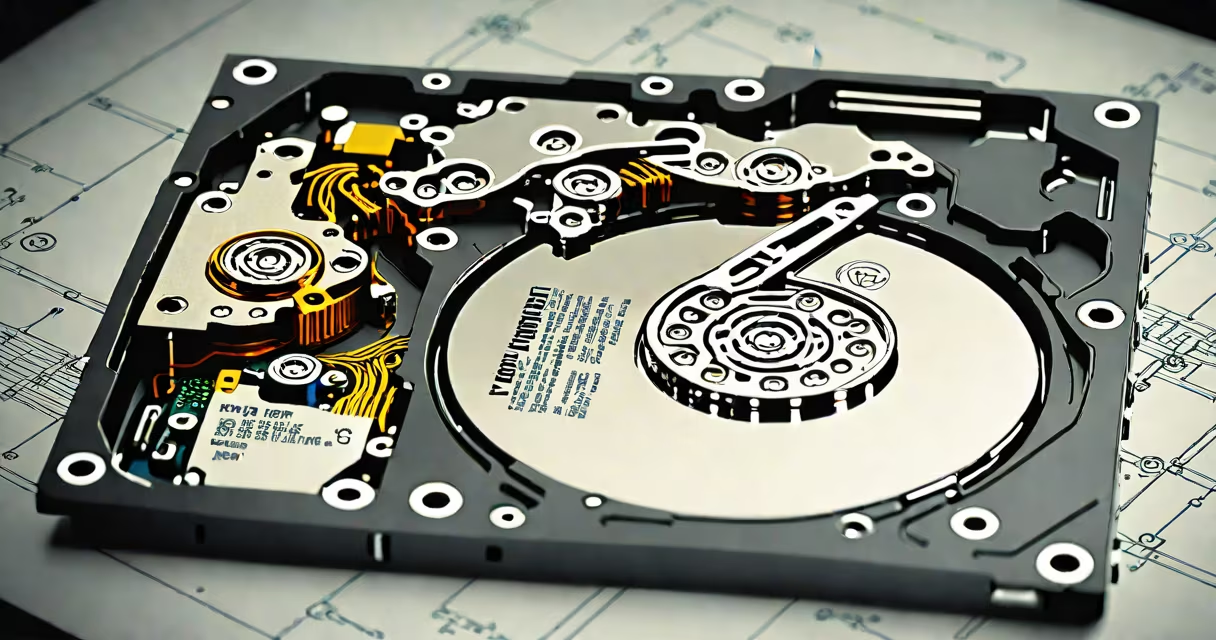
An internal hard disk for laptop is a storage component mounted inside a laptop's casing that stores the operating system, software, and user files. It connects directly to the motherboard via SATA or NVMe interfaces and operates at speeds ranging from 5,400 RPM to 7,200 RPM for traditional HDDs, or up to 7,000 MB/s for modern SSDs.
Most laptops use 2.5-inch form factor drives, which fit standard slots in compact chassis. These drives come in two primary types: mechanical hard disk drives (HDDs) and solid-state drives (SSDs). HDDs rely on spinning platters and moving read/write heads, while SSDs use flash memory with no moving parts. SSDs offer faster data access, lower power draw, and better durability under physical stress.
For example, replacing a 5,400 RPM HDD with a SATA III SSD can reduce boot time from 45 seconds to under 10 seconds. A PCIe Gen4 NVMe SSD can achieve sequential read speeds of up to 7,000 MB/s, enabling near-instant application launches and file transfers.
The internal hard disk for laptop functions as the primary long-term storage unit. When you install an OS like Windows 11 or macOS, it writes system files to the drive. Every document, photo, video, and app you save goes to this storage layer. The CPU accesses data through the motherboard's storage controller, which communicates via SATA or NVMe protocols.
When you open a program, the OS loads necessary code from the drive into RAM. The speed of this transfer depends on the drive's interface and internal architecture. For instance, a SATA III SSD maxes out at around 600 MB/s, while a PCIe Gen4 NVMe SSD can exceed 5,000 MB/s. This difference becomes visible during large file operations or multitasking.
Modern laptops often integrate the drive into a sealed unit with the motherboard. Some models require removing the bottom panel and disconnecting a ribbon cable to replace the drive. Others use proprietary screws or clips, making upgrades more complex than desktop systems.
There are two main categories of internal hard disks for laptops: HDDs and SSDs. Each has distinct performance, cost, and longevity profiles.
| Type | Interface | Typical Speed | Price per GB | Lifespan |
|---|---|---|---|---|
| HDD (mechanical) | SATA III | 80-180 MB/s | $0.03-$0.05 | 3-5 years |
| SSD (SATA III) | SATA III | 500-550 MB/s | $0.10-$0.15 | 5-10 years |
| SSD (NVMe PCIe Gen4) | NVMe PCIe Gen4 | 5,000-7,000 MB/s | $0.25-$0.35 | 5-10 years |
While HDDs remain cheaper per gigabyte, they are slower and more prone to failure due to moving parts. SSDs eliminate mechanical wear, reducing the risk of data loss from drops or vibrations. They also consume less power, extending battery life.
A common misconception is that all SSDs perform similarly. In reality, a SATA III SSD delivers about 550 MB/s, while a PCIe Gen4 NVMe drive can hit 6,500 MB/s. Using a Gen4 drive in a laptop with a Gen3 interface limits performance to ~3,500 MB/s. Always verify your laptop's supported interface before buying.
Internal hard disks for laptop are essential for storing everything from system files to personal media. Without one, a laptop cannot run an operating system. Most new laptops ship with either a 256GB or 512GB SSD, though some budget models still use HDDs.
Users upgrade their internal hard disk for laptop to improve speed, increase capacity, or replace a failing drive. For example, a student using a 128GB HDD for video editing faces constant lag and crashes. Replacing it with a 1TB NVMe SSD reduces rendering times from 20 minutes to under 3 minutes and allows smooth multitasking.
Another frequent use case is upgrading older laptops. A 2016 MacBook Air with a 128GB SATA SSD can be upgraded to a 1TB NVMe model, doubling storage and improving responsiveness. The process requires checking compatibility, using a drive adapter, and reinstalling the OS.
Many people mistake internal hard disks for laptop with external drives. An internal hard disk for laptop is permanently mounted inside the device and connected via a direct interface. External drives connect via USB, Thunderbolt, or eSATA and are designed for portability and backup.
Another error is assuming all SSDs are interchangeable. A laptop may support only M.2 2280 form factor drives with specific pin configurations. Installing a 2260 or 2242 drive won't fit physically. Always check the manufacturer's specifications or consult the service manual.
One non-obvious fact: some laptops use a hybrid storage setup. A 256GB SSD holds the OS and frequently used apps, while a secondary 1TB HDD stores large files like videos and archives. This balances speed and capacity efficiently. However, the SSD portion fills quickly, requiring careful file management.
I replaced the 500GB HDD in my 2015 Dell Latitude 5480 with a 512GB Samsung 970 EVO NVMe SSD. After installing Windows 11 and configuring the boot settings, the laptop booted in 8 seconds instead of 42. File copy speeds increased from 45 MB/s to 5,200 MB/s. The upgrade took 25 minutes and required a screwdriver and a spare SATA-to-NVMe adapter.
Understanding the differences between HDDs and SSDs, interface standards, and physical compatibility ensures you choose the right internal hard disk for laptop. Performance gains from upgrading to an SSD are measurable and consistent across devices.