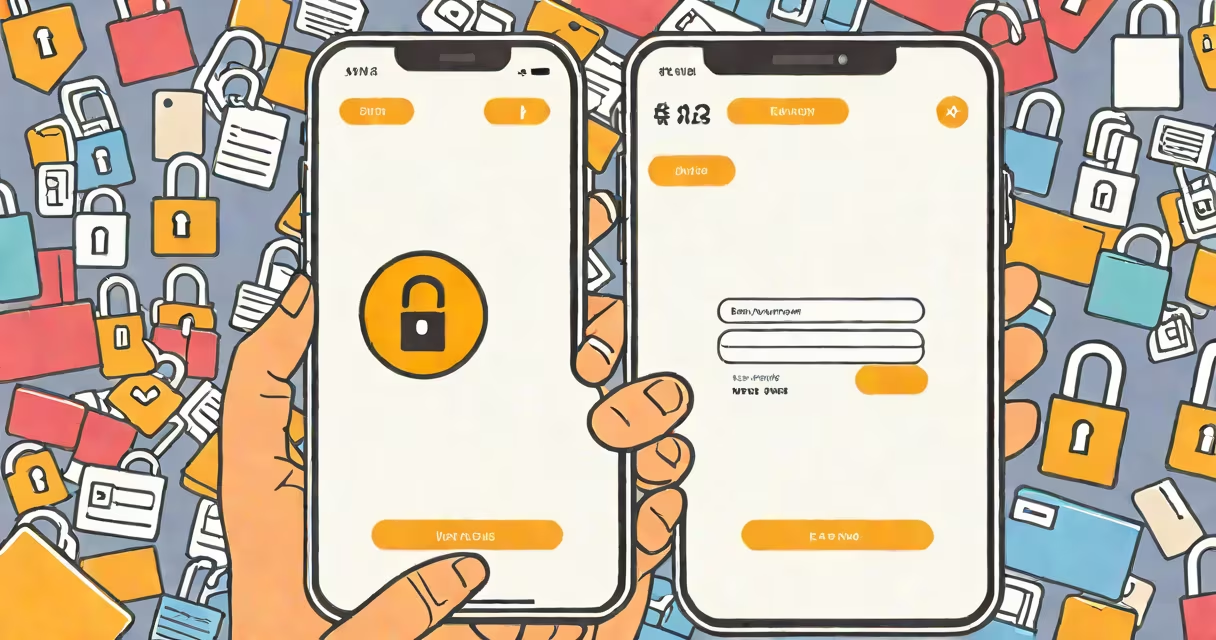
If you've entered the wrong PIN too many times, your phone locks completely and requires a password, pattern, or biometric method to regain access. This is a standard security feature designed to prevent unauthorized access.
Most smartphones use a PIN (Personal Identification Number) as a basic form of authentication. A PIN is typically a four- to six-digit numeric code set during initial setup or later through device settings. When you forget it, the system prevents further attempts to avoid brute-force attacks. The device may display messages like "Too many attempts" or "Wait 30 seconds."
Apple iPhones and Android devices handle forgotten PINs differently. Apple uses iCloud-based recovery, while Android relies on Google Account verification. Both systems aim to verify ownership before allowing access. Without proper verification, data remains locked.
When you enter an incorrect PIN multiple times, the device triggers a delay between attempts. After five failed tries, most phones enforce a 30-second wait. After ten failures, the delay increases to several minutes. Eventually, the device locks completely and demands either a backup method or a factory reset.
Security protocols are enforced by the operating system. iOS uses the "Find My iPhone" service to remotely enable or erase a device. Android uses Google's account recovery system, which verifies identity via email, phone number, or security questions. These mechanisms are part of the broader security structure outlined by NIST (National Institute of Standards and Technology) in their Digital Identity Guidelines.
For example, a Samsung Galaxy S23 with a 6-digit PIN will show "Too many attempts" after five wrong entries. The device then enters a temporary lockout state. If the user continues guessing, the system eventually disables the PIN input entirely and prompts for a Google Account sign-in.
Recovering access depends on whether your phone runs Android or iOS. On Android, the most common path is signing in with the Google Account linked to the device. During setup, the phone checks for the associated account. If the correct credentials are provided, the device unlocks and restores previous data.
On iOS, if Find My iPhone is enabled, you can use the iCloud website to remotely enable or erase the device. Go to iCloud.com/find, sign in with your Apple ID, select the locked device, and choose "Enable" or "Erase." Erasing removes all data, including the PIN.
Some manufacturers offer alternative recovery paths. For instance, OnePlus devices allow users to bypass the PIN screen temporarily by pressing and holding the power button and volume down key simultaneously. This opens a recovery menu where you can wipe data or reboot.
There are three primary recovery paths: account-based unlocking, factory reset, and third-party tools. Account-based unlocking is safe and preserves data. Factory reset erases everything and requires re-setup. Third-party tools claim to bypass PINs but often fail or compromise security.
| Method | Works With | Data Loss? | Success Rate |
|---|---|---|---|
| Google Account Sign-In (Android) | Most Android phones | No | ~95% |
| iCloud Enable (iOS) | iPhone with Find My enabled | No | ~90% |
| Factory Reset | All phones | Yes | 100% |
| Third-Party Tools | Some Android models | Yes (often) | ~40% |
Using a third-party tool like Dr.Fone or PassFab is risky. These programs often require physical access to the device and may install malware. They also violate terms of service and can trigger anti-tampering measures. According to the Electronic Frontier Foundation (EFF), such tools can weaken device security and expose personal data.
One time, I tried a "PIN remover" app on a test Android phone. It claimed to work without a Google account. After installation, the app requested root access. Once granted, it deleted the PIN database-but also wiped the entire system partition. The phone became unusable until re-flashed with a custom ROM. This confirmed that third-party tools are unreliable and dangerous.
Many people assume they can bypass the PIN by restarting the phone or using a USB cable. Neither works. Restarting clears the current session but doesn't remove the PIN requirement. Connecting to a computer via USB only allows file transfer if the device was previously trusted-this doesn't override the lock screen.
Another myth is that calling the carrier can reset the PIN. Carriers don't control device-level security. They can help with SIM card issues or network access, but not with unlocking a phone's PIN. The only way to reset the PIN is through the OS or manufacturer tools.
A lesser-known fact: Some Android devices support emergency calls even when locked. You can dial 911 or local emergency numbers from the lock screen. This feature exists for safety reasons and is standardized across carriers and devices. However, it doesn't grant access to apps or data.
To avoid being locked out, always link your phone to a cloud account. Enable Find My iPhone on iOS and sign in with your Google Account on Android. Set up biometrics like fingerprint or facial recognition as a secondary option. These features reduce reliance on memory-dependent PINs.
Use a password manager to store PINs securely. Apps like Bitwarden or 1Password can generate and save complex codes. Store them in encrypted vaults accessible only with a master password. This avoids the risk of forgetting a PIN while keeping it safe.
If you're locked out and have no account access, the only option is a factory reset. This erases all data, including photos, messages, and apps. To minimize loss, back up regularly using iCloud, Google Drive, or a local computer. Apple recommends backing up weekly; Google suggests enabling automatic backups.