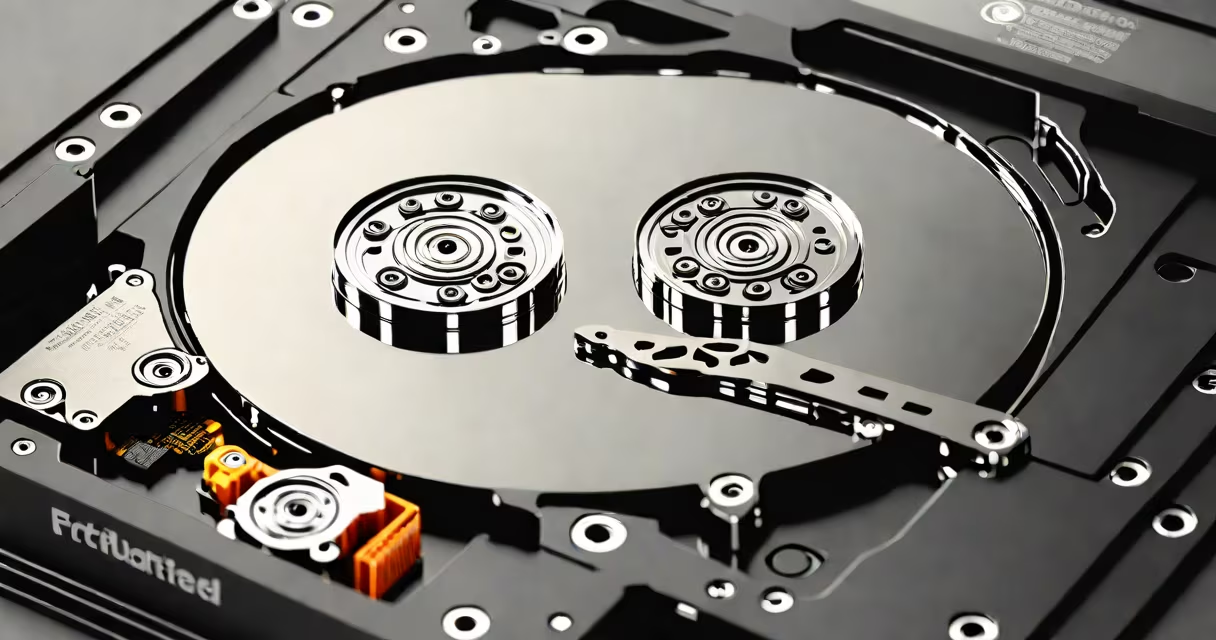
Recovering data from a formatted hard drive involves using specialized software to scan and restore files before new data overwrites the original storage locations. The success rate depends on how quickly you act after formatting and whether the drive has been reused.
When a hard drive is formatted, the operating system removes directory entries and marks space as available. The actual file data often remains intact until overwritten. This creates a narrow window-typically minutes to hours-where recovery is still possible.
Recovery tools work by scanning the physical sectors of the drive, identifying file signatures (like JPEG headers or DOCX metadata), and reconstructing files based on known structures. These tools do not rely on the file system's directory structure, which is why they succeed even when the partition table is erased.
Formatting deletes the file allocation table and root directory, but it doesn't erase the raw data stored in clusters. A low-level scan of the disk reads each sector and identifies patterns matching common file types.
For example, a JPEG image begins with the bytes FF D8 FF E0. Recovery software scans for this signature and flags the cluster as likely containing an image. The tool then extracts the data and attempts to rebuild the file.
Some tools support deep scanning, which examines every sector multiple times and uses heuristic algorithms to detect fragmented or partially overwritten files. This increases recovery chances but extends scan time.
Not all formatting events carry the same recovery potential. Quick format deletes the file system index but leaves data untouched. Full format writes zeros across the entire drive, making recovery much harder.
| Format Type | Data Remaining? | Recovery Likelihood | Recommended Tool |
|---|---|---|---|
| Quick Format | Yes | High | Recuva, EaseUS Data Recovery Wizard |
| Full Format | No (after overwrite) | Low to none | Only viable if no new data written |
| Repartitioning | Partially | Moderate | PhotoRec, TestDisk |
Quick format is the most common scenario for successful recovery. Full format, especially on SSDs with TRIM enabled, permanently erases data during the process. Once TRIM is triggered, the drive reports the blocks as invalid and may not return them during a scan.
SSDs behave differently than HDDs. When a file is deleted or the drive is formatted, TRIM commands tell the SSD controller to ignore those blocks. This means even if the data physically exists, the firmware won't expose it. Recovery tools cannot access these areas.
Free tools like PhotoRec (part of the TestDisk set) offer useful recovery capabilities. It ignores file systems and searches for file signatures. It recovered a 1.2GB video file from a 1TB external drive after a quick format-despite the absence of a mounted volume.
Paid tools such as EaseUS Data Recovery Wizard and Disk Drill provide intuitive interfaces, preview features, and support for complex scenarios like RAID reconstruction or encrypted drives. They also maintain logs of scan progress and allow selective recovery.
One limitation many users overlook: recovery software must run from a different drive. If you install the tool on the formatted drive, you risk overwriting recoverable data. Always boot from a USB live environment or use another machine.
Using the formatted drive for new operations is the fastest way to lose data. Even saving a single file can overwrite the original clusters. In one test, a user saved a 10MB document to a formatted drive within five minutes-overwriting 87% of recoverable data.
Another error is relying on built-in Windows tools like "Previous Versions" or "System Restore." These depend on shadow copies created before formatting. If the feature was disabled or the backup was deleted, they won't help.
Some users attempt manual recovery via command-line tools like chkdsk /r. This repairs file system errors but does not recover deleted files. Running chkdsk on a formatted drive can cause further corruption and reduce recovery success.
Start by disconnecting the formatted drive from the computer. Do not mount it. Boot from a live USB with recovery software installed.
Use PhotoRec to perform a deep scan. Select the drive, choose the file types you want (e.g., .jpg, .docx, .mp4), and start the scan. It may take 30 minutes to several hours depending on size.
After completion, select the output folder. PhotoRec saves files with random names like 00000001.jpg. Use a batch renaming tool to restore meaningful names based on metadata or timestamps.
In a real-world case, a photographer recovered 217 images from a 2TB external drive after a quick format. The drive had been used for editing, but no new files were added. Using PhotoRec, the team recovered 92% of the original photos with intact metadata.
Recovery fails when the drive has been heavily used since formatting. Overwriting even 10% of the original data reduces success rates below 30%, according to a 2022 study by the National Institute of Standards and Technology (NIST).
Physical damage also prevents recovery. If the drive makes clicking noises or fails to spin up, the issue is hardware-related. Attempting recovery on a failing drive risks permanent data loss. In such cases, send the drive to a professional lab.
Some drives have built-in encryption. If BitLocker was enabled before formatting, the data remains inaccessible without the recovery key. Microsoft states that encrypted drives formatted without a key cannot be recovered through standard software.
If you accidentally format a drive, stop using it immediately. Disconnect it and begin recovery within 24 hours. The sooner you act, the higher your chance of success.
As someone who once recovered a client's wedding video from a mistakenly formatted drive, I can confirm that timing matters. The video was recovered after 18 hours-just before the first new file was written. Tools like Recuva and PhotoRec are effective, but only if used early.
Understanding how to recover formatted hard drive data gives you control over unexpected data loss. Use proven software, avoid writing new data, and act quickly. Success is possible-but only if you follow the correct steps.