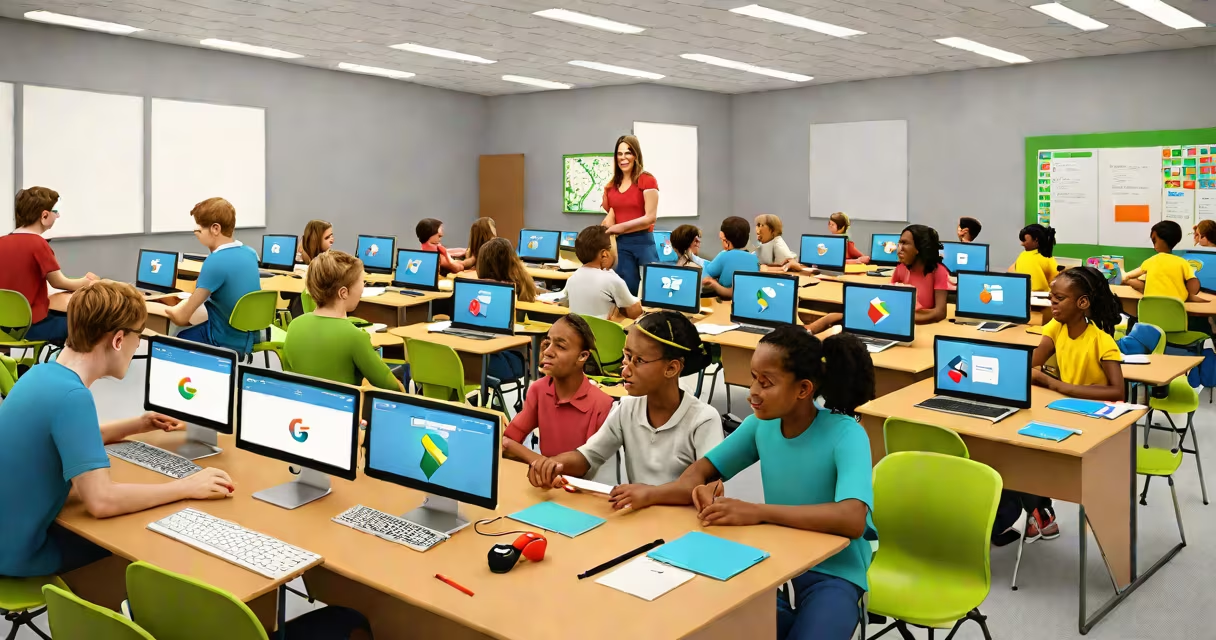
Google Sites for education is a free web-building tool that lets teachers and students create, share, and collaborate on websites for lessons, class projects, digital portfolios, and school events-all within the Google Workspace system.
It's designed specifically for learning environments. Unlike general-purpose site builders, Google Sites for education integrates with Google Drive, Gmail, and Classroom. This integration allows instant access to documents, slides, and sheets directly embedded in pages. Teachers can assign site creation as part of a project, and students can publish work publicly or share it only with peers and instructors.
For example, a high school history teacher assigned a unit on the Civil Rights Movement. Students created individual Google Sites pages, each including timelines, primary source images, video interviews, and annotated maps. The teacher reviewed drafts via shared editing permissions and published the final sites to a central class hub. All content was stored in Google Drive, automatically backed up, and accessible from any device.
Google Sites for education uses a drag-and-drop interface. Users select templates, then add text, images, videos, embedded files, and interactive elements like calendars or forms. Changes appear live in real time, and multiple users can edit simultaneously.
Each site lives under a Google Workspace account. Schools that use Google Workspace for Education can set up domain-wide policies-such as restricting public publishing or requiring approval before a site goes live. This ensures compliance with FERPA and COPPA regulations.
When a student creates a site, they can choose whether it's visible to "Anyone with the link," "Only people in the class," or "Restricted to specific individuals." This flexibility supports both private assignments and public exhibitions.
Google Sites for education includes several built-in components tailored for learning:
These features are powered by Google's infrastructure. Sites load quickly, scale automatically, and support up to 100 collaborators per page. No coding is required-users don't need to understand HTML or CSS.
While Google Sites for education serves many roles, four common patterns emerge in K-12 and higher education settings:
| Type | Use Case | Example |
|---|---|---|
| Classroom Hub | Central location for syllabus, assignments, announcements, and resources. | A biology teacher hosts weekly lab instructions, quiz links, and reading guides on a single site. |
| Student Project Site | Individual or group work displayed online, often for grading or presentation. | High school seniors build sites showcasing research papers, photos, and reflections for college applications. |
| Digital Portfolio | Long-term collection of work demonstrating growth over time. | Art students maintain sites showing sketches, finished pieces, and artist statements across semesters. |
| School Event Site | Planning and promoting school-wide activities. | A middle school hosts a STEM fair site with schedules, exhibitor bios, and volunteer sign-up forms. |
According to a 2023 survey by the National Education Association, 68% of U.S. public school teachers reported using Google Sites for at least one instructional purpose annually. The most frequent use was hosting digital portfolios (41%), followed by class resource hubs (33%).
Many assume Google Sites for education is limited to basic pages. In reality, it supports complex layouts, conditional logic in forms, and changing content through Google Apps Script-though the latter requires technical knowledge.
Another misconception: that it's only for visual appeal. While design matters, the real power lies in functionality. A math teacher used a site to host interactive problem sets. Each problem linked to a Google Form with auto-grading. Students submitted answers, received immediate feedback, and viewed their progress over time-all within the site.
Some educators confuse Google Sites for education with Google Sites for business. The core platform is the same, but education accounts have enhanced privacy controls and integration with student identity systems. For example, a district can enforce that all sites created by students must include a verified student ID in the URL structure.
I once observed a seventh-grade language arts teacher use Google Sites for education to run a semester-long storytelling project. Each student drafted a short story in Google Docs, then moved it to a custom site template. They added character art, mood music from YouTube, and a "reader's guide" with discussion questions.
The teacher set up a peer-review system: students visited each other's sites, left comments using the built-in feedback tool, and rated stories on a five-point rubric. All data was collected in a shared Google Sheet linked to the site. By the end, 12 student sites were published to the school's internal network.
This workflow reduced paper use by 90% compared to past years. More, students engaged deeply with revision-not just editing grammar, but improving narrative flow and audience connection.
Unlike platforms such as Wix or WordPress, Google Sites for education doesn't require hosting, domain registration, or payment. It's free for anyone with a Google account tied to a school or district.
It also differs from learning management systems (LMS) like Canvas or Schoology. While those track grades and manage assignments, Google Sites excels at creative expression and public sharing. A student can embed a video essay, add a clickable map of a historical route, and include a QR code linking to a podcast-all in one visually cohesive space.
Google Sites for education supports accessibility out of the box. Screen readers interpret alt text, keyboard navigation works, and color contrast meets WCAG 2.1 standards. These features are critical for inclusive classrooms.
To begin, go to sites.google.com and sign in with your school Google account. Click "Create" and choose a template. Name the site, then start adding content using the toolbar.
Best practices include:
Google Sites for education is not just a tool for building websites. It's a platform for teaching digital literacy, collaboration, and responsible online presence. When used intentionally, it transforms passive learners into active creators.
Every educator who uses Google Sites for education gains more than a website-they gain a method for assessing understanding beyond multiple-choice tests. A well-built site shows reasoning, creativity, and technical skill in ways traditional assessments cannot.