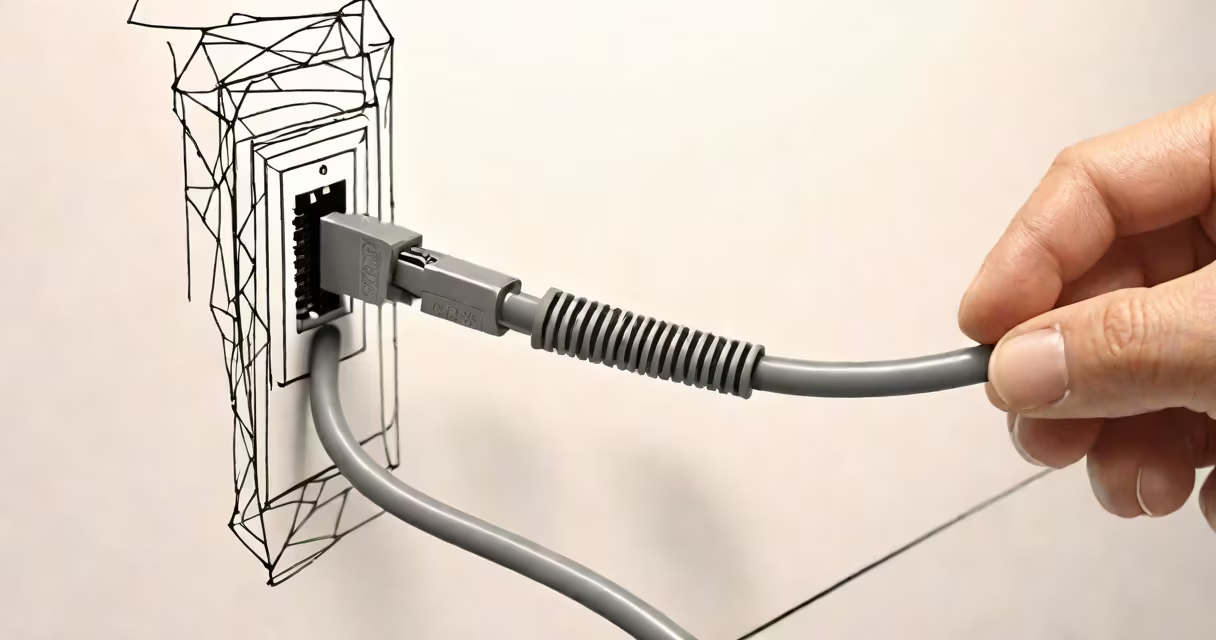
An ethernet cable plug in is the physical interface that connects a network cable to a device's port, enabling wired internet or local network communication through standardized connectors like RJ45.
The plug in is the male end of the ethernet cable, designed to fit precisely into a female port on routers, switches, computers, game consoles, or wall jacks. It uses an 8P8C modular connector-commonly called RJ45-that holds eight individual wires arranged in twisted pairs to reduce interference and maintain signal integrity.
When you insert the plug into a port, metal contacts inside the jack make contact with the corresponding pins on the plug. This completes the electrical circuit needed for data transmission. The process happens at speeds ranging from 10 Mbps to 10 Gbps, depending on the cable category and network equipment.
Each wire in a standard Cat5e or higher ethernet cable is color-coded and assigned to a specific pin on the RJ45 connector. When plugged in, the network device sends and receives data packets through these wires using differential signaling-two wires carry opposite signals to cancel noise and improve reliability.
For example, a Cat6 cable supports up to 10 Gbps over distances under 55 meters. The plug ensures proper alignment of the eight conductors so that pin 1 connects to wire 1, pin 2 to wire 2, and so on. Misalignment causes crosstalk or signal loss, leading to dropped connections or slow speeds.
Modern devices detect the presence of a connected cable automatically. The network interface controller (NIC) on your computer or router checks for link status and negotiates speed and duplex settings using Auto-MDI/X. If the plug is loose or damaged, the link may fail even if the cable itself is intact.
There are two main types of ethernet plugs based on construction: molded and crimped. Molded plugs come pre-assembled on factory-made cables. Crimped plugs are installed manually using a punch-down tool and a crimper.
| Cable Type | Max Speed | Use Case | Plug Type |
|---|---|---|---|
| Cat5e | 1 Gbps | Home networks, basic office setups | Molded |
| Cat6 | 10 Gbps (up to 55m) | High-speed environments, servers, gaming | Crimped or molded |
| Cat6a | 10 Gbps (up to 100m) | Data centers, industrial settings | Crimped |
| Braided (e.g., Cat6 with braided shield) | 10 Gbps | High-interference areas, long runs | Molded or custom |
Shielded cables-like those with braided outer layers-offer better protection against electromagnetic interference. These are essential in environments with motors, fluorescent lighting, or dense wiring. A braided ethernet cable reduces signal degradation compared to unshielded variants.
Non-obvious fact: The plastic clip on the side of the RJ45 plug isn't decorative-it locks the connector into place. Without it, the cable can easily disconnect due to vibration or movement. This feature is often overlooked during installation but critical for stable connections.
Loose or intermittent connections are usually caused by improper insertion. The plug must be pushed firmly until the clip snaps into place. If the cable feels wobbly, check for bent pins inside the port or debris blocking the socket.
One real-world example: During a home office setup, I noticed my desktop PC lost connectivity every few minutes. Replacing the old Cat5e cable with a new Cat6 cable and ensuring the plug was fully seated resolved the issue. The original cable had frayed insulation near the plug, causing intermittent contact.
Another frequent problem is reversed wiring. If the cable is wired incorrectly-such as swapping pins 1 and 2-the device may show "link down" or fail to negotiate speed. Use a cable tester to verify continuity and correct pinout. The TIA/EIA-568-B standard defines the correct sequence: white/orange, orange, white/green, blue, white/blue, green, white/brown, brown.
An ethernet cable plug in is not interchangeable with USB, HDMI, or phone charging ports. Despite similar shapes, the physical dimensions and internal pin layouts differ. Forcing a plug into the wrong port damages both the cable and the device.
It's also not the same as a wireless connection. While Wi-Fi provides mobility, the ethernet cable plug in delivers lower latency, higher bandwidth, and consistent performance-especially important for video streaming, online gaming, or remote work with large file transfers.
Many people confuse the plug with the entire cable assembly. The plug is just the end piece. The rest of the cable contains the insulated wires, shielding, and jacket. You can replace a damaged plug without replacing the whole cable using a crimping tool and new RJ45 connectors.
To install a new ethernet cable plug in:
Always ensure the cable is routed away from power lines to avoid interference. Use strain relief clips where possible to prevent stress on the plug. Avoid sharp bends-minimum bend radius is 4 times the cable diameter.
For permanent installations, consider running cables behind walls or under floors. Use labeled patch panels and wall plates to organize connections. A properly installed ethernet cable plug in minimizes downtime and maximizes network stability.
Understanding how the ethernet cable plug in functions helps diagnose issues faster and build reliable networks. Whether setting up a home office or managing a business LAN, the plug is the foundational element of wired connectivity.