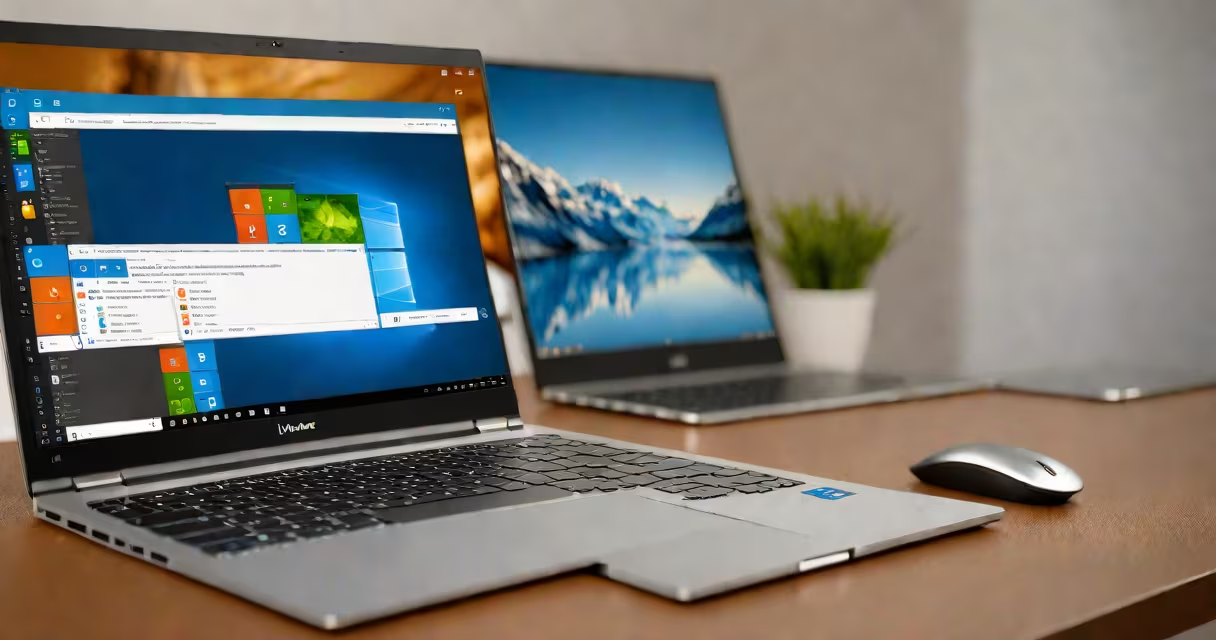
A dual boot setup allows you to install both Linux and Windows 10 on the same computer and choose which OS to start when you turn it on. The system uses a bootloader to present a menu at startup, letting you select between the two operating systems.
When you power on a machine configured for dual boot, the bootloader runs before either OS loads. It checks the disk's partition table and displays a list of available operating systems. Selecting Linux boots the Linux kernel from its designated partition. Choosing Windows 10 launches the Windows bootloader and starts the Windows environment.
This configuration avoids virtualization overhead. You run each OS natively, with full access to hardware. It's ideal for developers who need to test software across platforms, users who prefer Linux for daily tasks but require Windows for specific applications, or anyone wanting to explore Linux without abandoning their existing workflow.
The process begins with disk partitioning. A single physical drive is divided into separate sections called partitions. One partition holds Windows 10, another contains the Linux installation. The bootloader-typically GRUB for Linux or Windows Boot Manager-resides in the Master Boot Record (MBR) or EFI System Partition (ESP), depending on the firmware mode (Legacy BIOS or UEFI).
During installation, Linux tools like Ubuntu's installer detect the existing Windows partition and offer to create a new one for Linux. They automatically configure the bootloader to recognize both systems. If you install Linux first, the Windows installer may overwrite the bootloader, breaking the dual boot. Reinstalling GRUB afterward restores access to both OSes.
Modern systems using UEFI firmware store boot entries in the EFI System Partition. This allows multiple bootloaders to coexist. For example, Windows 10 adds its entry to the UEFI boot manager. When Linux is installed, GRUB registers itself as a boot option. The firmware presents them in the order they were added unless changed manually.
There are two primary approaches based on firmware type: Legacy BIOS and UEFI. Each affects how the bootloader behaves and how partitions are managed.
| Firmware Type | Bootloader | Partition Location | Common Use Cases |
|---|---|---|---|
| Legacy BIOS | GRUB or Windows Boot Manager | Primary partition (MBR) | Older machines, basic compatibility |
| UEFI | GRUB (with UEFI support), Windows Boot Manager | EFI System Partition (ESP) | Newer systems, secure boot enabled |
UEFI systems provide better security through Secure Boot, which verifies that the bootloader hasn't been tampered with. However, enabling Secure Boot can prevent unsigned Linux kernels from loading. Most distributions, including Ubuntu and Fedora, support Secure Boot with signed modules, but configuration may be required.
Some users opt for a third-party bootloader like rEFInd, which offers a graphical interface and better detection of multiple OS installations. It's especially useful when managing more than two operating systems or troubleshooting boot issues.
Virtual machines run one OS inside another. Tools like VMware Workstation or VirtualBox emulate hardware, allowing Windows to host Linux or vice versa. But virtualization introduces performance costs. Graphics rendering, disk I/O, and CPU-intensive tasks run slower than native execution.
Dual booting gives direct access to hardware. A Linux user running Blender for 3D animation gets near-native performance because the GPU drivers load directly. In contrast, a VM might only use software rendering or limited GPU passthrough, reducing frame rates and increasing render times.
Performance matters in development too. Compiling large codebases takes minutes on a dual-booted machine but can take longer in a VM due to emulated disk access and memory contention.
I once tested compiling the Linux kernel on a 16GB RAM laptop. On a dual-booted Ubuntu system, it took 12 minutes. In a virtualized Ubuntu VM with 8GB RAM allocated, the same build took 28 minutes and consumed 95% of the host's CPU during peak load.
One frequent error is installing Linux after Windows without backing up the boot configuration. The Windows installer often overwrites the MBR or ESP, removing GRUB. Afterward, the system boots only into Windows, and Linux becomes inaccessible.
To recover, boot from a Linux live USB. Mount the Linux root partition, then reinstall GRUB. On Ubuntu, use:
sudo mount /dev/sda3 /mnt
sudo mount --bind /dev /mnt/dev
sudo mount --bind /proc /mnt/proc
sudo mount --bind /sys /mnt/sys
sudo chroot /mnt
grub-install /dev/sda
update-grub
exit
umount /mnt/{dev,proc,sys}
umount /mnt
Running update-grub scans for other operating systems and rebuilds the menu.
Another issue is incorrect partition sizing. Allocating less than 20GB to Linux can limit usability. The base system requires ~10GB, and additional space is needed for updates, packages, and personal files. A 30GB minimum is recommended for a stable desktop environment.
Some users assume dual booting requires wiping the entire disk. That's false. You can shrink the Windows partition using Disk Management or the diskpart command to free space for Linux. Always back up data before resizing.
Dual booting is not the same as running both OSes simultaneously. You cannot use Linux and Windows at the same time without a hypervisor. Switching between them requires a reboot.
Some confuse dual booting with WSL (Windows Subsystem for Linux). WSL runs Linux binaries natively on Windows, offering terminal access and package management. But it doesn't replace the full Linux kernel or GUI environment. Dual booting provides a complete, independent Linux system.
Start by creating a backup of your Windows data. Use the built-in Backup and Restore tool or a third-party solution like Macrium Reflect. Then, download a Linux ISO (Ubuntu, Fedora, or Arch) and burn it to a USB drive using Rufus or Etcher.
Boot from the USB, select "Try Ubuntu" to test compatibility, then choose "Install Ubuntu." During setup, select "Install alongside Windows" if prompted. The installer will resize the Windows partition and create a new one for Linux.
If the installer doesn't detect Windows, manually select the unallocated space and create a swap partition (usually 2GB) and a root partition (20GB+). Choose "Use as ext4 journaling file system" and "Mount point: /".
After installation, restart. The GRUB menu appears. Select Windows to verify it boots correctly. If the menu doesn't show, check the boot order in BIOS/UEFI settings. Ensure the USB drive is removed before rebooting.
Once confirmed, you can customize GRUB. Edit /etc/default/grub to change the timeout, default OS, or theme. Run sudo update-grub to apply changes.
For users who want to switch frequently, consider setting up a shared data partition formatted as NTFS. Mount it under /home/user/Shared in Linux and access it from Windows. This enables file sharing without needing cloud services.
Running both Linux and Windows 10 side-by-side on one machine gives you flexibility, performance, and control. It's not a compromise-it's a choice. exploring system administration, dual booting delivers the freedom to use the right tool for the job.
Understanding how to set up and maintain a dual boot system ensures you can adapt to changing needs without replacing hardware. With proper planning and backup, it's a reliable way to run both worlds.