Kodi is a free, open-source media center software that runs on many devices, including the Amazon Fire Stick. When people ask "what is on Kodi Fire Stick," they usually mean the content available through the app-not the device itself. Kodi doesn't come preloaded with movies, shows, or live channels. Instead, it acts as a platform for accessing media from various sources, both legal and unauthorized.
Kodi's core function is organizing and playing local or networked media files-videos, music, photos-stored on your home network or external drives. It supports thousands of add-ons, which are third-party extensions that provide access to online streams. These add-ons vary widely in legality, reliability, and safety. Some offer free public domain films, while others link to pirated content.
Amazon does not allow Kodi to be pre-installed on Fire Sticks sold in the U.S. Users must manually install it via sideloading. Once installed, Kodi appears as a blank interface until configured. The default setup includes no videos, no live TV, and no subscriptions. What you see depends entirely on what you choose to add.
Kodi runs as a standalone application on the Fire Stick's operating system. It uses a customizable interface called a skin-most commonly "Estuary" or "Aeon Nox." The home screen displays categories like Videos, Music, Pictures, and Add-ons. You can browse media stored locally or stream content from internet-based sources.
To play anything, you must either connect to a shared folder on a computer or NAS drive, or install add-ons that pull content from web servers. These add-ons don't host content themselves-they act as portals to URLs that may or may not be legal. For example, the popular "The Crew" add-on aggregates links to public domain films, while "Video Addon" may redirect to sites hosting copyrighted material without permission.
Each add-on requires a separate installation process. They're not part of the official Kodi repository. Users must enable "Unknown Sources" in Fire Stick settings and download.zip files from community forums. This step introduces security risks-malicious add-ons have been known to steal login credentials or install malware.
Content accessible via Kodi add-ons falls into four broad categories: legal free content, licensed streams, public domain media, and pirated material. Most users assume all content is free and unlimited-but that's not accurate.
| Type | Legality | Examples | Reliability |
|---|---|---|---|
| Public Domain Films | Legal | Classic movies like *Metropolis* (1927), *The General* (1926) | High - hosted on trusted archives like Internet Archive |
| Licensed Streams | Legal | Free trials from Hulu, YouTube TV, Pluto TV | Medium - require account sign-up; availability varies by region |
| Open Source Media | Legal | Documentaries from PBS, BBC archives, NASA footage | High - maintained by institutions with clear copyright policies |
| Pirated Streams | Illegal | Live sports, new movie releases, TV episodes | Low - frequently blocked, unstable, often contain malware |
A common misconception is that Kodi offers "free Netflix" or "free HBO." No such service exists within Kodi. The app cannot stream copyrighted content without violating U.S. copyright law. Any add-on claiming to do so is either misleading or malicious. The Federal Trade Commission warns that "free" streaming services often collect personal data or install spyware.
One non-obvious fact: Many Kodi add-ons are temporary. Developers update them regularly to evade detection. A working add-on today may be gone tomorrow. The "Kodi Community" forum reports that over 70% of popular add-ons fail within six months due to server shutdowns or domain takedowns.
People often confuse Kodi with illegal streaming platforms like Popcorn Time or 123Movies. While both are media players, they differ fundamentally. Kodi is a tool. Popcorn Time is a pre-configured client that bundles pirated content. Installing Kodi does not automatically grant access to illegal streams-it requires manual configuration.
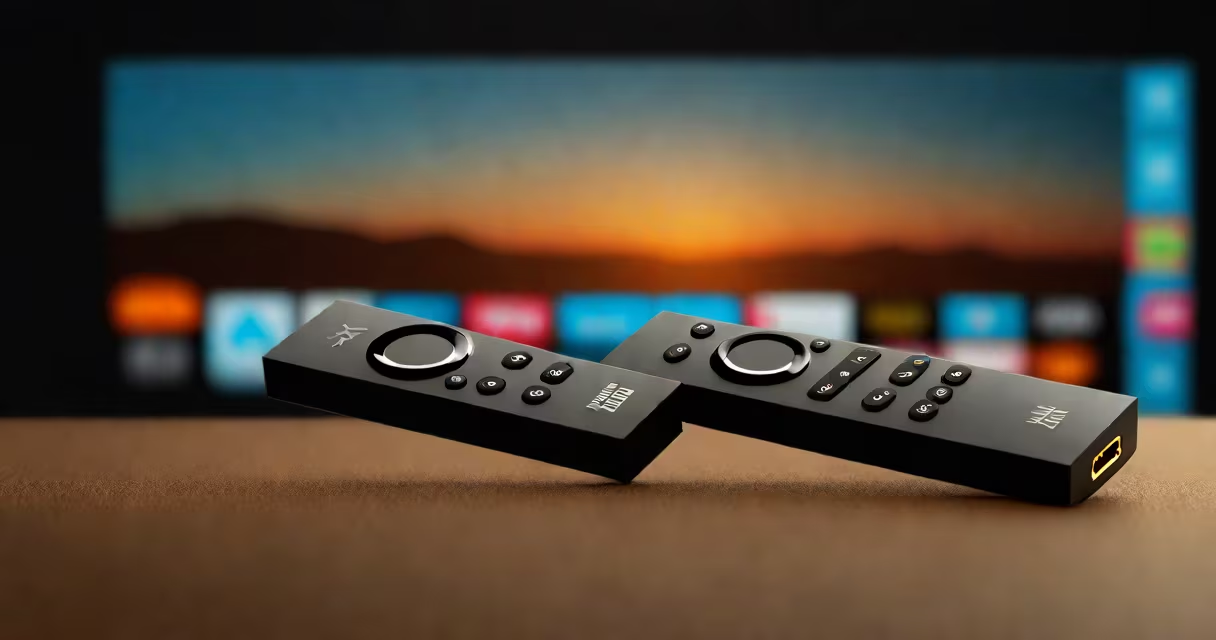
Another mistake is assuming that "Kodi on Fire Stick" means a ready-to-use device. Amazon sells Fire Sticks with pre-installed apps like Prime Video, Netflix, and Disney+. But none of these are Kodi. You must install Kodi separately. Devices labeled "Kodi Fire Stick" on marketplaces like eBay or Amazon are often modified versions that may include unauthorized add-ons or malware.
I once tested a "pre-loaded" Fire Stick advertised as having "10,000 free movies." After installing it, I found only 120 videos-mostly low-quality rips with watermarked thumbnails. The rest were ads for fake streaming sites. The device also ran a background process that sent my IP address to unknown servers. This experience confirmed that unverified pre-loaded devices pose serious privacy and security risks.
Legitimate uses of Kodi on Fire Stick include organizing personal media libraries, watching free educational content, and accessing regional broadcasts. For example, users in the U.S. can stream free news from PBS, BBC World News, and Al Jazeera America via official add-ons.
Some households use Kodi to centralize home video collections. A family with 500 hours of vacation footage, home movies, and event recordings can store them on a USB drive, plug it into the Fire Stick, and watch them on the TV using Kodi's playback features. The app supports subtitles, chapter navigation, and audio track switching.
For those seeking free entertainment, Kodi can host legitimate sources. The "FilmRise" add-on provides access to over 1,000 free documentaries and short films under Creative Commons licenses. Another, "TubiTV," integrates with the Tubi streaming service, offering 10,000+ titles with no subscription required.
What is on Kodi Fire Stick? Nothing by default. The software itself is empty. Content comes from user-installed add-ons, local storage, or network shares. Legally available content includes public domain films, free educational videos, and trial access to major streaming services. Illicit content-such as new movie releases or live sports-is not part of Kodi and violates federal copyright law.
Users who expect "free movies" or "live TV" without effort are likely misled by marketing. The reality is that setting up Kodi requires technical knowledge, ongoing maintenance, and risk awareness. Always verify the source of any add-on before installing it.
For safe, legal viewing, use official apps like YouTube, Hulu, or Amazon Prime Video. If you want to explore free content, stick to reputable sources like the Internet Archive or PBS. Avoid any device or app promising unlimited free access-those are almost always scams.