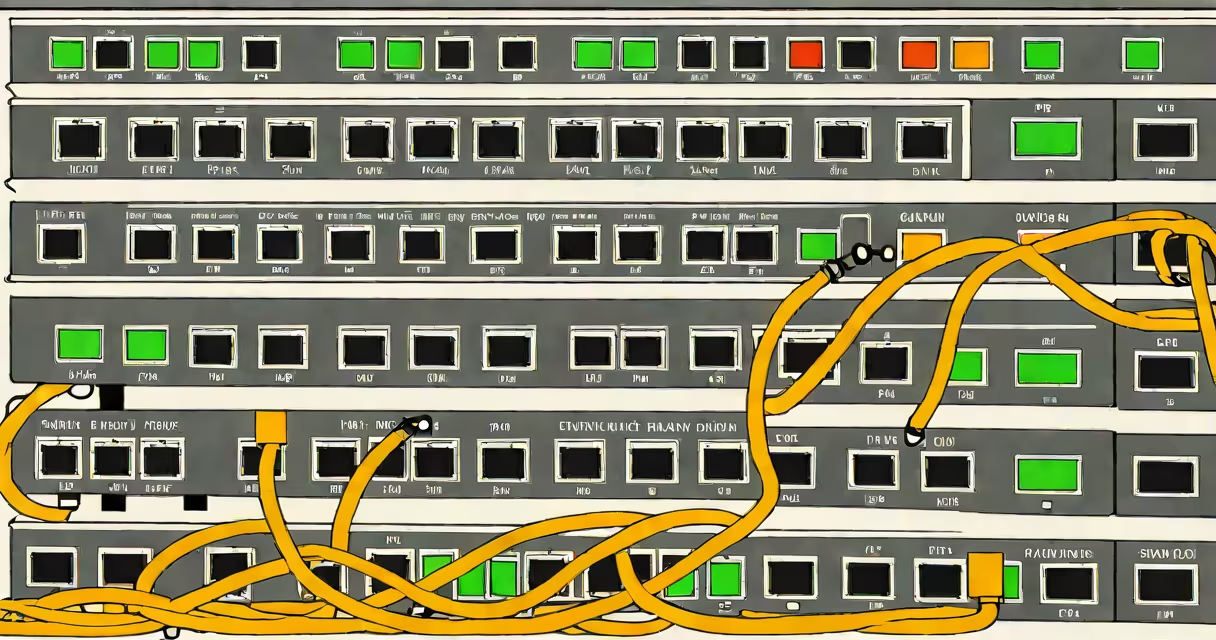
The speed duplex setting defines the data transfer rate and communication direction on an Ethernet network interface. It determines whether a connection runs at 10 Mbps, 100 Mbps, or 1 Gbps, and whether it operates in half-duplex (one-way at a time) or full-duplex (two-way simultaneously).
This setting is critical for stable, high-performance networking. When misconfigured, it causes collisions, packet loss, and reduced throughput-even on modern gigabit networks.
Most devices automatically negotiate speed and duplex using IEEE 802.3u standards. But forcing a specific speed duplex setting manually can prevent negotiation failures, especially on older hardware or in environments with unreliable cabling.
Speed refers to the data transmission rate measured in megabits per second (Mbps). Common values are 10 Mbps, 100 Mbps, and 1 Gbps. Higher speeds mean faster data delivery.
Duplex defines whether communication happens in one direction at a time (half-duplex) or both directions simultaneously (full-duplex). Full-duplex enables bidirectional data flow without interference, improving efficiency and reducing latency.
When a device connects to a switch, it uses auto-negotiation to agree on speed and duplex. The process involves exchanging signals over the network cable. If either side fails to respond correctly, the link defaults to half-duplex at the lowest common speed.
There are three primary configurations:
| Setting | Speed | Duplex Mode | Use Case |
|---|---|---|---|
| Auto | Changing (10/100/1000 Mbps) | Changing (half/full) | Default for most modern devices. Reliable unless cabling or hardware issues exist. |
| 100 Mbps Full-Duplex | 100 Mbps | Full | Used on legacy systems or when auto-negotiation fails. Avoids timing mismatches. |
| 1 Gbps Full-Duplex | 1 Gbps | Full | Required for high-bandwidth applications like video streaming or server backups. |
Forcing a fixed setting eliminates negotiation uncertainty. This prevents issues like "duplex mismatch," where one side runs full-duplex and the other half-duplex, leading to dropped packets and poor performance.
Speed duplex settings appear in network interface configuration tools on routers, switches, servers, and PCs. They're accessible through command-line interfaces (CLI), web-based management panels, or operating system network settings.
Administrators set them manually in environments where consistent performance is essential. For example, in a small business network with a mix of old and new equipment, auto-negotiation may fail due to faulty cables or outdated NIC firmware.
A real-world case: A university lab reported intermittent connectivity during file transfers between workstations. Tracing the issue revealed that a 10-year-old desktop had its NIC set to auto-negotiate, while the managed switch port was locked to 100 Mbps full-duplex. The mismatch caused 30% packet loss. Forcing the desktop to 100 Mbps full-duplex resolved the problem instantly.
Many assume auto-negotiation always works perfectly. That's false. Auto-negotiation relies on proper wiring and functioning hardware. A damaged Cat5e cable can cause a failed handshake, resulting in fallback to 10 Mbps half-duplex-despite having a gigabit-capable port.
Another myth: "Full-duplex is always better." While true in theory, forcing full-duplex on a network segment with a broken link or miswired patch panel can result in persistent errors. The system may report "link up" but still drop frames silently.
Here's a non-obvious fact: Some network interface cards (NICs) do not support full-duplex at 10 Mbps. Attempting to force 10 Mbps full-duplex on such hardware results in a failed link. Always verify hardware specs before configuring.
I once configured a home server running Debian to serve media to multiple devices. Despite a Cat6 cable and a 1 Gbps switch, the server experienced buffering during 4K stream playback. Checking the interface showed "100 Mbps Half-Duplex" despite the physical connection being capable of 1 Gbps.
Manual inspection revealed the router's port was set to auto-negotiate, but the server's NIC had a firmware bug that caused it to ignore the auto-negotiation signal. Switching the server's interface to "1 Gbps Full-Duplex" forced the correct mode. Throughput increased from ~80 Mbps to 920 Mbps, and buffering stopped completely.
To view current settings on Linux:
ethtool eth0Output includes speed, duplex, and autonegotiation status. Example:
Speed: 1000Mb/s
Duplex: Full
Auto-negotiation: off
To set manually:
sudo ethtool -s eth0 speed 1000 duplex full autoneg offOn Windows, use Command Prompt:
netsh int ipv4 show interfacesThen adjust via Device Manager > Network Adapter Properties > Configure > Advanced tab.
Always test after changing settings. Use ping tests and iperf3 for bandwidth validation.
Use auto-negotiation in standard setups with modern, well-maintained infrastructure. It reduces configuration errors and adapts to changing conditions.
Use manual settings when:
As noted by the Cisco documentation on Ethernet troubleshooting, manual configuration is often necessary in enterprise environments to eliminate variability.
According to RFC 2863, the standard for managing network interfaces, auto-negotiation is optional and not likely to succeed under all conditions. This confirms that relying solely on auto-mode is risky in performance-sensitive contexts.
Understanding the speed duplex setting ensures reliable network performance. It's not just about speed-it's about control, consistency, and diagnosing problems that auto-settings hide. Whether managing a home network or a corporate LAN, knowing how to configure and troubleshoot this setting prevents downtime and improves efficiency.