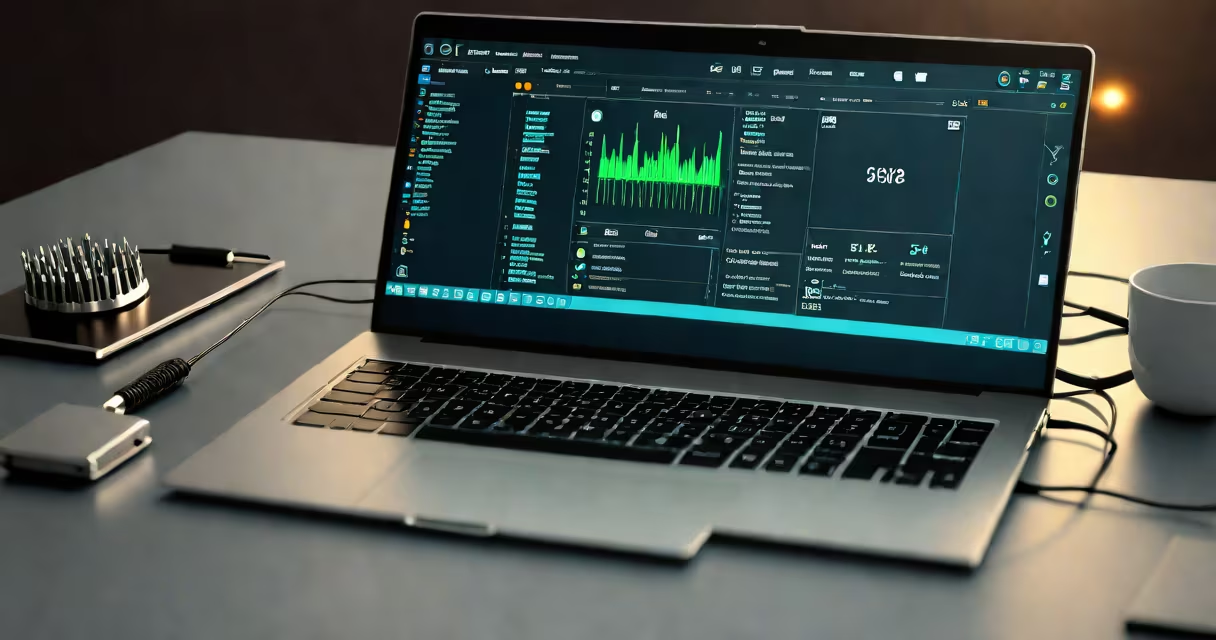
A notebook diagnostic tool is a software or firmware-based utility that tests internal hardware components-such as memory, storage, CPU, GPU, and sensors-to identify failures or performance degradation in laptops. These tools run during boot-up or from a recovery environment and report results in real time.
These tools are embedded in most modern notebooks by manufacturers like Dell, Lenovo, HP, and Apple. They're designed to detect issues before they cause crashes, data loss, or system failure. For example, Dell's SupportAssist and Lenovo's ThinkVantage both include diagnostic modules accessible via a key combination at startup.
Unlike general-purpose troubleshooting tools, notebook diagnostic tools focus exclusively on hardware integrity. They don't fix drivers or clean malware-they verify whether physical components meet expected specifications. A failed test indicates a potential hardware fault requiring repair or replacement.
Notebook diagnostic tools execute predefined sequences of self-tests. During startup, they access low-level system interfaces such as the SMM (System Management Mode) and ACPI (Advanced Configuration and Power Interface) to read sensor values and perform stress tests on critical subsystems.
For instance, a memory test may write known patterns to RAM and then read them back to detect bit errors. Storage diagnostics write and read small files across the drive to check for bad sectors. A temperature sensor test monitors thermal readings under load to flag cooling system failures.
Results appear in real time, often with pass/fail indicators and error codes. Some tools display detailed logs that can be exported for technician review. Tests typically take between 10 and 30 minutes, depending on component count and system speed.
Diagnostic tools fall into three categories based on deployment:
| Type | Access Method | Use Case | Examples |
|---|---|---|---|
| Firmware-based | Boot-time key combo (F12, F10, etc.) | Initial troubleshooting, pre-purchase validation | Dell Diagnostics, Lenovo Test Set, HP Support Assistant |
| OS-integrated | From within Windows, macOS, or Linux | Post-installation checks, recurring maintenance | Windows Memory Diagnostic, Apple Diagnostics, Intel® System Support Utility |
| External bootable | USB or CD/DVD boot media | When OS won't start, or for clean testing | Ultimate Boot CD, Hiren's BootCD, vendor-specific recovery USBs |
Each type uses different levels of system access. Firmware-based tools have the highest privilege, bypassing the operating system entirely. This allows them to test components even when the OS is corrupted or unbootable.
Manufacturers often customize their diagnostic suites. For example, Lenovo's ThinkPad models include a "Hardware Diagnostics" mode that runs a full set of tests including keyboard, trackpad, battery cycle count, and webcam functionality-all accessible by pressing F1 during boot.
Many users assume a notebook diagnostic tool can fix problems. That's incorrect. The tool only reports findings. A "Memory Test Failed" result means the RAM module is defective-it doesn't replace it.
Another mistake is relying solely on pass/fail outcomes. A "Pass" doesn't guarantee reliability. Some issues, like intermittent connectivity or degraded SSD endurance, may not trigger immediate failure. A device might pass diagnostics today but fail under sustained load later.
Also, not all tools are equal. Third-party utilities like MemTest86+ offer deeper memory testing than basic OS tools. But they lack integration with manufacturer-specific sensors. For accurate results, always use the official diagnostic tool provided by your laptop's maker.
In my experience, a customer brought in a Lenovo ThinkPad T14 that crashed randomly during video calls. The OS ran fine otherwise. Standard troubleshooting-reinstalling drivers, updating BIOS-had no effect.
I booted into the Lenovo Hardware Diagnostics utility using F1 at startup. The test reported a "Memory Error" in Module 1, Rank 0. The tool displayed the specific error code: 0x00000007.
After replacing the RAM stick, the system passed all subsequent tests. The crash issue disappeared. Without the diagnostic tool, we'd have spent days checking software configurations, suspecting malware or driver conflicts.
This case illustrates why diagnostic tools are essential for root-cause analysis. They eliminate guesswork by isolating the problem to a single component.
Some confuse notebook diagnostic tools with endpoint detection and response (EDR) tools. While both monitor system behavior, they serve different purposes. An EDR tool tracks network activity, file changes, and process execution to detect threats. A notebook diagnostic tool evaluates physical hardware.
For example, a notebook diagnostic tool can confirm that a failing hard drive caused a system freeze. An EDR tool might log that a suspicious process accessed disk sectors-but it cannot determine if the drive itself is failing.
According to Microsoft's documentation on EDR, these tools focus on behavioral anomalies and threat intelligence. In contrast, Intel's documentation on system diagnostics emphasizes hardware validation and component-level verification. The two operate on different layers of the computing stack.
Using the wrong tool leads to wasted time. If a laptop won't power on, running an EDR scan won't help. But a firmware diagnostic tool can reveal a dead CMOS battery or faulty power delivery circuit.
Run a diagnostic test whenever you notice symptoms like unexpected shutdowns, slow performance, or hardware malfunctions. Do it early-before data loss occurs.
Always use the manufacturer's official tool. Generic utilities may misinterpret results due to missing model-specific calibration data. For example, Apple's Apple Diagnostics requires a Mac with T2 chip or M-series processor to function correctly.
Keep a record of test results. If a component fails on one test but passes later, it may indicate a transient fault. Repeated failures confirm hardware degradation.
When in doubt, consult a technician with access to advanced diagnostic systems. Some models require specialized cables or firmware updates to run full tests.
Understanding how a notebook diagnostic tool functions enables faster, more accurate troubleshooting. It separates symptom from cause, saving time and preventing unnecessary repairs.