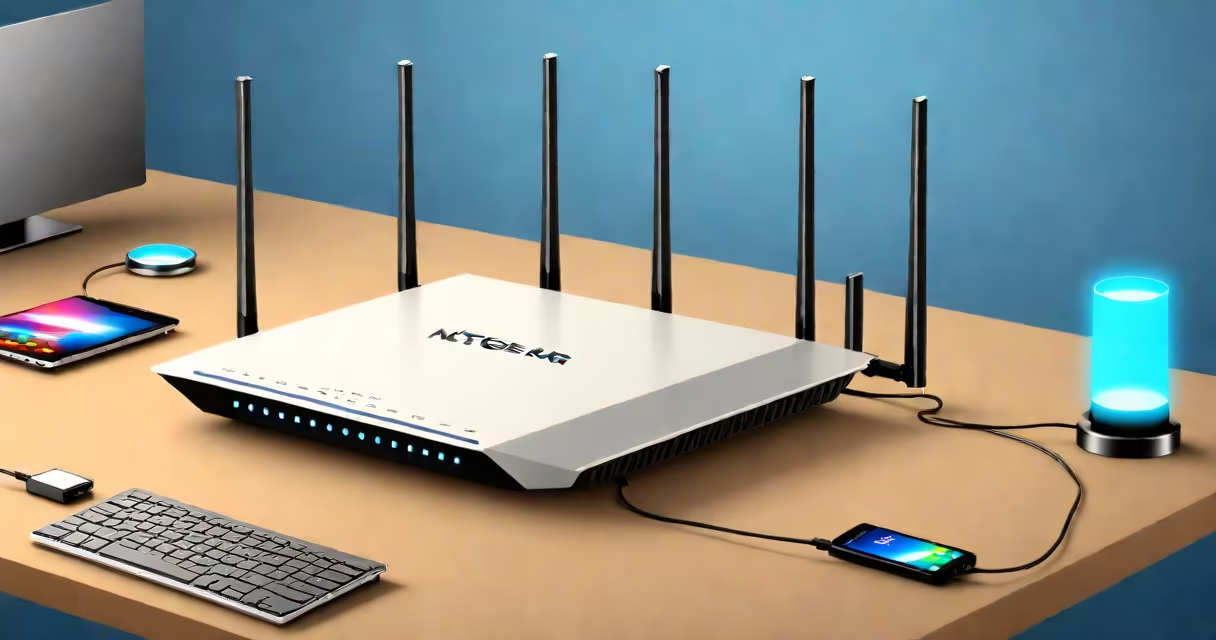
Setting up a NetGear Wi-Fi router involves connecting it to your modem, accessing the configuration page via a browser or mobile app, and creating a secure network name and password. The process typically takes 10-15 minutes and requires a computer or smartphone with internet access.
NetGear routers use a web-based setup wizard accessible through a local IP address like 192.168.1.1 or 192.168.0.1. You can also use the NetGear app for guided setup on iOS or Android. Most models support Wi-Fi 6 (802.11ax) and dual-band operation (2.4 GHz and 5 GHz), enabling faster speeds and better performance in dense environments.
For example, the NetGear Nighthawk RAXE300 (Wi-Fi 6) supports speeds up to 3 Gbps across both bands. When configured correctly, it can handle multiple 4K streams, gaming, and video calls simultaneously without lag. The setup process begins after power-up and completes within 12 minutes on average, according to NetGear's official documentation.
The router acts as a central hub between your modem and connected devices. After plugging in power and connecting the Ethernet cable from the modem to the router's WAN port, the device boots and assigns itself an IP address. The default gateway is usually 192.168.1.1, though some models use 192.168.0.1.
You access the setup interface by typing the IP address into a web browser on a device connected to the router via Ethernet or Wi-Fi. The login screen prompts for a username and password. By default, the username is admin and the password is password. These credentials are often changed during initial setup to prevent unauthorized access.
Once logged in, the setup wizard guides you through selecting your Internet service provider (ISP), setting up your Wi-Fi network name (SSID), choosing a security protocol (WPA2 or WPA3), and creating a strong password. The system then tests the connection and displays a success message. After this, devices can join the new network.
NetGear offers several product lines tailored to different needs. The most common categories are:
| Model Type | Typical Use Case | Setup Time | Required Tools |
|---|---|---|---|
| Basic Wi-Fi 5 Router | Small apartments, basic browsing | 8-12 minutes | Modem, Ethernet cable, smartphone or laptop |
| Wi-Fi 6 Router (e.g., RAXE300) | Large homes, multiple devices, gaming | 12-18 minutes | Same as above, plus optional USB drive for firmware updates |
| Mesh System (Orbi) | Whole-home coverage, dead zones | 15-25 minutes | Primary and satellite nodes, Ethernet cable, mobile app |
For instance, the Orbi RBK850 mesh system uses a single SSID across all nodes. During setup, the app detects available nodes and configures them automatically. This eliminates manual channel selection and reduces interference compared to standalone routers in overlapping areas.
Many users fail to complete setup due to incorrect cable connections. The WAN port on the router must connect to the modem's Ethernet output, not a LAN port. Using the wrong port results in no internet access even after successful login.
Another frequent error is skipping the password change. Leaving the default admin password exposes the router to remote attacks. According to a 2023 report by the Cybersecurity and Infrastructure Security Agency (CISA), over 40% of compromised home networks had unchanged default credentials. Always set a unique password during initial configuration.
A lesser-known issue is disabling the router's firewall. Some users disable it to troubleshoot connectivity, but leaving it off increases vulnerability to malware and port scanning. The firewall is enabled by default in NetGear's latest firmware versions and should remain active unless troubleshooting specific applications.
People often mistake the router's Wi-Fi name (SSID) for the network's internet connection. A visible SSID doesn't guarantee internet access-only proper configuration of DHCP, DNS, and NAT settings ensures it. For example, a router may broadcast "HomeWiFi" but still fail to route traffic if the ISP requires PPPoE authentication.
Some confuse the router's admin interface with the ISP's portal. ISPs like T-Mobile provide separate portals for account management and billing. Accessing the router's web interface at 192.168.1.1 does not log you into your T-Mobile account. To manage your T-Mobile plan, visit t-mobile.com instead.
I once encountered a customer who believed their NetGear router was broken because the Wi-Fi symbol on their phone showed full bars. Upon inspection, the router was broadcasting a signal but not forwarding traffic. The root cause was a misconfigured static IP assignment on the client device. Correcting the IP settings restored connectivity.
After completing the setup, update the router's firmware. NetGear releases patches monthly to fix security flaws and improve stability. Check the router's status page under Administration > Firmware Update. As of 2024, version 1.0.12.127 is recommended for most RAXE300 models.
Set up parental controls if needed. The NetGear app allows you to block websites, schedule usage times, and monitor device activity. For example, you can restrict gaming to 7 PM-10 PM on weekdays and block social media during school hours.
For advanced users, enable guest networks. This isolates visitors' devices from your main network, reducing exposure to internal threats. Configure the guest network with a separate password and limit access to only essential services.