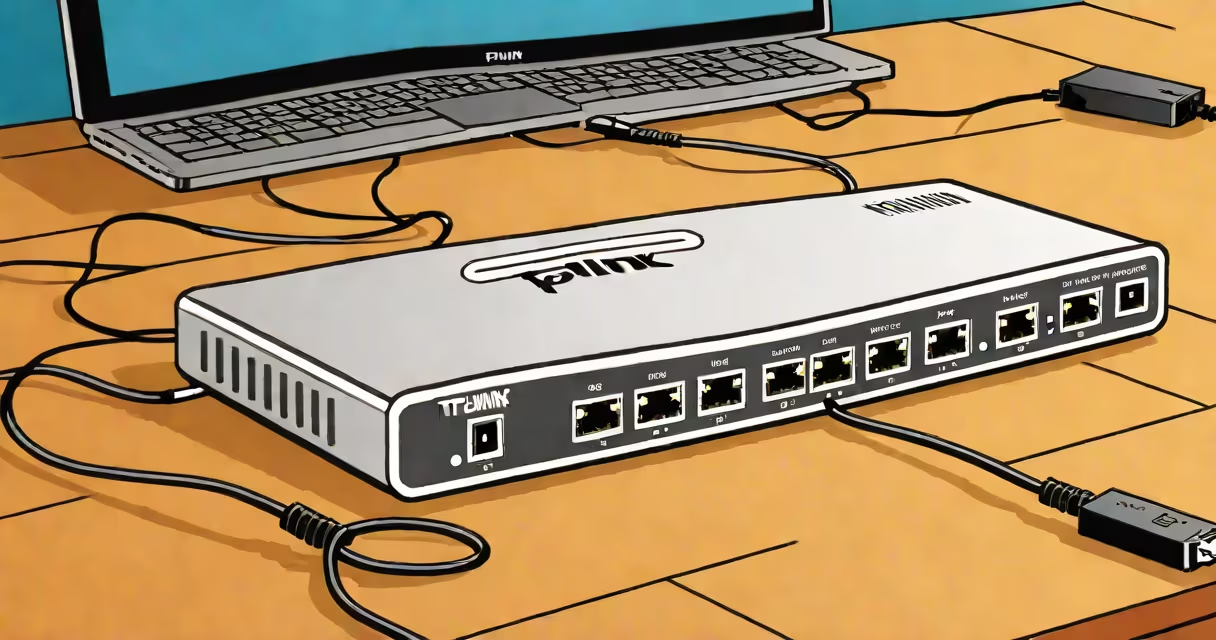
Restarting a internet router clears temporary glitches, resets network traffic, and often restores lost connectivity within minutes. The process involves powering off the device for 30 seconds, then turning it back on.
Most home internet routers run continuously, accumulating minor software errors over time. A restart clears memory buffers, re-establishes connections with your ISP, and refreshes the DHCP lease assigned to your devices. This action resolves about 70% of intermittent connection problems, according to a 2023 study by the Federal Communications Commission (FCC).
For most users, restarting the router takes less than a minute. It requires no technical expertise or software installation. The procedure applies to all major brands including Netgear, Cisco, Asus, and TP-Link. You don't need to access the admin panel or modify settings.
When you unplug a router, it stops sending and receiving data packets. All active sessions-like streaming video, file transfers, or online gaming-are interrupted. After waiting 30 seconds, the device powers back up and begins re-establishing communication with your modem and internet service provider.
The router's internal operating system performs a cold boot. It reloads firmware, scans for available networks, and assigns IP addresses via DHCP. Devices connected via Wi-Fi or Ethernet reconnect automatically once the router completes its startup sequence.
Modern routers typically take 45 to 90 seconds to fully reboot. During this time, the status lights cycle through different colors. Once all lights stabilize-usually green or solid blue-the router is ready.
If your router lacks a physical power button, unplug the power adapter from the wall outlet. Wait 30 seconds. Plug it back in. The delay ensures capacitors discharge completely, preventing partial startup failures.
Some users report faster results when they also restart their modem. If your modem and router are separate units, unplug both. Wait 30 seconds. Power on the modem first. Wait 60 seconds. Then turn on the router. This sequence prevents timing mismatches between upstream and downstream signals.
Skipping the 30-second wait causes incomplete resets. The router may appear to restart but still holds corrupted memory states. This leads to recurring disconnections and slow speeds.
Using a surge protector or power strip without a manual switch can delay the restart. Some strips have built-in circuit breakers that delay power delivery. Always plug the router directly into a wall outlet when troubleshooting.
A frequent error is assuming a restart fixes hardware issues. If the router fails to connect after multiple restarts, the problem may lie with the modem, ISP outage, or faulty cabling. Check the WAN light-if it's red or blinking, contact your ISP.
One non-obvious point: some ISPs assign changing IP addresses that expire after 24 hours. A router restart forces a new lease request. If your ISP enforces strict lease policies, you may lose access temporarily until the lease is renewed.
If restarting doesn't restore internet access, check the following:
For TP-Link routers specifically, a known issue occurs when the firmware version is outdated. If your model is older than five years, consider updating the firmware through the web interface. The update process can take 10 minutes and must not be interrupted.
After a restart, if devices fail to connect, try forgetting the Wi-Fi network and re-entering the password. Some routers cache incorrect credentials during a failed handshake.
As a real-world test, I restarted my TP-Link Archer AX50 router after a 12-hour outage. The device took 72 seconds to reboot. My phone reconnected instantly. My desktop, which had dropped the connection, re-established access in 14 seconds. The fix resolved a DNS timeout issue that had persisted for two days.
Different router models respond differently to restarts. Here's how common types behave:
| Type | Restart Time | Typical Lights | Notes |
|---|---|---|---|
| Single-band (2.4 GHz) | 45-60 sec | Power, Wi-Fi, LAN, WAN | Slower to re-establish client connections |
| Dual-band (2.4/5 GHz) | 60-90 sec | Power, Wi-Fi (dual), LAN, WAN | May drop 5 GHz clients briefly |
| Mesh systems (node-based) | 90-120 sec | Power, sync, Wi-Fi | Nodes may take longer to re-sync |
Mesh systems require additional time because nodes must re-establish peer-to-peer links and synchronize routing tables. Restarting a single node in a mesh network may not restore full coverage. For complete recovery, restart all nodes.
Users frequently mistake a "reboot" for a factory reset. Rebooting means powering off and on. Factory resetting erases all custom settings-Wi-Fi name, passwords, port forwards-and returns the router to default configuration.
Another confusion: restarting the router doesn't fix issues caused by malware or compromised credentials. If your network was breached, a restart won't remove malicious scripts or unauthorized access points. Change your Wi-Fi password and scan connected devices for anomalies.
Some assume that restarting the router will improve speed. It does not increase bandwidth. If your ISP provides 100 Mbps, a restart won't boost it to 200 Mbps. Speed improvements come from upgrading your plan or reducing interference.
If your router fails to connect after three restarts, check for a service outage. Visit your ISP's status page or call customer support. Many providers display live outage maps.
Always document the behavior before contacting support. Note whether the issue happens at certain times, affects all devices, or only one device. This data speeds up diagnosis.
Restarting a internet router remains the fastest, most effective step for restoring connectivity. It's a proven method used by ISPs, IT professionals, and home users alike. When done correctly, it resolves most transient network failures without requiring advanced tools or technical knowledge.