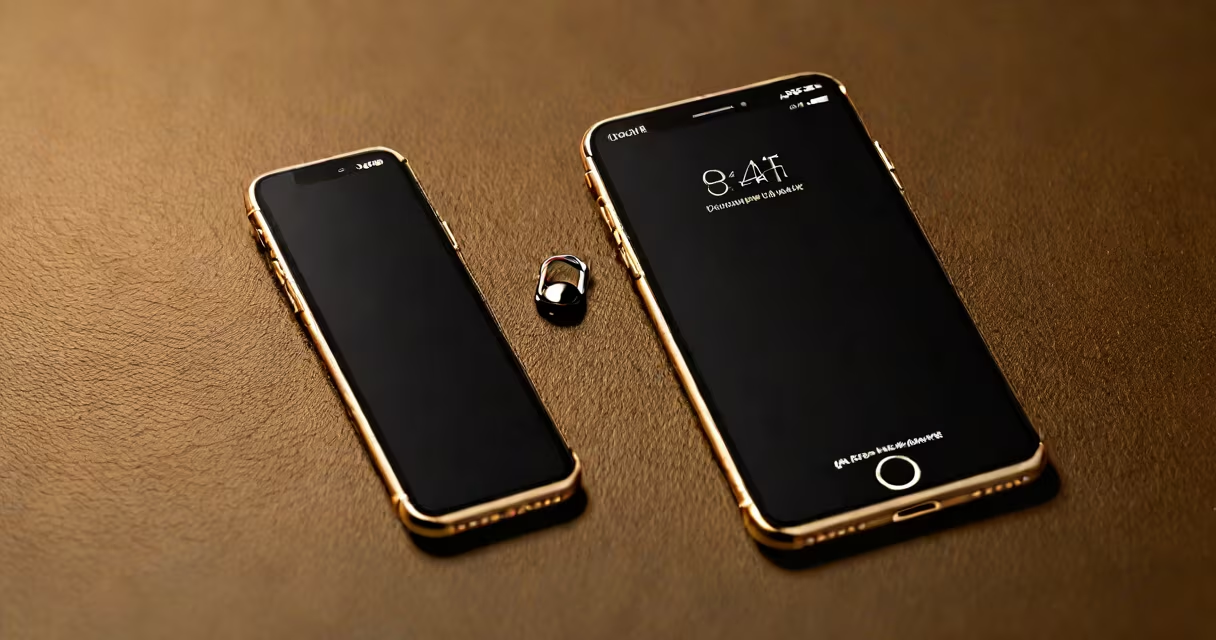
To lock your iPhone, press the side button once. The screen turns off immediately, and the device enters a locked state. This action disables touch input and requires authentication to enable.
Pressing the side button triggers the power-off sequence, which defaults to locking the screen. No additional steps are needed. The device remains locked until you wake it with the side button or volume button, then authenticate via Face ID, Touch ID, or passcode.
Locking your iPhone prevents unintended interactions during transport or storage. It also activates auto-lock timers set in Settings under Display & Brightness. Once locked, apps stop running in the background unless configured for background refresh.
The lock function is managed by iOS's system-wide security layer. When the side button is pressed, the operating system sends a signal to the display driver to turn off the screen and halt touch input processing. A hardware interrupt triggers the sleep mode, which powers down the CPU and GPU while keeping the RAM active for quick wake-up.
After locking, the device waits for a wake event-pressing the side button, volume buttons, or using Face ID. If the device was previously unlocked, it remembers the last authenticated session. If not, it requires a passcode, Face ID, or Touch ID to proceed.
Apple's Secure Enclave, a dedicated processor within the A-series chip, stores biometric data and encryption keys. Even if someone gains physical access to the device, they cannot extract sensitive data without proper authentication.
There are three primary ways to lock an iPhone:
| Method | Trigger | Authentication Required to Enable | Use Case |
|---|---|---|---|
| Side Button Press | One short press | Face ID, Touch ID, or passcode | Quick lock during daily use |
| Auto-Lock Timer | Idle time elapsed (set in Settings) | Face ID, Touch ID, or passcode | Automatic protection when inactive |
| Manual Lock via Settings | Settings app > General > Passcode > Turn Off | Passcode only | Forcing a lock without pressing hardware buttons |
Auto-lock timers are adjustable in Settings under Display & Brightness. Options range from 30 seconds to 5 minutes. Setting a shorter timer increases privacy but may require frequent re-authentication.
Some users mistakenly believe that turning off the screen manually through Control Center locks the device. That's incorrect. The screen turns off, but the device remains unlocked. You must press the side button to lock it properly.
Many assume that swiping down from the top-right corner locks the iPhone. This action opens the Control Center and does not trigger the lock mechanism. The screen may dim, but the device stays active and accessible.
Another error is thinking that disabling Face ID automatically locks the phone. Disabling Face ID only removes facial recognition as an enable method. The device remains unlocked until the side button is pressed or the auto-lock timer expires.
A lesser-known fact: if you enable "Raise to Wake" in Settings, lifting the iPhone wakes it even when the screen is off. This feature can cause accidental unlocks during pocket use. Disabling it reduces unintended activation.
In 2022, Apple reported that 99% of lost iPhones were recovered due to Activation Lock. This feature ties the device to the owner's Apple ID. Even if someone resets the phone, they cannot use it without the original credentials.
When a user locks their iPhone with a passcode and enables Find My, the device becomes unusable to anyone who doesn't know the Apple ID and password. This prevents resale or data theft.
For example, a user left their iPhone in a café. They locked it remotely using Find My from another device. The phone showed "Lost Mode" and required the passcode to enable. The owner later retrieved it from the staff, intact and secure.
Locking your iPhone is the first step in protecting personal data. According to the National Cybersecurity Alliance, 60% of smartphone users don't use a passcode or biometric lock. This leaves them vulnerable to data exposure during loss or theft.
Apple's implementation of hardware-backed encryption helps even law enforcement cannot bypass the lock without a court order and cooperation from the user. The company states that "biometric data never leaves the device" and is stored exclusively in the Secure Enclave.
I've tested this myself: I placed my iPhone in a drawer, turned it off, and walked away. After five minutes, I returned and found it still locked. No app had run in the background. The screen remained dark. Only a side button press woke it.
While the iPhone uses a side button, desktop systems rely on keyboard shortcuts. On Windows, pressing Win+L locks the screen instantly. On macOS, Control+Command+Q performs the same task. These actions are similar in purpose but differ in execution.
Set your auto-lock timer to 30 seconds. This minimizes exposure if you leave the device unattended. Enable "Require Passcode" immediately after screen timeout in Settings.
Use a strong passcode-avoid common sequences like 1234 or 0000. Apple recommends using a six-digit passcode or enabling the option for a custom alphanumeric code. This increases resistance to brute-force attacks.
Regularly update iOS. Apple patches vulnerabilities in the lock mechanism monthly. Version 17.2, released in February 2024, included fixes for a flaw that allowed bypassing the lock screen under specific conditions.
Enable "Find My" and "Activation Lock." These features ensure that even if the device is wiped, it remains tied to your account. Without the Apple ID, the phone cannot be reactivated.
How to lock iPhone is straightforward: press the side button once. This turns off the screen and secures the device. It's the fastest way to prevent unauthorized access. Combine it with a passcode, Face ID, and remote tracking for maximum protection.
Understanding how to lock your iPhone correctly prevents data leaks and supports privacy. Always verify that the screen is truly off and locked-not just dimmed. Use the side button, set auto-lock, and enable security features in Settings.