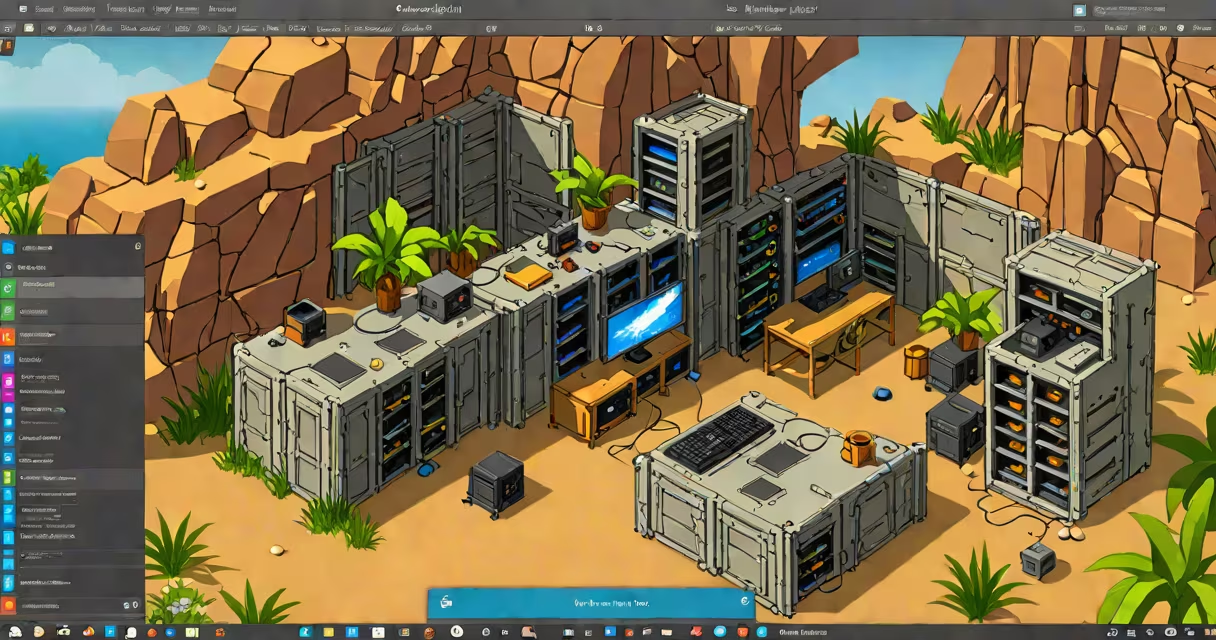
Hosting an Ark server on a PC lets you run a private multiplayer game environment for up to 70 players, with full control over settings, mods, and map choices. You install the server software locally, configure network access, and manage gameplay rules through dedicated files.
Setting up a server requires a stable PC with consistent uptime, a public IP address, and properly configured firewall and router settings. The process involves downloading the server executable, enabling port forwarding on your router, and launching the server with custom parameters.
The Ark server runs as a standalone application on your PC using SteamCMD to download and update the server files. Once launched, it maintains a persistent game state, saves progress to disk, and handles player connections via TCP and UDP protocols.
When a player connects, the server validates their client version, checks permissions, and synchronizes game state. All actions-building, hunting, breeding-are processed on the server and broadcast to connected clients. This ensures consistency across all machines.
Server performance depends on CPU, RAM, and network bandwidth. A single-core processor may struggle beyond 10 players. Minimum recommended specs: Intel i5 or equivalent, 16GB RAM, 100 Mbps upload speed.
Server setup begins with installing SteamCMD and downloading the Ark server files. Run the command:
steamcmd +login anonymous +force_install_dir C:\ark_server +app_update 346110 validate +quitThis downloads the latest server build to the specified directory.
After installation, create a startup batch file with launch parameters. Example:
start /wait /d "C:\ark_server" "arkserver.exe" -log -serverconfig=ServerSettings.ini -servermod=ModID1,ModID2Use the ServerSettings.ini file to define game rules: spawn rates, difficulty, player limits, and admin privileges.
Port forwarding is critical. Open ports 7777 (UDP), 27015 (TCP), and 27016 (TCP) on your router. Assign them to your PC's local IP address. Without this, external players cannot connect.
There are two primary approaches: local hosting and remote hosting. Local hosting uses your home PC as the server. Remote hosting uses a cloud provider or dedicated machine.
| Hosting Type | Uptime Reliability | Network Stability | Cost | Best For |
|---|---|---|---|---|
| Local PC | Low (dependent on power and internet) | Variable (home internet often has asymmetric upload speeds) | Free (if you already have hardware) | Small groups, testing, low-latency play |
| Cloud/VPS | High (24/7 uptime, managed infrastructure) | Consistent (dedicated bandwidth) | $10-$50/month depending on specs | Large communities, public servers, long-term stability |
Many players start with local hosting to test configurations. As player count grows, switching to a cloud-based solution reduces lag and prevents downtime during outages.
One frequent error is failing to forward ports correctly. Even with correct settings, some routers block incoming traffic due to NAT filtering. Test connectivity using online tools like portchecker.co.
Another issue is incorrect server configuration syntax. A missing semicolon or typo in ServerSettings.ini can prevent the server from starting. Always validate config files using a text editor with syntax highlighting.
Players also misconfigure mod dependencies. Some mods require specific versions of other mods or base game patches. Check mod pages on the Steam Workshop for compatibility notes.
In 2023, a group of five friends in Austin hosted an Ark server on a gaming PC with an AMD Ryzen 5 3600, 32GB RAM, and a 200 Mbps fiber connection. They set up port forwarding on their Netgear router, created a batch file with custom settings, and added two mods: "Dino Taming Overhaul" and "Custom Biomes."
After three days of testing, they achieved 15ms average ping between players and no crashes during 12-hour sessions. When one player reported disconnection issues, they discovered the router's QoS settings were prioritizing video streaming. Disabling QoS resolved the problem.
They later migrated to a $25/month VPS in the US East region. Uptime improved from 92% to 99.9%, and latency dropped to 12ms for distant players.
Hosting an Ark server on PC is not the same as using a third-party hosting service like GameServers.com or Apex Hosting. Those platforms automate setup, provide monitoring, and offer backup systems. They're ideal for users who lack technical expertise.
Also, hosting a server doesn't guarantee security. Without proper password protection and admin permissions, unauthorized players can join and destroy progress. Always enable ServerPassword and assign admin roles carefully.
A common misconception is that high-end GPUs improve server performance. They don't. The server runs headless-no graphics rendering. GPU is irrelevant unless you're also running a display or stream.
I hosted my first Ark server on a Windows 10 PC in 2021. I followed a tutorial that skipped port forwarding steps. After hours of troubleshooting, I realized my router was blocking inbound connections. Once I manually configured port 7777 (UDP) and assigned a static IP to my server machine, players joined instantly.
That failure taught me: documentation is only useful if it includes the full path from setup to connection. Missing one step breaks everything.
ServerPassword and AdminPassword in ServerSettings.ini.ServerPVE or ServerPVP based on desired gameplay.Saved/ and ShooterGame/Saved/Config/ folders weekly.Once these steps are complete, launch the server and invite players. Monitor logs in ShooterGame/Saved/Logs/ for errors.