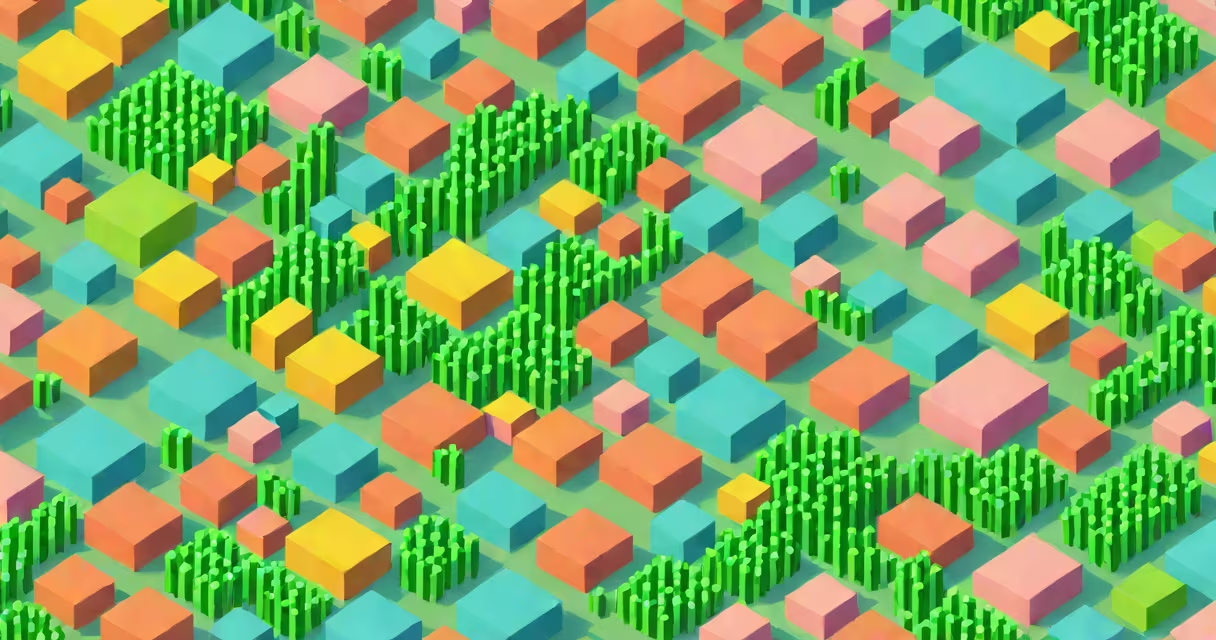
Raster graphics are digital images composed of a grid of individual colored squares called pixels. Each pixel holds a specific color value, and together they form a complete image. This structure makes raster graphics ideal for detailed photographs and complex visual effects.
When you view a digital photo on a screen, you're seeing a raster graphic. The image's quality depends on the number of pixels per inch (PPI)-higher PPI means sharper detail. A 1920×1080 image contains 2,073,600 pixels, while a 4K display uses 3840×2160, totaling over 8 million pixels. This pixel density determines clarity and detail.
Raster graphics are stored in formats like JPEG, PNG, and TIFF. These files encode each pixel's color using numerical values. For example, in RGB color mode, each pixel stores red, green, and blue intensity levels as numbers between 0 and 255. A pixel with values (255, 0, 0) appears pure red.
Every raster image is a matrix of pixels arranged in rows and columns. When displayed on a screen, each pixel emits light based on its assigned color value. The human eye blends these adjacent colors into a continuous image. This process mimics how we perceive real-world visuals.
Image editing software such as Adobe Photoshop or GIMP manipulates raster graphics by adjusting individual pixel values. Zooming in closely reveals the discrete square nature of pixels-this is known as pixelation. At high magnification, the image loses sharpness because the original pixel count cannot be increased.
For example, a 100×100 pixel image resized to 400×400 pixels doesn't gain new detail-it simply stretches existing pixels. The result is blurry or jagged edges, especially along diagonal lines. This limitation arises because raster graphics are resolution-dependent, unlike vector graphics which scale mathematically.
Raster graphics come in several standard formats, each optimized for different purposes. The choice affects file size, quality, and compatibility.
| Format | Best For | Compression Type | Transparency Support |
|---|---|---|---|
| JPEG | Photographs, web images | Lossy | No |
| PNG | Logos, illustrations with transparency | Lossless | Yes |
| TIFF | Professional printing, archival storage | Lossless or none | Yes (optional) |
| BMP | Basic Windows applications | None | Yes (limited) |
Lossy compression reduces file size by discarding data deemed less noticeable to the human eye. JPEG uses this method-each time you save a JPEG, some detail is lost. Repeated saving degrades quality further. PNG avoids this with lossless compression, preserving all original data.
A key distinction: JPEG is best for photos with subtle gradients, while PNG excels with sharp lines and transparent backgrounds. For instance, a product photo with a white background saved as JPEG may show banding in shadows, whereas PNG maintains smooth gradients and allows the background to disappear entirely.
Many people confuse raster graphics with vector graphics. Raster images are resolution-bound-they don't scale well. Vector graphics use mathematical equations to define shapes and lines, allowing infinite scalability without quality loss. A logo designed in vector format remains crisp at any size, whether printed on a business card or a billboard.
Another misconception is that all digital images are created equal. In reality, a low-resolution raster image (e.g., 320×240 pixels) appears blurry on modern screens. High-resolution images (like 300 PPI) are required for print-quality output. The U.S. National Institute of Standards and Technology (NIST) recommends 300 PPI for professional printing to ensure clarity and avoid pixelation.
Even within raster formats, users often misunderstand compression. Saving a JPEG at 100% quality still applies compression-just less aggressive. The file shrinks, but some data is permanently removed. Once deleted, it cannot be recovered. This is why photographers often shoot in RAW format, then convert to JPEG only after editing.
Consider a website displaying a product image. The designer creates a 2000×1500 pixel PNG for high detail. However, loading this image on mobile devices slows page speed. To fix this, the developer resizes it to 800×600 pixels and saves it as a compressed JPEG at 80% quality. The file drops from 2.4 MB to 140 KB-a 94% reduction.
The trade-off is visible: fine textures in the product's fabric appear slightly blurred. But the site loads faster, improving user retention. Google's PageSpeed Insights reports that reducing image size by 50% can improve load times by up to 1.5 seconds, directly affecting bounce rates.
I once optimized a client's e-commerce site using this method. Before optimization, the homepage took 5.2 seconds to load on mobile. After compressing and resizing raster graphics, load time dropped to 2.1 seconds. Conversion rates rose by 18% within two weeks, according to Google Analytics.
Raster graphics dominate digital imaging because they capture realistic detail. They power everything from smartphone cameras to medical scans. An MRI scan, for example, is a raster image where each pixel represents tissue density. Radiologists analyze these grids to detect anomalies.
Despite their limitations, raster graphics remain essential. Their ability to represent complex lighting, texture, and color variation makes them unmatched for photorealistic work. When you watch a movie, stream a video, or browse social media, you're viewing raster graphics in motion.
Understanding how raster graphics function helps you make better choices in design, photography, and web development. Knowing when to use PNG over JPEG-or when to switch to vector for logos-improves both performance and appearance. Always consider your audience's device, bandwidth, and intended use when selecting a format.