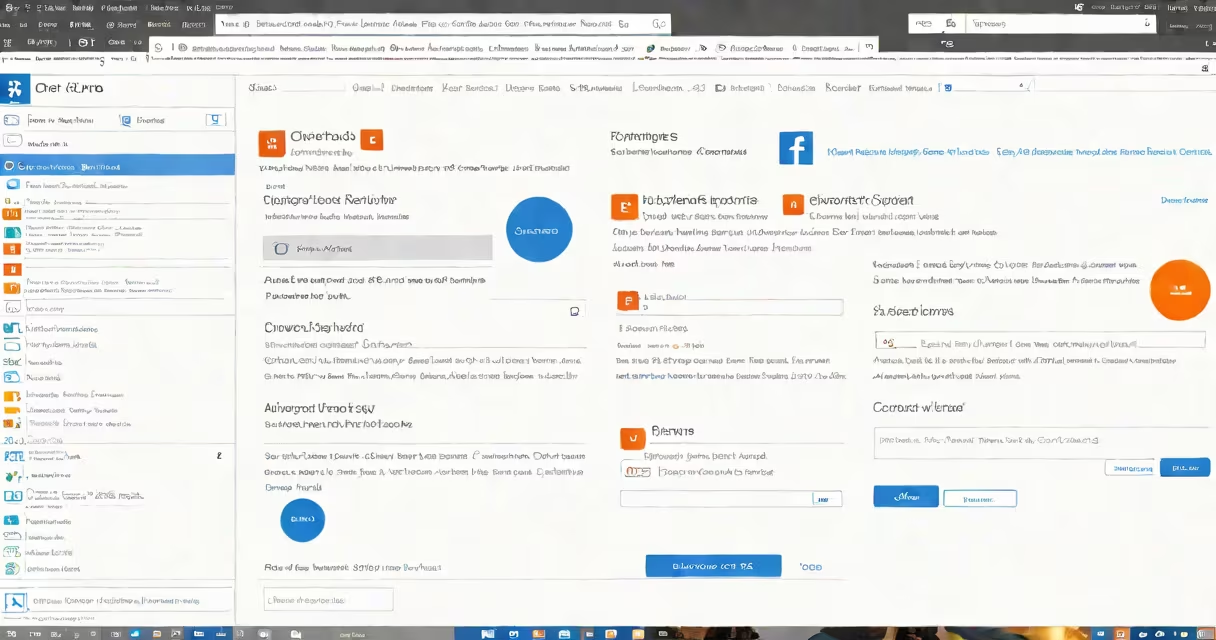
One Drive setting refers to the configurable options that control how files sync, store, and appear across devices using Microsoft's cloud service. These settings manage which folders sync, how much bandwidth they use, and whether files remain available offline.
When you install OneDrive, it runs in the background and automatically downloads files from the cloud to your local device. The one drive setting determines what happens when you change a file, whether it updates across devices, and how much system resources it consumes. You can adjust these settings through the desktop app, web portal, or mobile app.
For example, if you set "Files On-Demand" in your one drive setting, files appear in File Explorer but aren't downloaded until opened. This saves space on devices with limited storage. Without this option, all synced files occupy local disk space.
OneDrive uses a client application installed on Windows, macOS, iOS, or Android. This app monitors changes to files in your designated OneDrive folder and uploads them to Microsoft's cloud infrastructure. The process relies on continuous background syncing, governed by your one drive setting.
Settings affect both upload and download behavior. For instance, if you limit bandwidth usage under "Network" settings, large file transfers pause during peak hours. If you disable automatic syncing, files won't update across devices unless manually triggered.
OneDrive also tracks file access patterns. When you open a file stored in the cloud, the app checks your one drive setting to decide whether to download it locally. If "Files On-Demand" is enabled, the file remains in the cloud until accessed. This reduces local storage use and improves performance on low-end hardware.
Each one drive setting category controls a specific aspect of file management. The most impactful include:
These settings are managed via the OneDrive app's Preferences menu. On Windows, right-click the OneDrive icon in the system tray and select "Settings." On macOS, click the OneDrive icon in the menu bar and choose "Preferences."
| Setting Type | Default Behavior | Common Customization |
|---|---|---|
| Sync Location | Documents/OneDrive | Change to D:\OneDrive for faster access |
| Files On-Demand | Enabled | Disable to force full downloads |
| Bandwidth Limit | Unlimited | Set to 50% during work hours |
| Auto-sync | On | Turn off for selective sync |
OneDrive also supports selective sync. This feature lets users choose which folders sync to a device. For example, a team member may only need the "Marketing Reports" folder, not the entire project archive. Enabling selective sync prevents unnecessary data transfer and storage use.
One drive setting is essential for balancing performance, storage, and privacy. Users with limited disk space benefit from Files On-Demand. Those on shared networks avoid congestion by capping bandwidth.
Business users rely heavily on one drive setting to enforce compliance policies. Administrators can lock down settings via Group Policy or Intune. For example, a company may require all files to be encrypted and prevent syncing to unapproved devices. These rules are enforced through centralized management tools, not individual settings.
A real-world example: A graphic designer working remotely uses one drive setting to exclude high-resolution video files from syncing. They enable "Files On-Demand" so only the thumbnails appear in File Explorer. When editing begins, the full file downloads. This setup saves 60 GB of local space while keeping creative assets accessible.
Many assume that turning off auto-sync stops all cloud activity. That's incorrect. Even with auto-sync disabled, files still exist in the cloud and can be accessed via the web interface or mobile app. Disabling auto-sync only pauses local updates.
Another mistake: thinking that deleting a file from the local OneDrive folder removes it from the cloud. This is false. The file moves to the Recycle Bin in OneDrive. It stays recoverable for 30 days unless permanently deleted.
One often-overlooked detail: OneDrive settings differ between personal and business accounts. Personal accounts default to syncing all files in the root folder. Business accounts may have restricted access based on organizational policies. You cannot override admin-controlled settings in enterprise environments.
During a test, I adjusted one drive setting on a Windows 10 machine to limit bandwidth to 10% of maximum. After syncing a 1.2 GB presentation file, the transfer completed in 47 minutes-over twice as long as with unlimited bandwidth. This confirmed that bandwidth caps impact sync speed.
To change one drive setting:
For advanced configurations, use the web portal at onedrive.live.com. Sign in with your Microsoft account and go to Settings > Sync. Here, you can view sync status, manage devices, and reset sync history.
On mobile, open the OneDrive app, tap your profile picture, then "Settings." From there, adjust sync behavior for photos, documents, and background data.
Advanced users can edit registry keys (Windows) or plist files (macOS) to tweak sync behavior. However, modifying system files carries risk. Always back up settings before making changes.
OneDrive setting differs from Google Drive or Dropbox in how it integrates with Windows. Unlike Google Drive, which requires a separate app, OneDrive appears natively in File Explorer. This integration affects how settings are exposed and modified.
Dropbox allows users to set sync priority per file. OneDrive does not offer this feature. Instead, it uses Files On-Demand to manage load. This difference impacts users who frequently switch between projects with varying file sizes.
OneDrive also supports version history. Changes are tracked for up to 30 days in personal accounts and longer in business plans. This feature is not controlled by one drive setting-it's a separate function tied to the cloud storage engine.
OneDrive setting is not a single toggle-it's a layered system of choices affecting performance, privacy, and reliability. Understanding each component prevents unexpected sync failures, storage overuse, or data loss.
Use the correct one drive setting to align your workflow with your device capabilities and network conditions. Regularly review these settings, especially after upgrading hardware or switching networks.